49
EN
Introduction Connections
Basic Setup /
DVB Operations
Recording Playback Editing Function Setup Others
Using the Play Menu
Play menu is a collection of frequently used menus during
playback.Through the play menu, you can easily access the
useful functions during playback.
e.g.)
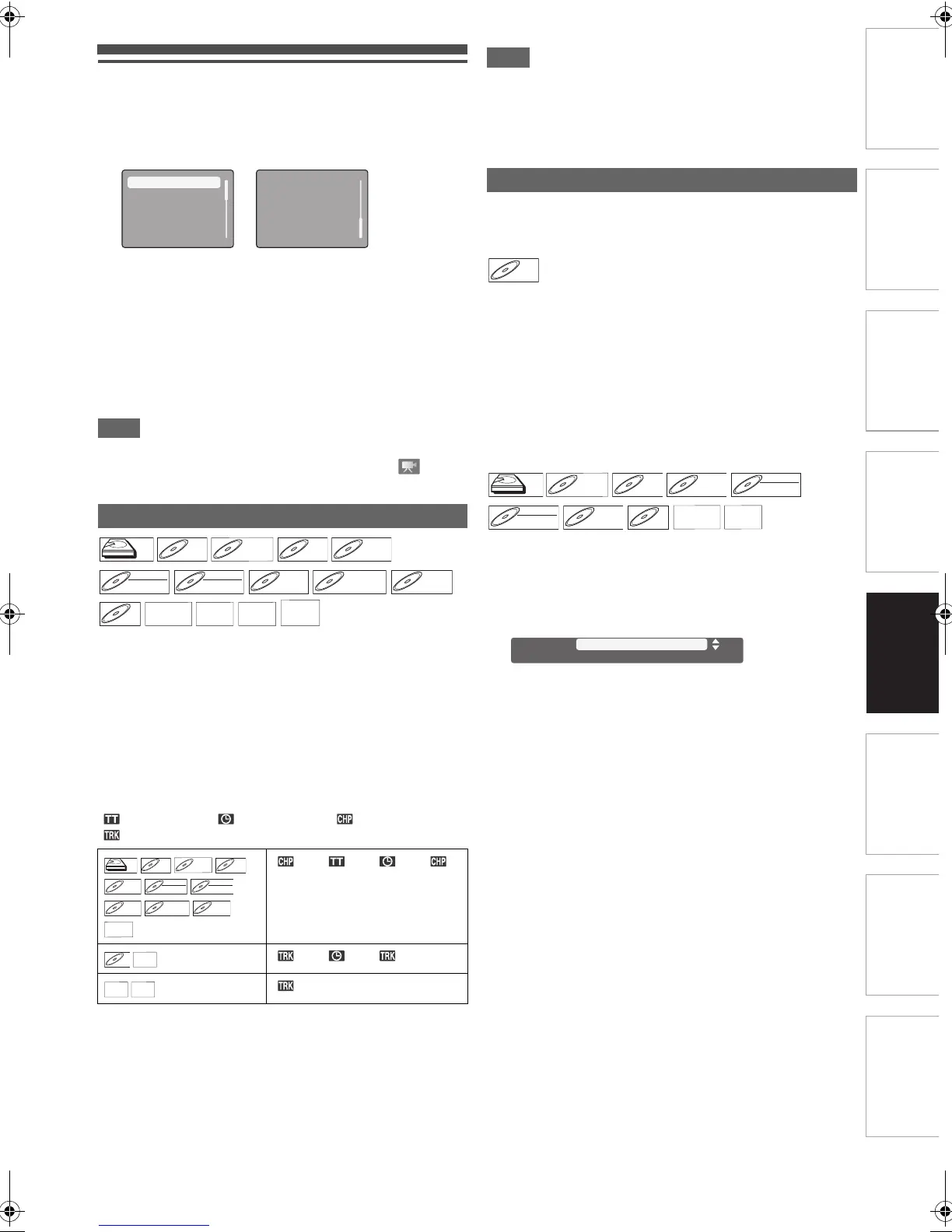
1 During playback, press [OPTION] to call up the
play menu screen.
2 Select an item to set, then press [ENTER\OK].
• Information display will appear.
3 Find the appropriate instruction from the
following sections, and set the item.
•Press [OPTION] to exit the play menu.
•Press [RETURN\BACK] to exit the information display.
• Available menus differ depending on the media.
• Angle information display is available only when is
shown.
1 Select the desired search mode using [K \ L].
2 Press [B].
3 Enter the desired number using [K \ L].
• You can also enter the number directly using
[the Number buttons].
•Press [CLEAR] to erase the incorrect input.
4 Press [ENTER\OK].
• The search will start.
“ ”: Title search, “ ”: Time search, “ ”: Chapter search,
“ ”: Track search
•For some DivX
®
files, time search may not function.
• As for the BD-video, how it performs will be strongly
determined by the disc, and may not perform as described
here.
• Time search function is available only in the same title /
file (track).
When playing back video material recorded with 2 or more
soundtracks (these are often in different audio languages or
audio formats), you can switch them during playback.
1 Select “Primary” or “Secondary” using [K \ L],
then press [ENTER\OK].
2 Select the desired audio stream using [K \ L].
• For “Secondary”, use [s \ B] to switch between current
audio setting and “Off”.
3 Press [RETURN\BACK] to exit.
1 For the titles recorded in TS mode:
Proceed to the step 2 in “Changing the Audio Mode” on
page 25.
For others:
Select the desired audio stream using [K \ L].
• For audio CD, you can select following options.
2 Press [RETURN\BACK] to exit.
Search
“” A “” A “” A “”
“” A “” A “”
“”
Search
Audio
Subtitle
Repeat
Noise Reduction
Virtual Surround
Angle
PIP
DVD-RW
DVD-RW
Video
DVD-R
DVD-R
CD
CD
JPEG
JPEG
DVD-RW
DVD-RW
VR
DVD+R
DVD+R
Switching Audio Soundtrack
Primary: Sets the audio for the primary video.
Secondary: Sets the audio for the secondary video.
Stereo: Both right and left channels are active (stereo).
L-ch: Only left channel is active.
R-ch: Only right channel is active.
BD-V
BD-V
DVD-RW
DVD-RW
VR
AVCHD
AVCHD
1 ENG
[Decoding Format] : Dolby D
Dolby D Multi-ch / 8
Audio
E4V21ED_EN.book Page 49 Friday, June 3, 2011 2:07 PM


 To Next Page