50
EN
• You can also access the audio information display by
pressing [AUDIO].
• When outputting the digital audio signal such as Dolby
Digital, DTS
®
, or MPEG from the COAXIAL (digital audio
out) or HDMI OUT jacks, you cannot switch the main (L)/Sub
(R) audio when playing back a title in HDD, BD-RE/-R, or VR
mode DVD-RW with the “Dolby D/Dolby D+/Dolby TrueHD”,
“DTS/DTS-HD” or “MPEG” setting set to “Bitstream”. If you
want to switch the audio, set “Bitstream” to “PCM”. (See
page 61.)
• The secondary audio will not be output when the secondary
video is not displayed or when “BD Audio Mode” is set to
“HD Audio Output”. (For some Blu-ray Disc™, secondary
audio will be output even when secondary video is off.)
• [AUDIO] may not work on some discs with multiple audio
streams or channels (e.g. Discs that allow changing audio
setting on the disc menu).
• If you select a language that has a 3-letter-language code,
the code will be displayed every time you change the audio
language setting. If you select any other languages, “---” will
be displayed instead. (See page 78.)
• If 4-digit-language code appears in the audio menu, refer to
page 78.
• If the disc has no audio language, “Not Available” will be
displayed on the TV screen.
Some video materials may have subtitles in 1 or more
languages. For commercially available discs, the supported
languages can be found on the disc case.
1 Select “Primary”, “Secondary” or “Style” using
[K \ L], then press [ENTER\OK].
2 Select the desired subtitle or style using
[K \ L].
• For “Secondary”, use [s \ B] to switch between current
subtitle setting and “Off”.
3 Press [RETURN\BACK] to exit.
1 For the titles recorded in TS mode:
Proceed to the step 2 in “Changing the Subtitle” on
page 26.
For others:
Select the desired subtitle using [K \ L].
•Use [s \ B] to switch between current subtitle setting
and “Off”.
2 Press [RETURN\BACK] to exit.
• You can also access the subtitle information display by
pressing [SUBTITLE].
• Some discs will only allow you to change the subtitles from
the disc menu or pop-up menu. Press [TOP MENU] or
[POP MENU\MENU] to display the disc menu or pop-up
menu.
• If 4-digit-language code appears in the subtitle menu, refer
to “Language Code List” on page 78.
• If the disc has no subtitle language or subtitle style, “Not
Available” will be displayed on the TV screen.
• During playback of the secondary video, the primary subtitle
setting is not available except when there is no subtitle for
the secondary video.
• If you select a language that has a 3-letter-language code,
the code will be displayed every time you change the subtitle
language setting. If you select any other languages, “---” will
be displayed instead. (See page 78.)
• For media with DivX
®
files, the screen only displays the
number of subtitle languages.
1 Select the desired repeat mode using [K \ L].
2 Press [RETURN\BACK] to exit.
• The repeat setting will be cancelled when you stop playback.
• The chapter, title, track repeat will be cleared when moving
to another chapter, title, file / track.
• Chapter and title repeat are not available with some scenes.
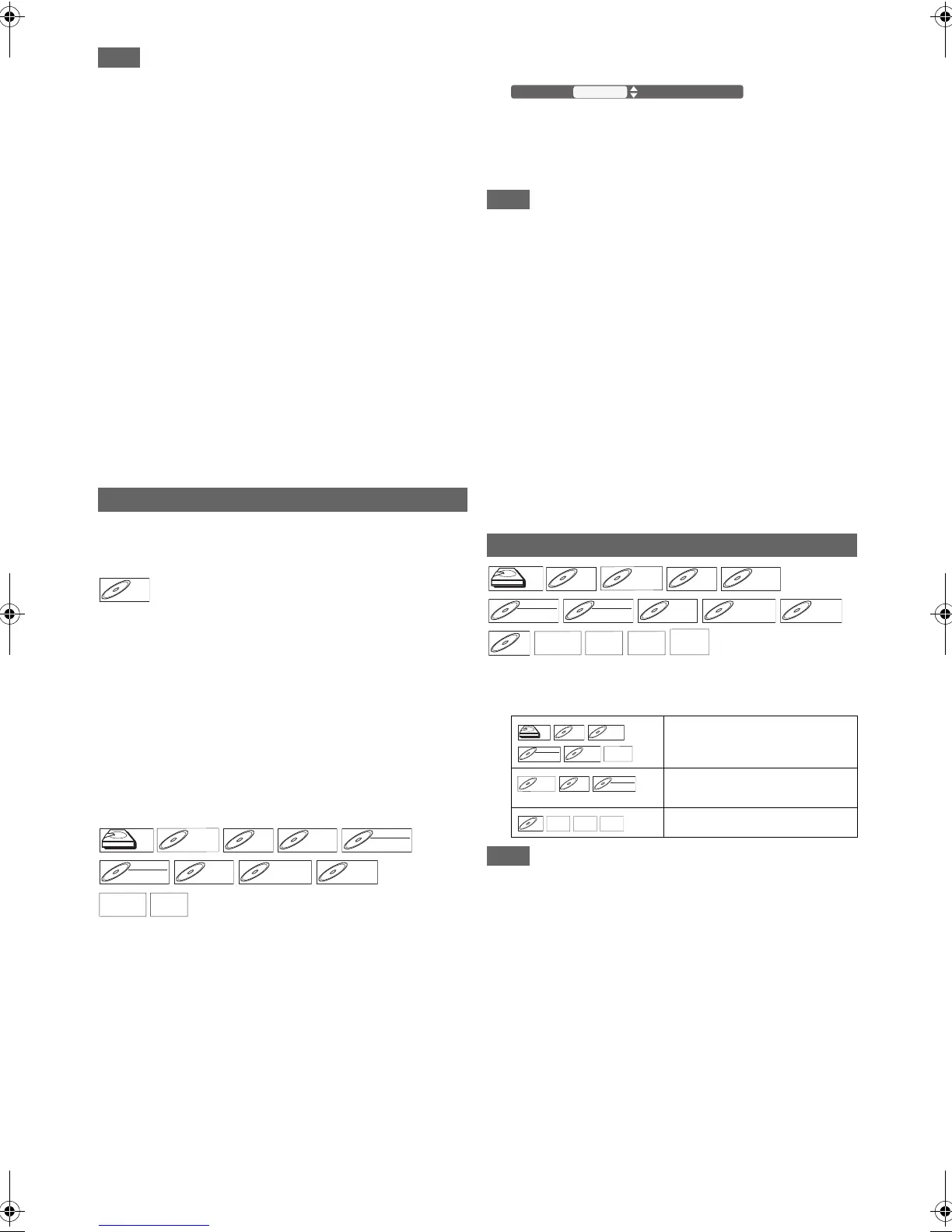
Switching Subtitles
Primary: Sets the subtitle for the primary video.
Secondary: Sets the subtitle for the secondary video.
Style: Sets style of the subtitle.
BD-V
BD-V
DVD-V
DVD-V
DVD-RW
DVD-RW
VR
DVD+RW
DVD+RW
AVCHD
AVCHD
Repeat Settings
“Off” A “Chapter” A “Title” A
“Off”
“Off” A “Chapter” A “Title” A
“All” A “Off”
“Off” A “Track” A “All” A “Off”
BD-RE
BD-RE
DVD-RW
DVD-RW
Video
DVD-R
DVD-R
BD-V
BD-V
DVD-R
DVD-R
BD-R
BD-R
DivX
DivX
®
E4V21ED_EN.book Page 50 Friday, June 3, 2011 2:07 PM


 To Next Page