–
10
–
EN
DVD FUNCTIONS
DVD FUNCTIONS
Playback
(
on page 11
)
P-SCAN
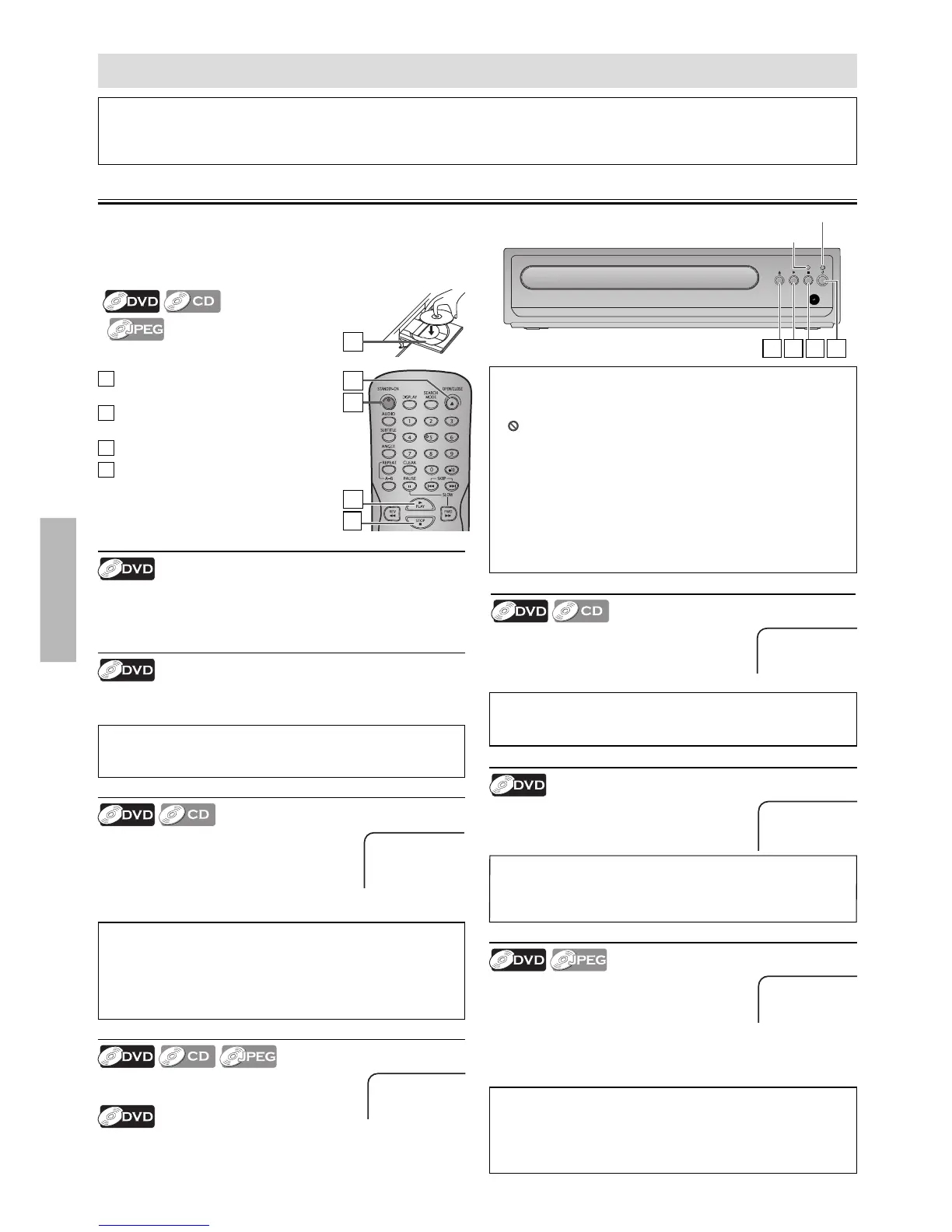
1
Press [STANDBY-ON] to turn on this
unit.
2
Press [OPEN / CLOSE A ] and insert a
disc with label facing up.
3
Press [ PLAY B ] to start playback.
4
Press [ STOP C ] to stop playback.
Lights up when Progressive setting is On.
Note(s):
• Slow Forward speed is di erent depending on the disc.
Approximate speed is ×1/2, ×1/4 and ×1/8.
Slow Forward Search
Press [ FWD g ] Repeatedly in the Pause
mode to select the required Forward speed.
To continue Playback, press [ PLAY B ].
Fast Forward / Reverse Search
Use [ FWD g ] or [ REV h ] Repeatedly
during Playback to select the required
Forward or Reverse Speed.
To continue Playback, press [ PLAY B ].
Pause and Step-by-Step Playback
Press [ PAUSE F ] during playback.
To continue Playback, press [ PLAY B ].
The disc goes forward by one Frame each time [ PAUSE F ] Key
is pressed in the Pause mode.
To continue Playback, press [ PLAY B ].
Note(s):
• Menu operations may vary depending on the disc.
Refer to the manual accompanying the disc for more details.
Resume Playback
Press [ STOP C ] during Playback. PRE STOP
icon will appear at the top-left on the TV
screen. Press [ PLAY B ], RESUME icon will
appear at the top-left on the TV screen and
Playback will Resume from the Point where
Playback was Stopped.
Note(s):
• To Cancel Resume, press [ STOP C ] one more time in the Stop
mode.
• The Resume Playback information stays in unit Memory even
when the Power is turned O , as long as the Disc stays in the
unit.
Note(s):
• Fast Forward or Reverse Search speed is di erent depending
on the disc. Approximate speed is ×2, ×4, ×8 and ×20.
Note(s):
• Zooming function does not work while the Disc Menu is
displayed.
• Some Part of the Picture may not be Zoomed depending on
the Disc or Playback status.
Disc Menu
Some discs contain menus which allow you to customize DVD
playback. Use [K / L / s / B] to select an item, then press
[ENTER] or [ PLAY B ].
2
Zoom
1) Press [ZOOM] Repeatedly during Playback
to select the required Zoom factor:
×1.5, ×2 or ×2.5.
2) Use [K / L / s / B] to Slide the Zoomed
Picture across the TV Screen.
3) To Exit the Zoom function, press [ZOOM] Repeatedly to select
“ZOOM 1”(Off).
Calling Up a Menu Screen during Playback
• Press [MENU] to call up the Disc menu.
• Press [TOP MENU] to call up the Title menu.
4
3
1
2
Before:
Turn On the TV, Amplifier and any other Device(s) which are
connected to this unit. Make sure the TV and Audio Receiver
(not supplied) are set to the correct Channel/Input.
Note(s):
• When you Play back a DVD or CD-R/-RW with JPEG Files, refer
to details on page 11.
• “ This operation is not available” may appear at the Top-left
on the TV Screen when the operation is prohibited by the disc
or this unit.
• Some DVD may Start Playback from title 2 or 3 due to speci c
programs.
• During the Playback of a 2-layered disc, pictures may Stop for
a moment. This happens while the 1st layer is being switched
to the 2nd layer. This is Not a Malfunction.
• You can change the On-screen language in “OSD” setting.
(Refer to page 17.)
Please note :
• Most instructions in this manual refer to Remote Control use.
• This unit will automatically turn On the Screen Saver after 5 minutes of inactivity and into the Standby mode after 25 minutes of
inactivity.
Lights up when power is On.
2 3 4 1


 To Next Page