Chapter 3 -- Installation--The Interface 1000 Personalization Label
3 - 17
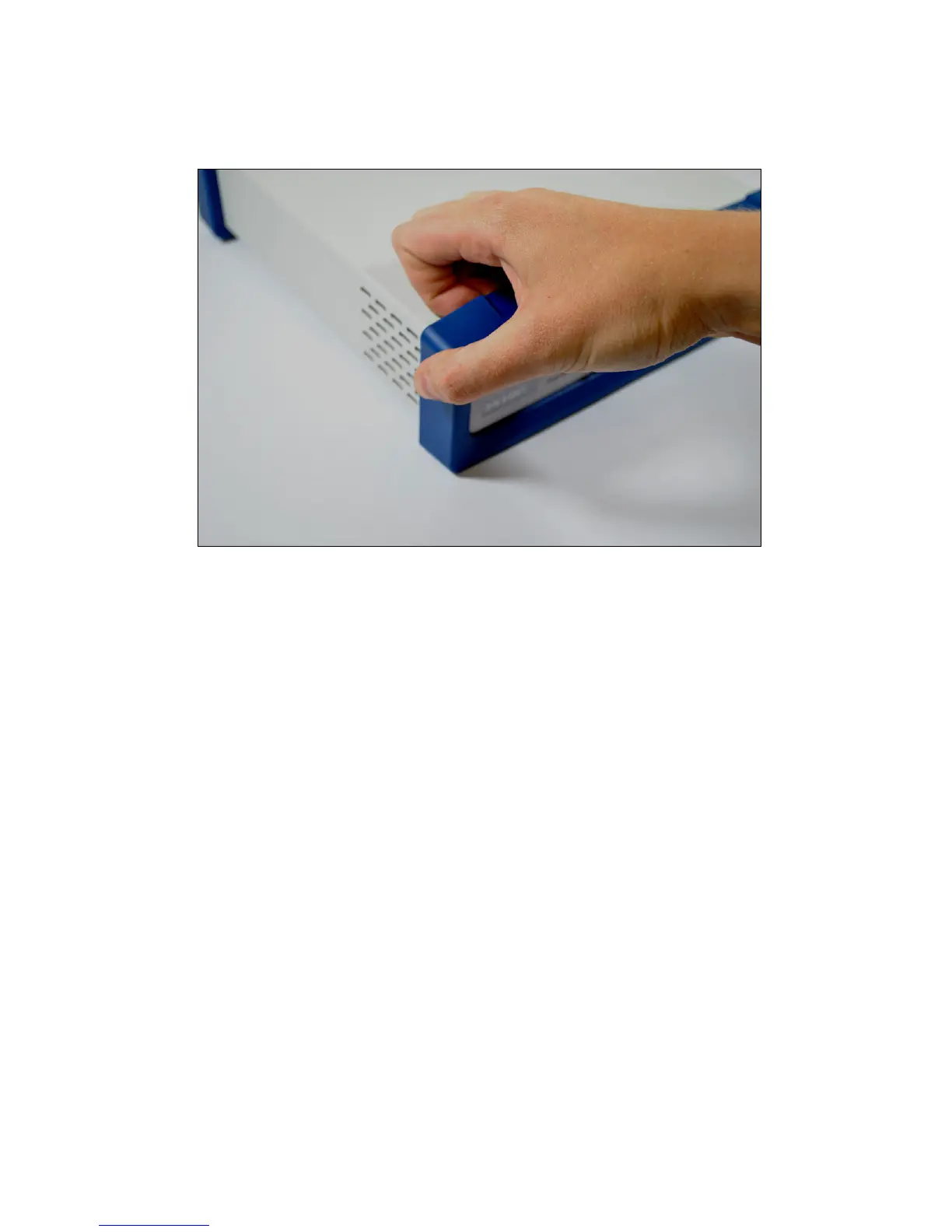
Figure 3-9
Removing the Front Bezel
To change a label:
1) If you are making a custom printed label, edit the Excel file and print a label sheet as described above.
If you are using the Gamry supplied label sheet, identify the location on the sheet where the new
label is found.
2) If you are handwriting on a blank label, do it now.
3) Use scissors to cut out the new label - Cut white labels on the black lines.
4) Power down the Interface 1000 that is getting the new label.
5) Remove the instrument's rubber front bezel (the rubber frame around the front panel). Tools should
not be required. See Figure 3-9.
You grip the bezel as shown in the Figure and pull the bezel away from the front panel. Some force
will be required. Don't worry about ripping the bezel - they are quite rugged. There is a 5 mm ear
on either side of the instrument that keeps the bezel in place.
6) Your Interface 1000 should now look like Figure 3-10 which shows the instrument with the front
bezel removed. Notice the blue tab on the left side on the instrument. This is part of the old label -
blue on the instrument in the photo.
7) Pull gently on the paper tab on the left side of the front panel to remove the existing label. You need
to pull out about 5 cm of label.
8) Insert the new label in the same spot as the old label. The text should face the front of the
instrument. A small tab of paper will extend beyond the instrument's front panel.


 To Next Page