Chapter 3 -- Installation--Firmware Update
3 - 12
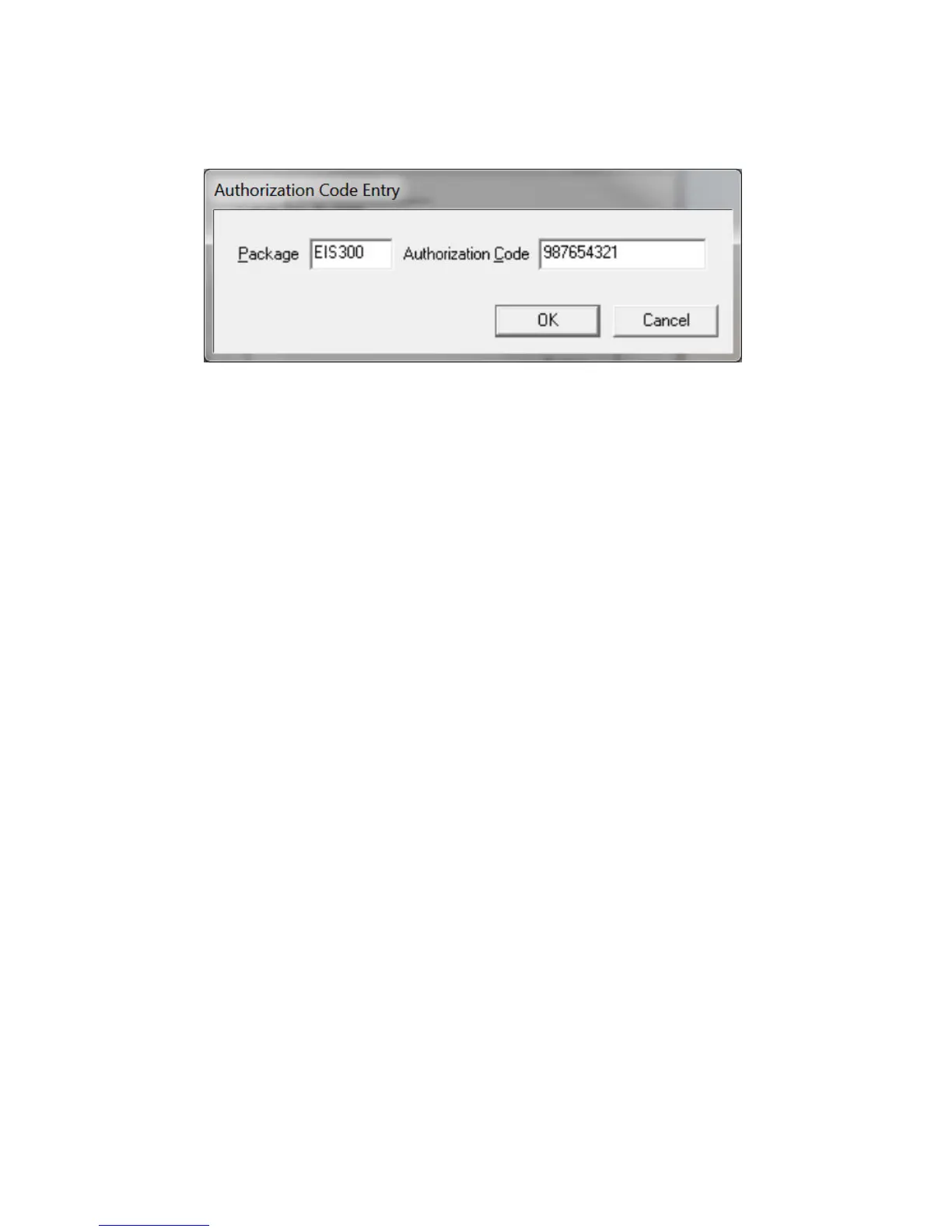
Figure 3-8
Enter an Authorization Code
Press OK when you are finished.
On occasion you may have to change the USB port used to connect the Interface 1000 to your computer.
The Windows Device manager will interpret an Interface 1000 on a new USB port as a new Interface 1000.
Firmware Update
Your Interface 1000 was shipped with the latest version of all its firmware. From time to time, Gamry makes
changes to the instrument's Firmware code, and a firmware update will be required to make use of the new or
improved code.
There are three separate firmware images that can be field updated on your Interface 1000. The first is the
Instrument Firmware. This is the program that handles most of the functionality of the Interface 1000. The
second is the Communications Firmware. This program handles the USB communications between your
Interface 1000 and the host computer. The third is the PLD firmware, which users should only change
following instruction by a Gamry Instruments representative.
Appropriate update files (firmware images) can be obtained from the Gamry Instruments website at
www.gamry.com. Download the file containing the new image and save it onto your computer’s hard disk.
Alternatively, every Gamry Software CD (or Gamry Software Flash Drive) contains a firmware folder that
contains firmware files compatible with that CD’s Framework revision.
You can initiate the Firmware Update process using the Framework Options, Instrument Manager...
command or using the Windows Device Manager. The Instrument Manager is the preferred method.
To update any of the Firmware, you must first select the appropriate device in the Instrument Manager, as
discussed in the Device Manager section. Once you have selected the appropriate device, click Firmware
Update and you will see a screen that looks like Figure 3-9:


 To Next Page