Connecting the Handheld Device to a Computer
NOTICE
To prevent corrosion, thoroughly dry the USB port, the weather cap, and the surrounding area before charging or
connecting to a computer.
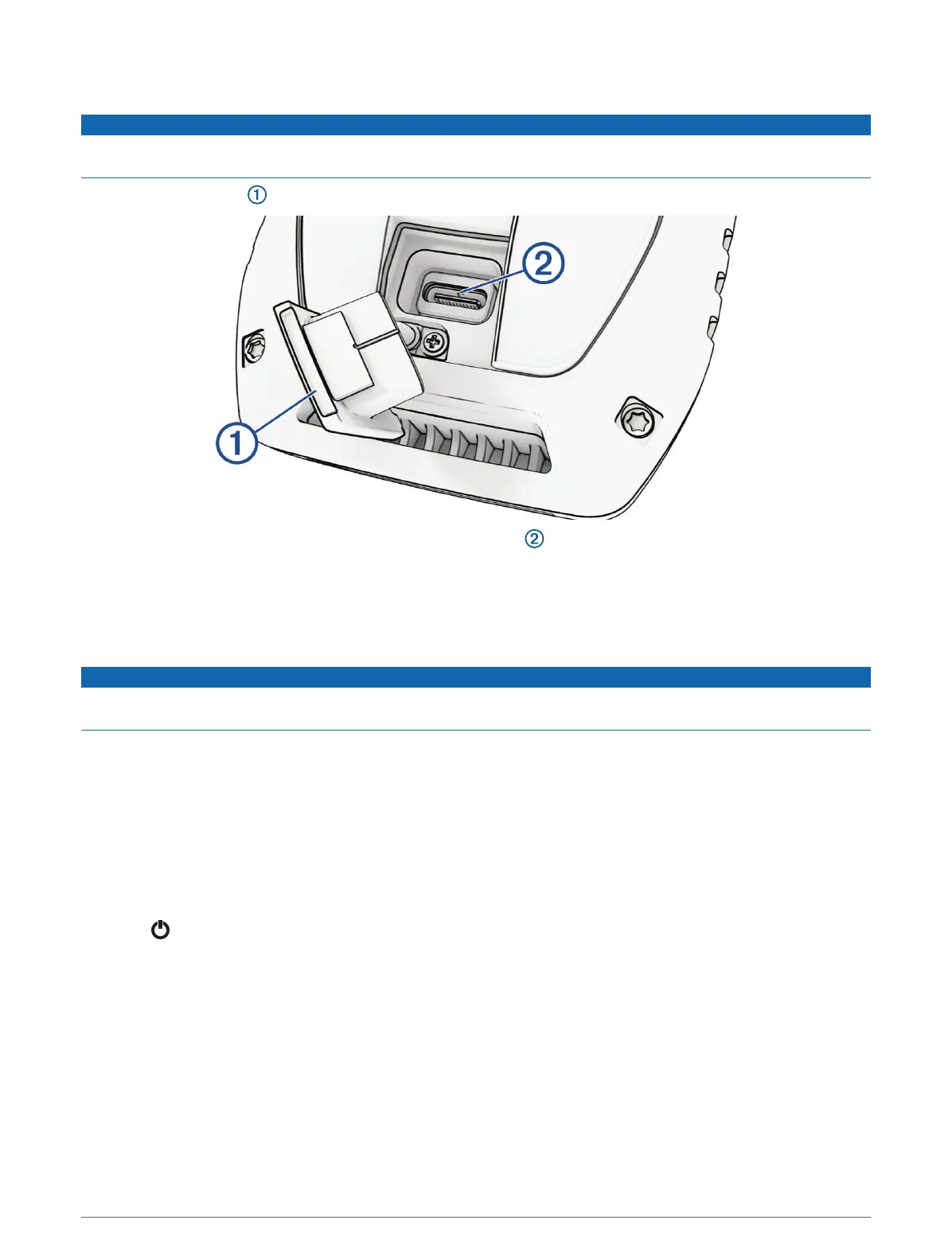
1 Lift the weather cap .
2 Plug the small end of the USB cable into the USB connector on the device.
3 Plug the other end of the USB cable into an available USB port on the computer.
Your device appears as a removable drive in My Computer on Windows computers and as mounted volumes
on Mac computers.
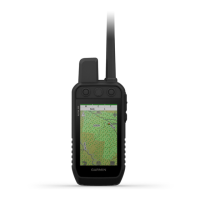
Connecting the Dog Collar Device to a Computer
NOTICE
To prevent corrosion, you should dry the contacts on the dog collar device and the surrounding area before
connecting the charging clip.
1 Snap the charging clip onto the dog collar device.
2 Plug the small end of the USB cable into the USB port on the charging clip.
3 Plug the other end of the USB cable into a USB port on the computer.
Transferring Dog Tracks to BaseCamp
™
You can transfer the dog tracks to BaseCamp.
1 Connect the dog collar device to the computer (Connecting the Dog Collar Device to a Computer, page44).
The dog collar device turns on automatically.
2 Select on the dog collar device.
3 Open BaseCamp.
BaseCamp recognizes the device.
4 Select Device > Receive from Device.
5 Select the dog collar device from the list, and click OK.
BaseCamp creates a folder of transferred data in My Collection.
44 Device Information




 To Next Page