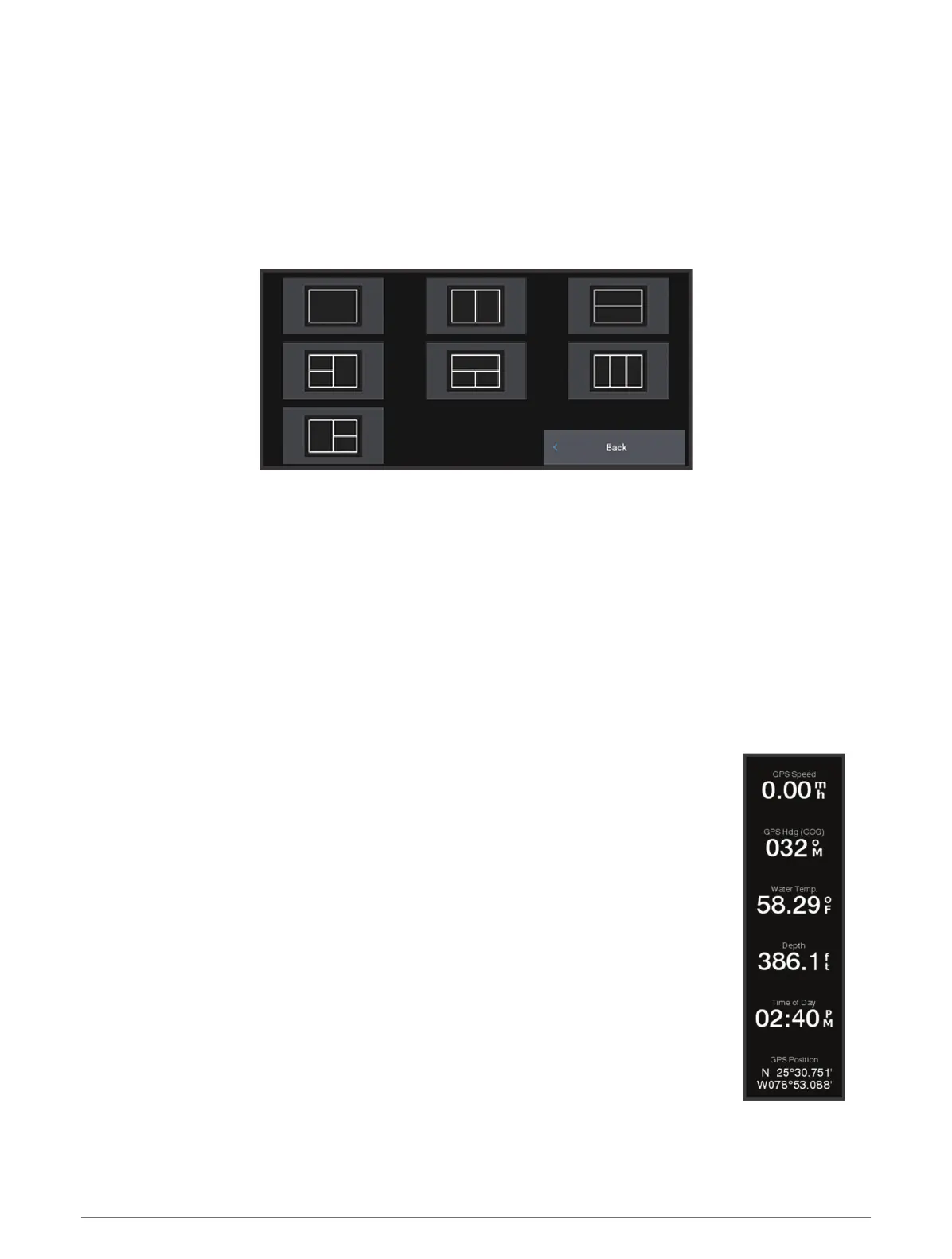
Creating a New Combination Page
You can create a custom combination page to suit your needs.
1 Select Combo > Add Combo.
2 Select a window.
3 Select a function for the window.
4 Repeat these steps for each window of the page.
5 Select Layout, and select a layout.
6 Select Name, enter a name for the page, and select Done.
7 Select Overlays, and select which data to show.
8 Select Done when you have finished customizing the page.
Deleting a Combination Page
1 Select Combo.
2 Highlight a combination page to delete.
3 Select MENU.
4 Select Delete Combo > Yes.
Customizing the Data Overlays
You can customize the data in the data overlays shown on a screen.
1 Select an option based on the type of screen you are viewing:
• From a full screen view, select MENU > Edit Overlays.
• From a combination screen, select MENU > Edit Combo > Overlays.
2 Select an item to customize the data and data bar:
• To show the data overlays, select Data, select the location, and select BACK.
• To change the data shown in an overlay box, select the overlay box, select the new
data to show, and select BACK.
• To customize the information shown when navigating, select Navigation, and select
an option.
• To turn on other data bars, select Top Bar or Bottom Bar, and select the necessary
options.
3 Select Done.
Customizing the Chartplotter 7




 To Next Page