190-00870-02 Rev. A
Garmin G950 Pilot’s Guide for the Pilatus PC-6
357
HAZARD AVOIDANCE
SYSTEM
OVERVIEW
FLIGHT
INSTRUMENTS
EIS
AUDIO PANEL
& CNS
FLIGHT
MANAGEMENT
HAZARD
AVOIDANCE
AFCS
ADDITIONAL
FEATURES
APPENDICES INDEX
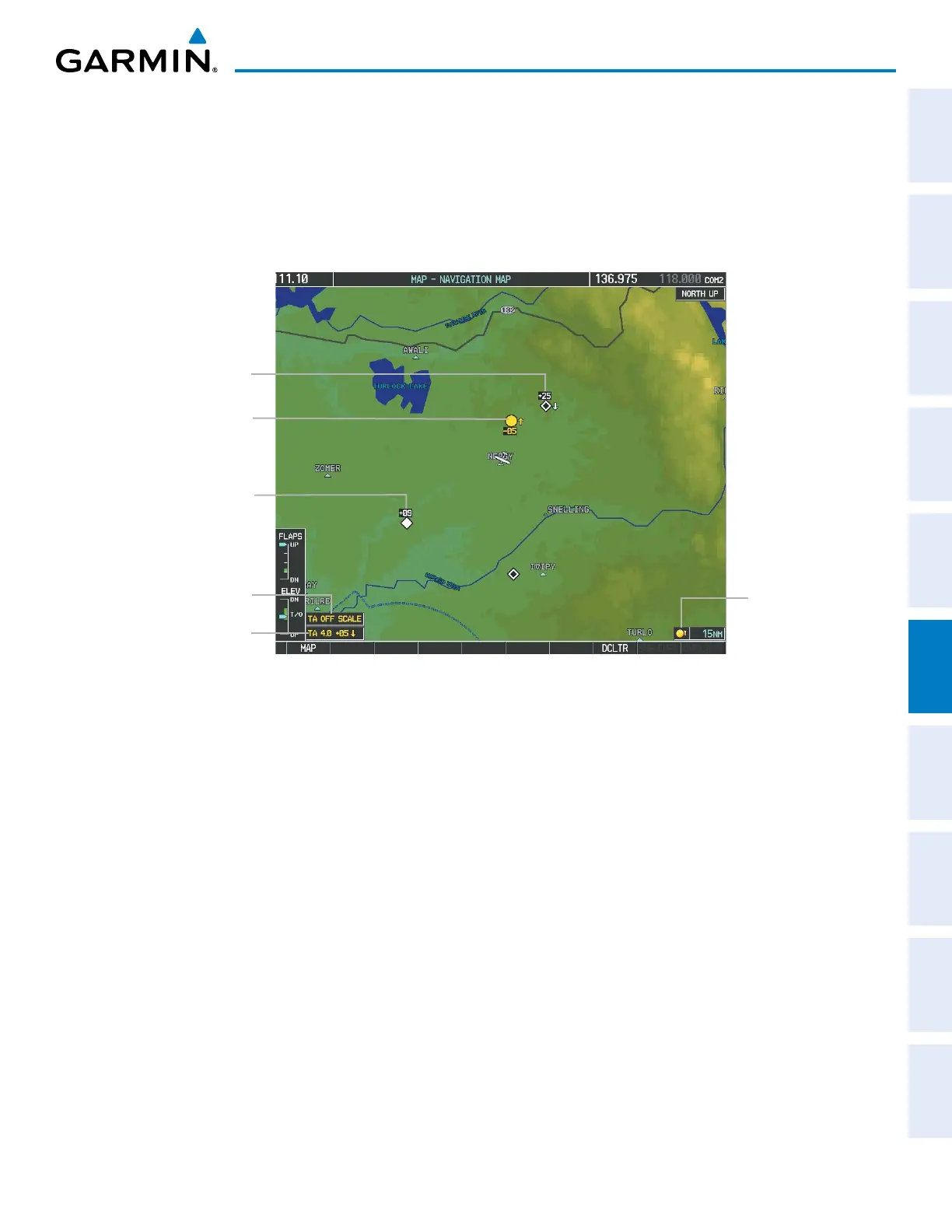
When traffic is selected on maps other than the Traffic Map Page, a traffic icon is shown to indicate TAS is
enabled for display (Figure 6-73 and Table 6-22).
Displaying traffic on the Navigation Map
1) Ensure that the TAS system is operating. With the Navigation Map displayed, press the
MAP
Softkey.
2) Press the
TRAFFIC
Softkey. Traffic is now displayed on the map as shown in the figure.
Proximity
Traffic
Figure 6-73 TAS Traffic on Navigation Map
Traffic
Advisory
TA Off Scale
Banner
Non-Bearing
Traffic Advisory
Non-Threat
Traffic
Traffic
Enabled Icon
Displaying traffic information (PFD Inset Map):
1) Press the INSET Softkey.
2) Press the TRAFFIC Softkey to display traffic data on the inset map (TRFC-1).
3) Press the softkey again to display the traffic-only inset (TRFC-2).
4) Press the softkey again to remove traffic data.
The Navigation Map Page Setup Menu also controls the display of traffic. The setup menu controls the map
range settings. Traffic data symbols and labels can be decluttered from the display. If a map range larger than
the map range setting is selected, the data is removed from the map. Maps besides the Traffic Map Page use
settings based on those selected for the Navigation Map Page.


 To Next Page