190-00870-02 Rev. A
Garmin G950 Pilot’s Guide for the Pilatus PC-6
359
HAZARD AVOIDANCE
SYSTEM
OVERVIEW
FLIGHT
INSTRUMENTS
EIS
AUDIO PANEL
& CNS
FLIGHT
MANAGEMENT
HAZARD
AVOIDANCE
AFCS
ADDITIONAL
FEATURES
APPENDICES INDEX
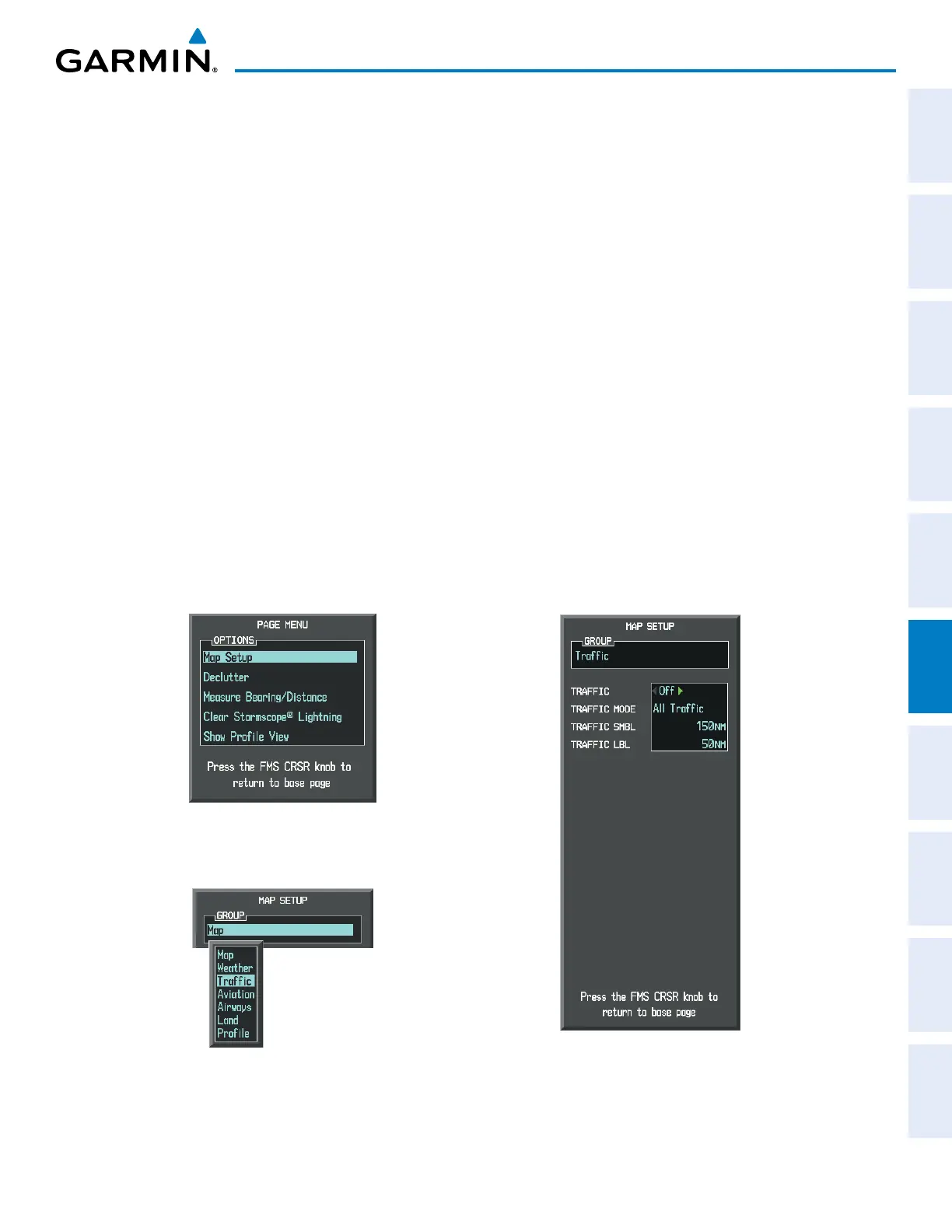
Customizing the traffic display on the Navigation Map Page:
1) Select the Navigation Map Page.
2) Press the MENU Key.
3) With Map Setup highlighted, press the
ENT
Key (Figure 6-74).
4) Turn the small FMS Knob to select the Traffic Group and press the ENT Key (Figure 6-75).
5) Turn the large
FMS
Knob or press the
ENT
Key to scroll through the selections (Figure 6-76).
• TRAFFIC – Turns the display of traffic data on or off
• TRAFFIC MODE – Selects the traffic mode for display; select from:
- All Traffic - Displays all traffic
- TA/PA - Displays Traffic Alerts and Proximity Advisories
- TA ONLY - Displays Traffic Alerts only
• TRAFFIC SMBL – Selects the maximum range at which traffic symbols are shown
• TRAFFIC LBL – Selects the maximum range at which traffic labels are shown with the option to turn off
6) Turn the small
FMS
Knob to scroll through options (ON/OFF, range settings, etc.).
7) Press the
ENT
Key to select an option.
8) Press the FMS Knob or CLR Key to return to the Navigation Map Page.
Figure 6-75 Navigation Map Page Setup Menu
Figure 6-74 Navigation Map Page Menu
Figure 6-76 Navigation Map Page Setup Menu, Traffic Group


 To Next Page