Page 3-36 G1000 / GFC 700 System Maintenance Manual - 300/B300 Series King Air
Revision 1 190-00716-01
3.22 ESP Support Option Configuration
This section applies only to installations with the ESP option. The procedures outlined in this section must be
followed to load the necessary configuration files required to enable ESP messages and functions. An Enhanced
AFCS unlock card is also required for this option (see Section 3.33.)
1. With the loader card in the top slot of PFD1 and PFD1 in configuration mode, select the “SYSTEM
UPLOAD” page using the small FMS knob on PFD1.
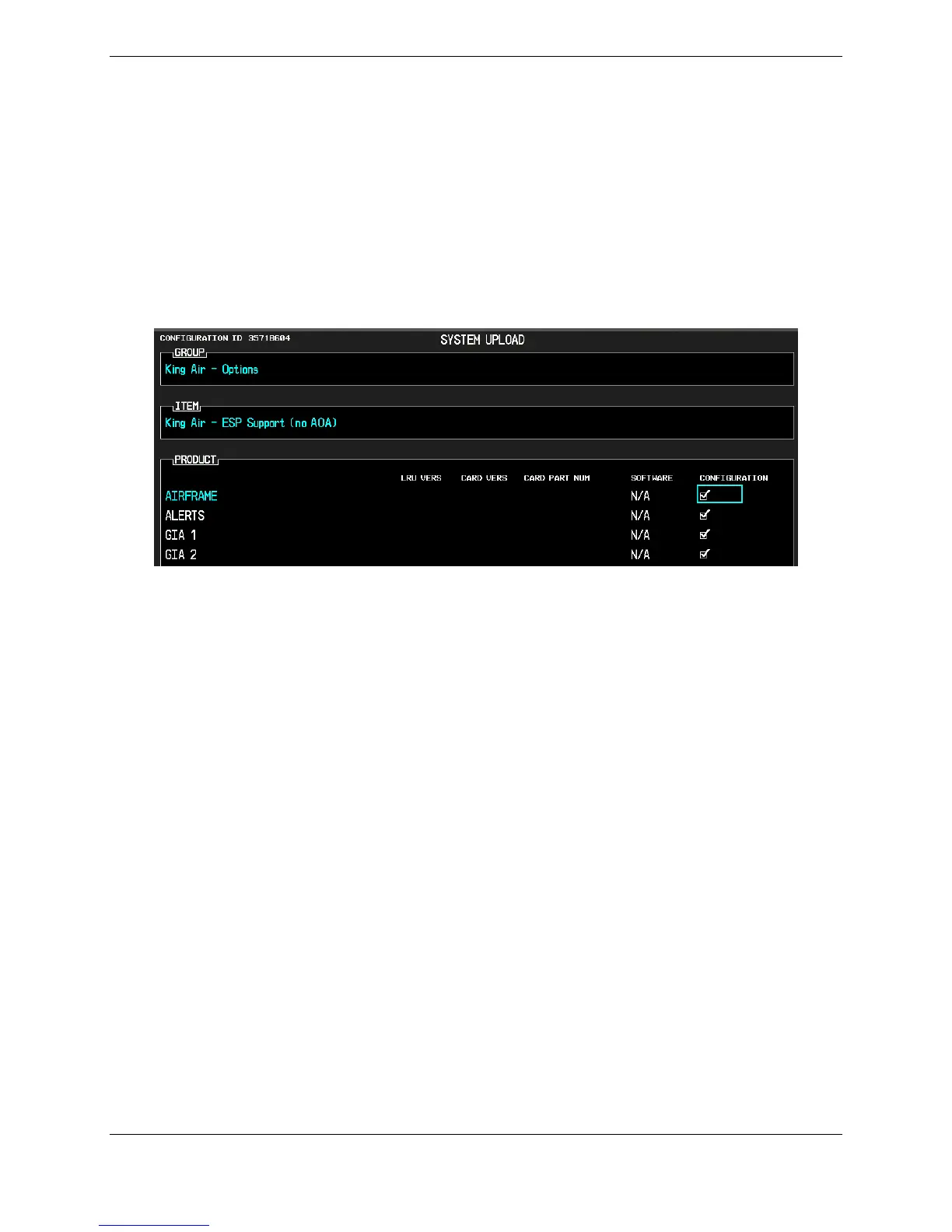
2. Activate cursor and rotate the small FMS knob to display drop down menu. Highlight King Air - Options
and press ENT key on PFD1.
3. Rotate the small FMS knob to highlight “ESP Support (no AOA)”. Press ENT key on PFD1.
4. Verify “ESP Support (no AOA)” is displayed in the “Item” window. Press “LOAD”.
Figure 3-34, ESP Support Configuration
5. Monitor load progress. Verify software load completes without errors as indicated by the following:
• Green “PASS” in Configuration column for AIRFRAME, ALERTS, GIA1 and GIA2.
• “Upload Complete………….COMPLETE” in the summary box.
6. Press ENT key on PFD1 to acknowledge upload complete.
7. Deactivate cursor.



 To Next Page