Setting Up the Sonar Display
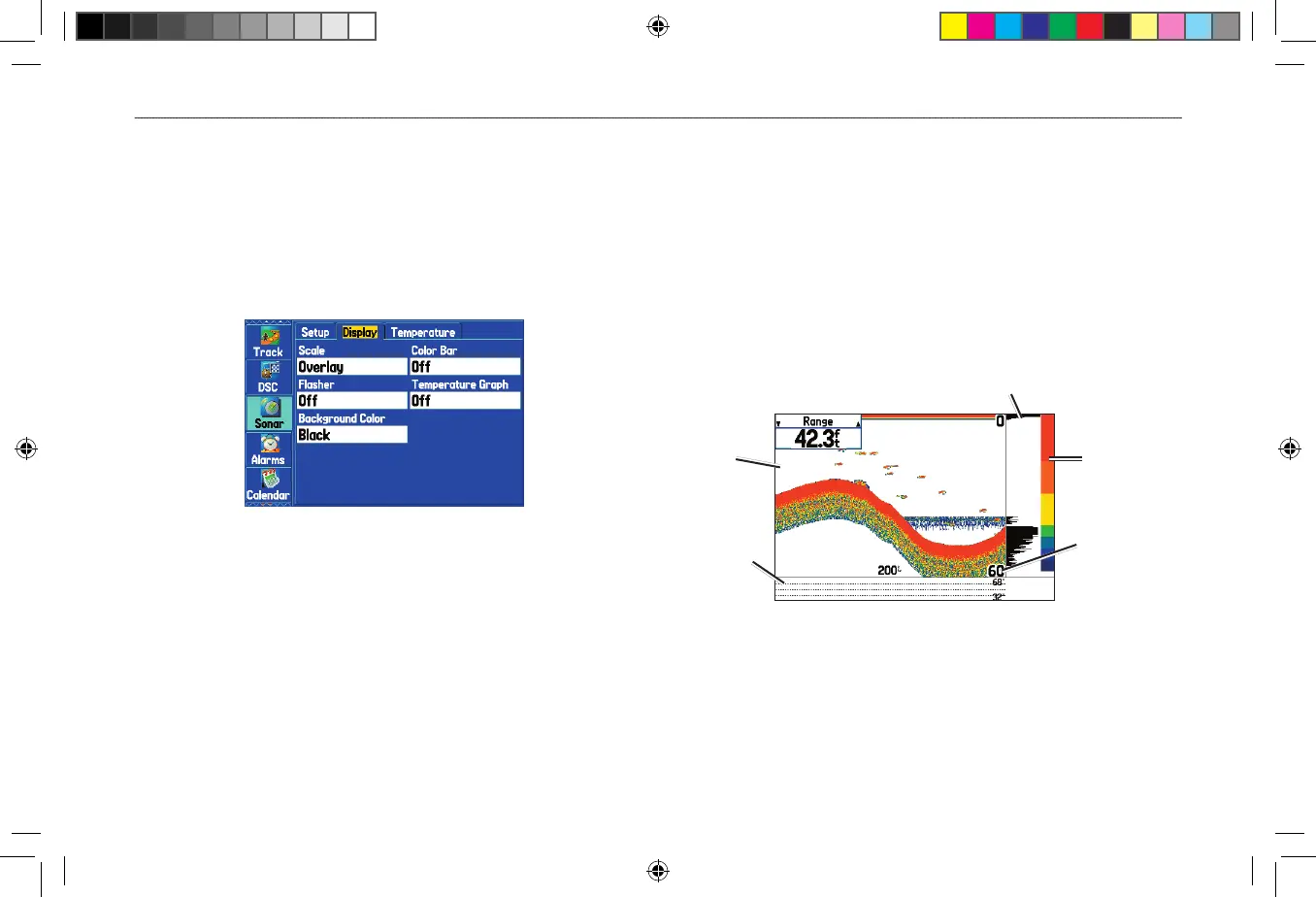
You can set up how the sonar information appears on-screen using
the Display sub tab.
To access the Display sub tab:
1. Highlight the Sonar tab on the Main Menu.
2. Highlight the Display sub tab.
Display Sub Tab
Scale—select how and where you want the depth scale to appear.
Color Bar
—select On to show a gradient scale of the current Target
Level setting on the Sonar Setup tab.
Flasher—select On to show a graphic Flasher representation on
the far right side of the sonar display. This graphic Flasher shows
structure and bottom returns much the same as a true Flasher. You
might find this feature useful when using Fish Symbols.
Temperature Graph
—select On to show a temperature graph along
the bottom of the Sonar Page.
Background Color
—select the color for the Sonar Page and the
sonar on the Map Split Page.
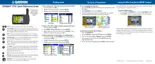
Sonar Page with the Sonar Display settings changed
Color bar
Graphic Flasher
Depth Scale
in corners
Temperature
graph
White
background









 To Next Page