To access the Waypoint Edit Page:
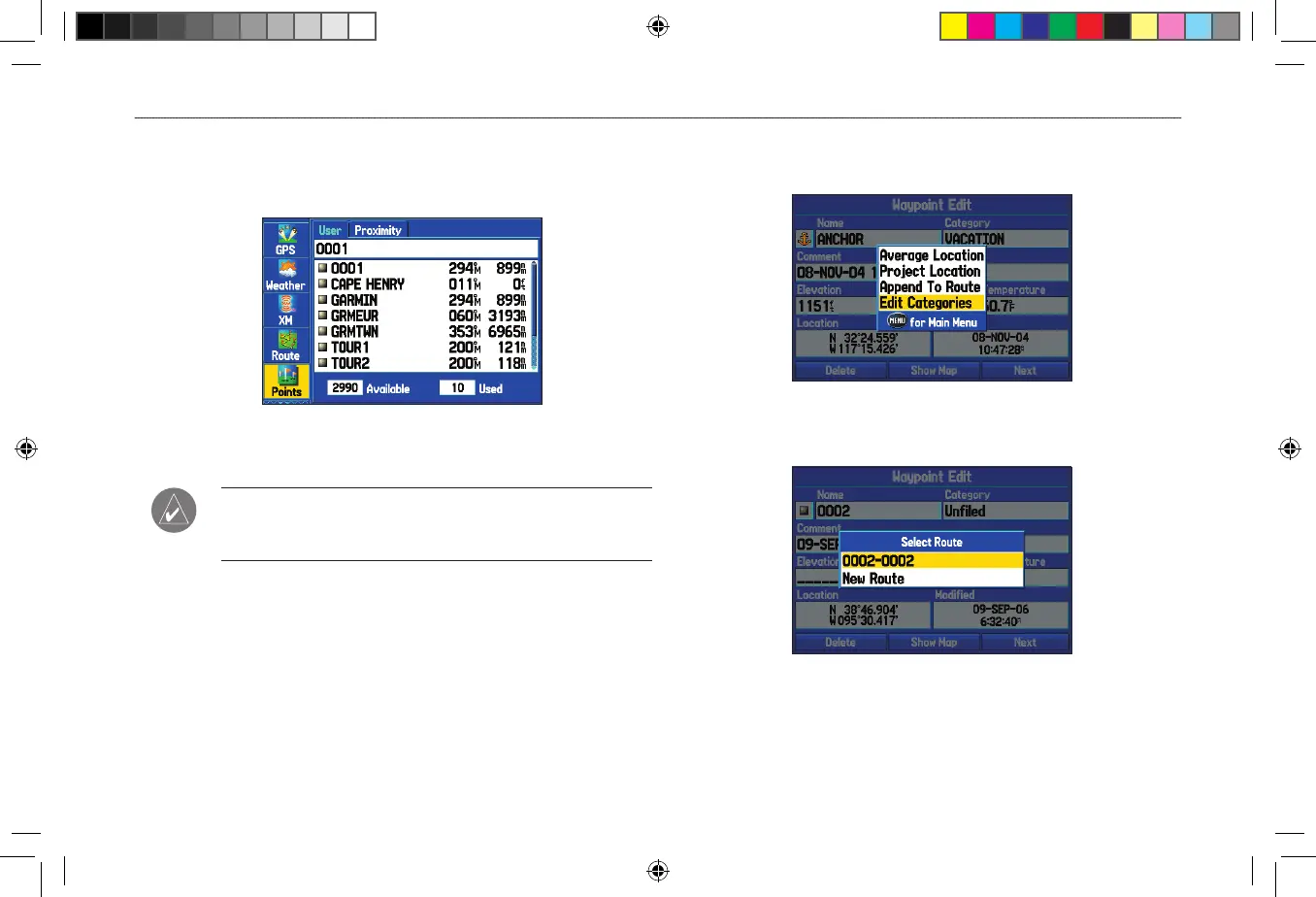
1. Highlight the Points tab on the Main Menu, and then select a
waypoint from the list.
Points Tab
2. Press ENTER to open the Waypoint Edit Page.
NOTE: If the waypoint is located on a map feature or
MapSource or BlueChart feature, the Waypoint Edit Page does
not show the details of the other map features.
Adding a Waypoint to a Route
Use the Append to Route option to add the selected waypoint
to the end of a route. This option is available only when you are
not navigating. When you are navigating to a destination, Add to
Current Route opens. The selected waypoint is added to the current
route before the route destination.
To
add a waypoint to the end of the route:
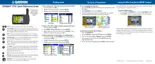
1. Open the Waypoint Edit Page, and press MENU.
Waypoint Options Menu
2. Select Append To Route. The Select Route window opens.
3. Highlight a route or select New Route, and press ENTER.
4. Highlight OK, and press ENTER to save the waypoint.









 To Next Page