18 GPSMAP
®
4000/5000 Series Owner’s Manual
Charts and 3D Chart Views
Deactivating a Target for an AIS Vessel
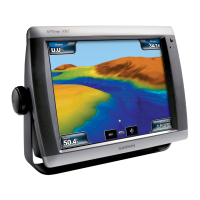
: The Fishing Chart and Mariner’s Eye 3D chart view are available with a preprogrammed BlueChart
g2 Vision data card.
1. From the Home screen, select .
2. Select , , , , or .
3. Select the AIS vessel.
4. Select > .
Setting the Safe-zone Collision Alarm
The safe-zone collision alarm is used only with AIS and MARPA. MARPA functionality works with radar
(page 68). The safe zone is used for collision avoidance, and can be customized. All safe-zone collision alarm
settings are applied to all charts, to all 3D chart views, to all radar modes, and to the Radar Overlay.
The safe-zone collision alarm is automatically set to every time you turn your chartplotter on.
1. From the Home screen, select > > > .
A message banner appears and an alarm sounds when a MARPA-tagged object or an AIS-activated vessel
enters the safe-zone ring around your boat. The object is also labeled as dangerous on the screen. The
setting disables the message banner and the audible alarm, but the object is still labeled as dangerous on the
screen.
2. Selectto set the measured radius of the safe-zone ring to a specied distance from 500 ft. to 2.0 nm
(or from 150 m to 3.0 km, or from 500 ft. to 2.0 mi.).
3. Select a distance.
4. Select to sound an alarm if AIS or MARPA determines that a target will intersect the safe zone
within the dened time interval (ranging from 1 to 24 minutes).
5. Select a time.
Viewing a List of AIS and MARPA Threats
: The Mariner’s Eye 3D chart view is available if you use a BlueChart g2 Vision data card. The Fishing
Chart is available if you use a BlueChart g2 Vision data card or a BlueChart g2 Data card, or if your built-in
map supports Fishing Charts.
1. From the Home screen, select .
2. Select , , , , or .
3. Select > > > .
4. Select the type of threats to include in the list (, threats only, or threats only).
Making a Call to an AIS Target
See “Making an Individual Routine Call to an AIS Target (page 99).



 To Next Page