Where To?
26 GPSMAP 400/500 Series Owner’s Manual
You can create and store up to 100 routes, with up to 250 waypoints each.
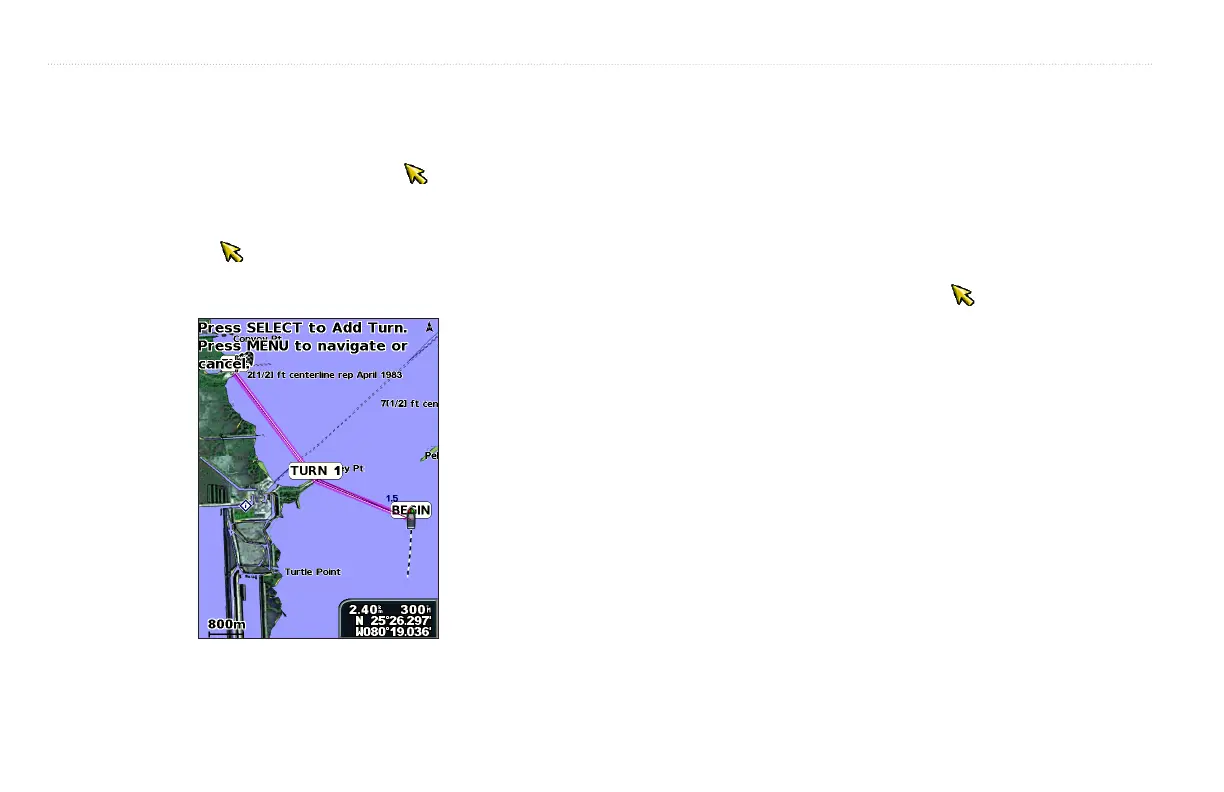
1. From the Navigation chart, use the map pointer ( ) to select your
destination.
2. Select > .
3. Use the map pointer ( ) to select the location at which you want to make
the last turn toward your destination.
4. Press . Repeat this step to add additional turns.
5. Press to cancel, to undo the last turn, or to begin navigating the
route.
1. From the Home screen, select > > .
2. Select > > .
3. Enter the route name.
1. From the Home screen, select > > >
.
2. Select or .
3. If you select , use the map pointer ( ) to select the initial
location at which you want to start the new route. If you select
, select the rst waypoint on the route.
4. Choose the location of the rst turn and press . Repeat until the
route is complete.
5. Select to save the route.
6. Select the route to edit the route, delete the route, or navigate to the route.
1. From the Navigation chart, select your destination.
2. Select > . Your route is calculated.
: You can change the automatic guidance path to a route by selecting
the end of the path and selecting > . The automatic
guidance path stays on the screen, allowing you to trace it while creating a
route.



 To Next Page