Where To?
GPSMAP 400/500 Series Owner’s Manual 27
1. From the Home screen, select > > .
2. Select the route to edit.
3. Select . You can edit the route name or use the chart or turn list
to edit the route turns.
1. From the Home screen, select > > .
2. Select the route to delete.
3. Select > .
1. Create a route as previously described.
2. Select the waypoint that follows the waypoint you are bypassing.
3. Select > (or ).
A track is a recording of your path. The track currently being recorded is the
active track. An active track can be saved.
From the Navigation or Perspective 3D chart, select >
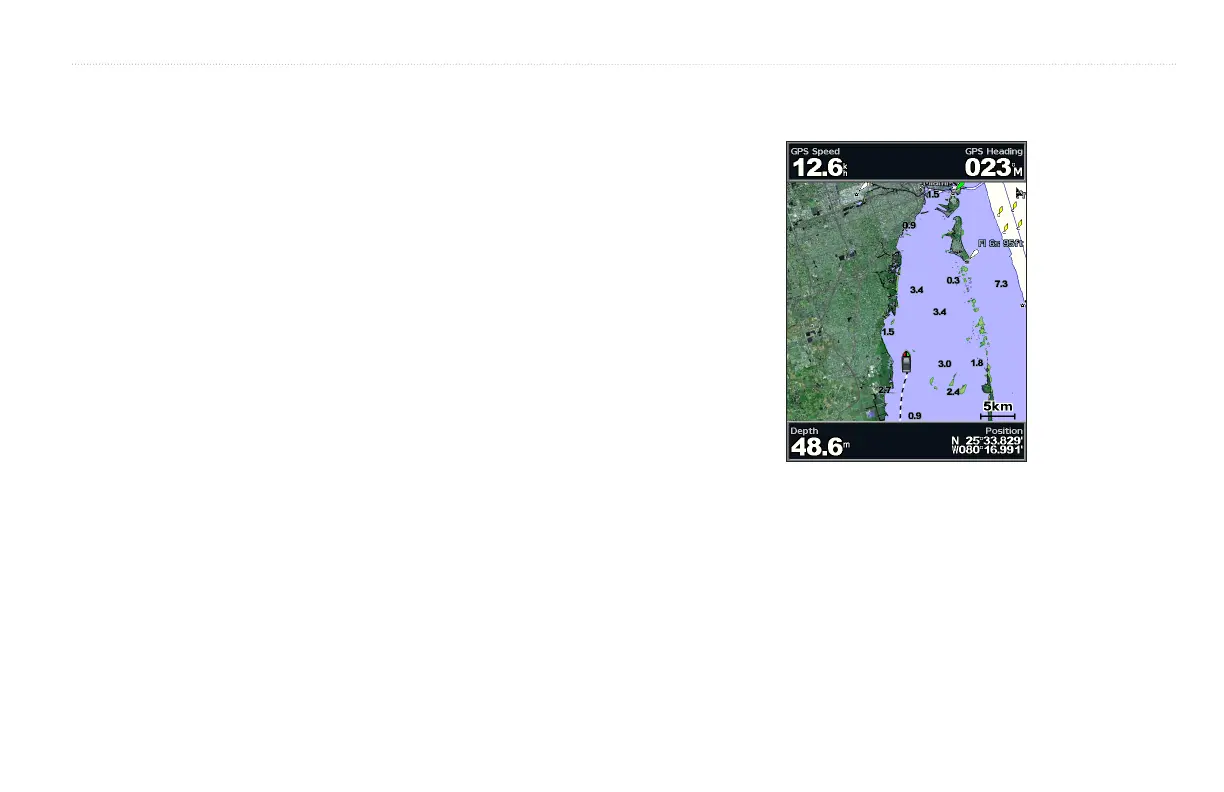
> > . A trailing line on the chart indicates your track.
1. From the Navigation or Perspective 3D chart, select >
> > .
2. Select either the time the current track began (or , if shown) or
.
3. To name the track, change the color of the track, or save it as a route, select
.



 To Next Page