31
Getting Started
Reference
Find Nearest —
will display a list containing the nearest waypoints within a
100 mile radius. The waypoints will be listed with the nearest waypoint at
the top of the list.
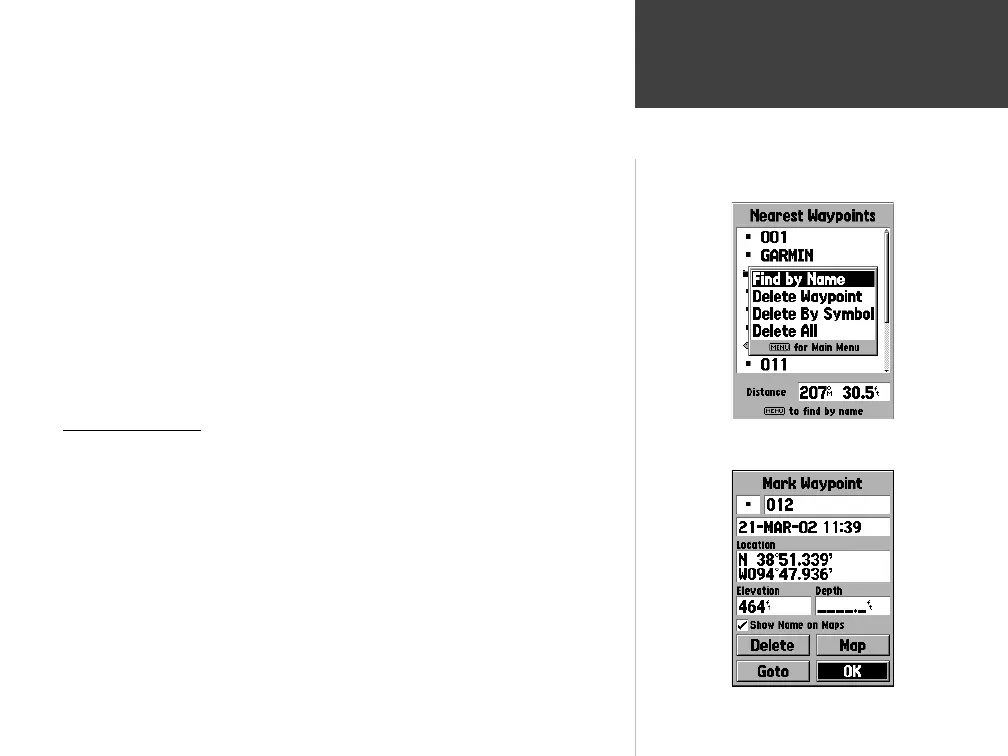
Find By Name —
will display a list containing all User Waypoints. You have
the option of entering a waypoint name in the data fi eld or scrolling through
the Waypoint List.
As you enter a waypoint name, the GPSMAP 76S will update the waypoint list
to show waypoint names that coincide with the letters that have been entered.
You can continue to enter the name if you like, or you can press the ENTER
Key and scroll through the list.
Delete Waypoint —
Will delete the selected waypoint.
Delete By Symbol —
Will delete all waypoints having the same symbol as the
selected waypoint.
Delete All —
Will delete all of the user waypoints.
Creating Waypoints
There are three methods for creating waypoints in the GPSMAP 76S. You
can press the ENTER/MARK key while at a location, you can create a waypoint
on the Map Page, or you can enter coordinates for a waypoint manually. When
a waypoint is created pressing the MENU key will display four options, ‘Average
Location’, ‘Project Location’, ‘Sight ‘N Store’ and ‘Append to Route’.
Creating a waypoint using the ENTER/MARK Key —
When at a location that
you want to save, press and hold ENTER/MARK until the Mark Waypoint
Page is displayed. At this point you can edit the waypoint name, symbol,
elevation and depth (see page 42 for information on editing waypoints). To
save the waypoint to memory, highlight the ‘OK’ button and press ENTER.
Waypoint Options Menu
Creating Waypoints
Mark Waypoint Page
Point — Waypoint Option Menu
190-00249-00_0C.indd 31 5/7/2003, 9:54:47 AM









 To Next Page