nüvi 700 Series Owner’s Manual 31
USinG fM traffic
Red solid: momentary sync loss.
Green solid: normal trafc data.
Trafc In Your Area
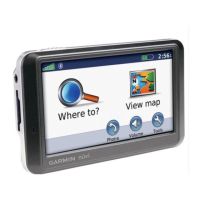
Touch Tools > Trafc to display trafc
incidents in your area. My Route
displays the satus of your route; if there
is trafc on your route, touch My Route
to view details. Touch View by Road
to see the incidents on each road in the
area.
Trafc on Your Road
When you are not navigating a route and
there is trafc on your road, the Map
page displays a trafc icon, such as .
Touch the icon to view information
about the trafc on the road ahead.
Trafc on Your Route
When calculating your route, the
nüvi examines the current trafc and
automatically optimizes the route for the
shortest time. You might still be routed
•
•
through trafc if it is the best route
available or no alternative roads exist.
If a severe trafc delay occurs on your
route while you are navigating, the nüvi
automatically recalculates the route.
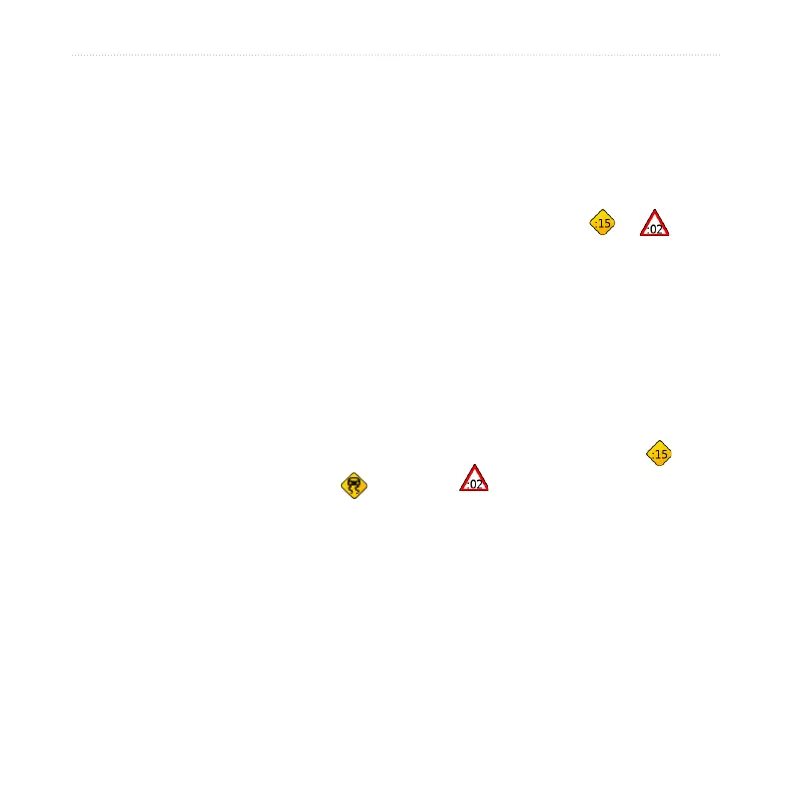
The Map page displays or when
there is trafc on your route. The number
in the icon represents the number of
minutes the trafc has added to your
route, which has been automatically
calculated into the arrival time shown on
the map.
To avoid trafc on your route:
1. On the Map page, touch or
.
2. A map displays the trafc delays.
3. Touch Avoid.



 To Next Page