Editing a Saved Location
1 Select > Favourites.
2 If necessary, select a category.
3 Select a location.
4 Select .
5 Select > Edit.
6 Select an option:
• Select Name.
• Select Phone Number.
• Select Categories to assign categories to the saved location.
• Select Change Map Symbol to change the symbol used to mark the saved location on a map.
7 Edit the information.
8 Select Done.
Assigning Categories to a Saved Location
You can add custom categories to organise your saved locations.
NOTE: categories appear in the saved locations menu after you have saved more than 12 locations.
1 Select > Favourites.
2 Select a location.
3 Select .
4 Select > Edit > Categories.
5 Enter one or more category names, separate by commas.
6 If necessary, select a suggested category.
7 Select Done.
Deleting a favourite location
NOTE: deleted locations cannot be recovered.
1 Select > Favourites.
2 Select > Delete Favourite(s).
3 Select the box next to the saved locations to delete and select Delete.
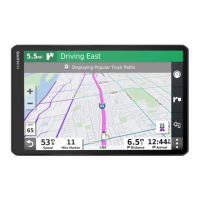
Using the Street Map
You can use the street map to navigate a route (Your route on the map, page 12) or to view a map of your
surroundings when no route is active.
1 Select Drive.
2 Select anywhere on the map.
3 Select an option:
• Drag the map to pan left, right, up, or down.
• To zoom in or out, select or .
• To switch between North Up and 3-D views, select .
• To filter the displayed points of interest by category, select .
• To start a route, select a location on the map, and select Go! (Starting a route by using the map, page 11).
Using the Street Map 27



 To Next Page