Viewing traffic on the map
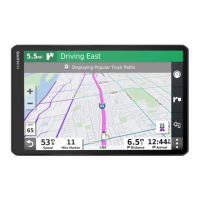
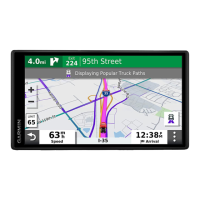
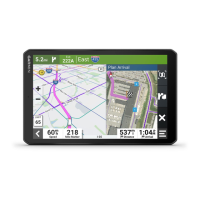
The traffic map shows colour-coded traffic flow and delays on nearby roads.
1 From the main menu, select > > Traffic.
2 If necessary, select > Legend to view the legend for the traffic map.
Searching for traffic incidents
1 From the main menu, select > > Traffic.
2 Select > Incidents.
3 Select an item in the list.
4 If there is more than one incident, use the arrows to view additional incidents.
Customising the map
Customising the map layers
You can customise which data appears on the map, such as icons for points of interest and road conditions.
1 Select > Navigation > Map & Vehicle > Map Layers.
2 Select the tick box next to each layer you want to show on the map.
Changing the map data field
1 From the map, select a data field.
NOTE: you cannot customise Speed.
2 Select a type of data to display.
Changing the map perspective
1 Select > Navigation > Map & Vehicle > Driving Map View.
2 Select an option:
• Select Track Up to display the map in two dimensions (2-D), with your direction of travel at the top.
• Select North Up to display the map in 2-D with North at the top.
• Select 3-D to display the map in three dimensions.
32 Using the Street Map




 To Next Page