Operation
CG-1220 DTR
4-3
4.1 Understanding the DTR Menu Structure
The MAIN MENU on the Receiver Status Display contains items which support the
various system interfaces and control system parameters. An arrow ( or ) at the
top-right or bottom-right of the menu display indicates that additional menu items
are available. These menu items can be accessed by pressing [PAGE]. The
Navigation keys [PREV], [PAGE] and [SHIFT] allow the user to move within menu
items (see Table 4-1). Each item of the MAIN MENU will be discussed in the
following paragraphs. For a complete visual representation of the menu hierarchy,
refer to Appendix B, DTR Menu Tree.
4.1.1 Selecting Menu Items
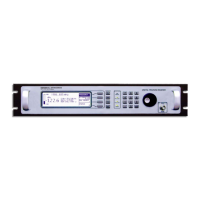
The Soft Keys and Navigation keys are the primary function keys used in making
all menu choices. Menu items, displayed near the right side of the Display, are
selected by pressing the Soft Key immediately to the right of the menu item (See
Figure 4-1).
The DTR’s flexible interface also lets the user cycle through menus items with the
Spin Knob. Once the desired menu is highlighted, press the [ENTER] key.
4.1.2 What Happens When a Menu is Selected…
Selecting a menu does one of three things depending on its context:
4.1.2.1 Selects a Submenu
The most basic outcome of selecting a menu item is a resulting submenu. Each
submenu item may contain additional submenus. Generally, no menu will have
more than 8 items.
4.1.2.2 Opens an Editor Screen
The [FREQUENCY] menu, for example, opens an editor screen where the user
inputs a value. There are no additional submenus below an editor screen.
The user can enter data in a number of ways within an editor. The Soft Key
functions change to assist the user. In addition, the keypad can be used to directly
enter data. Finally, the Spin Knob also may be used. For items that require numeric
input, acceptable ranges of values will appear on the screen. If an out-of-range value
is entered, the system will reject the value and the value of the parameter will remain
as it was before it was edited. The [ENTER] key on the keypad should be pressed
after the desired value has been input. The [PREV] key will “cancel” any input
leaving the former value intact.


 To Next Page