English
-23-
NOTE
z The captured screen will be smaller when motion stabilization is enabled
z Digital Zoom is disabled when motion stabilization is activated.
Motion Detection
To enable Motion Detection:
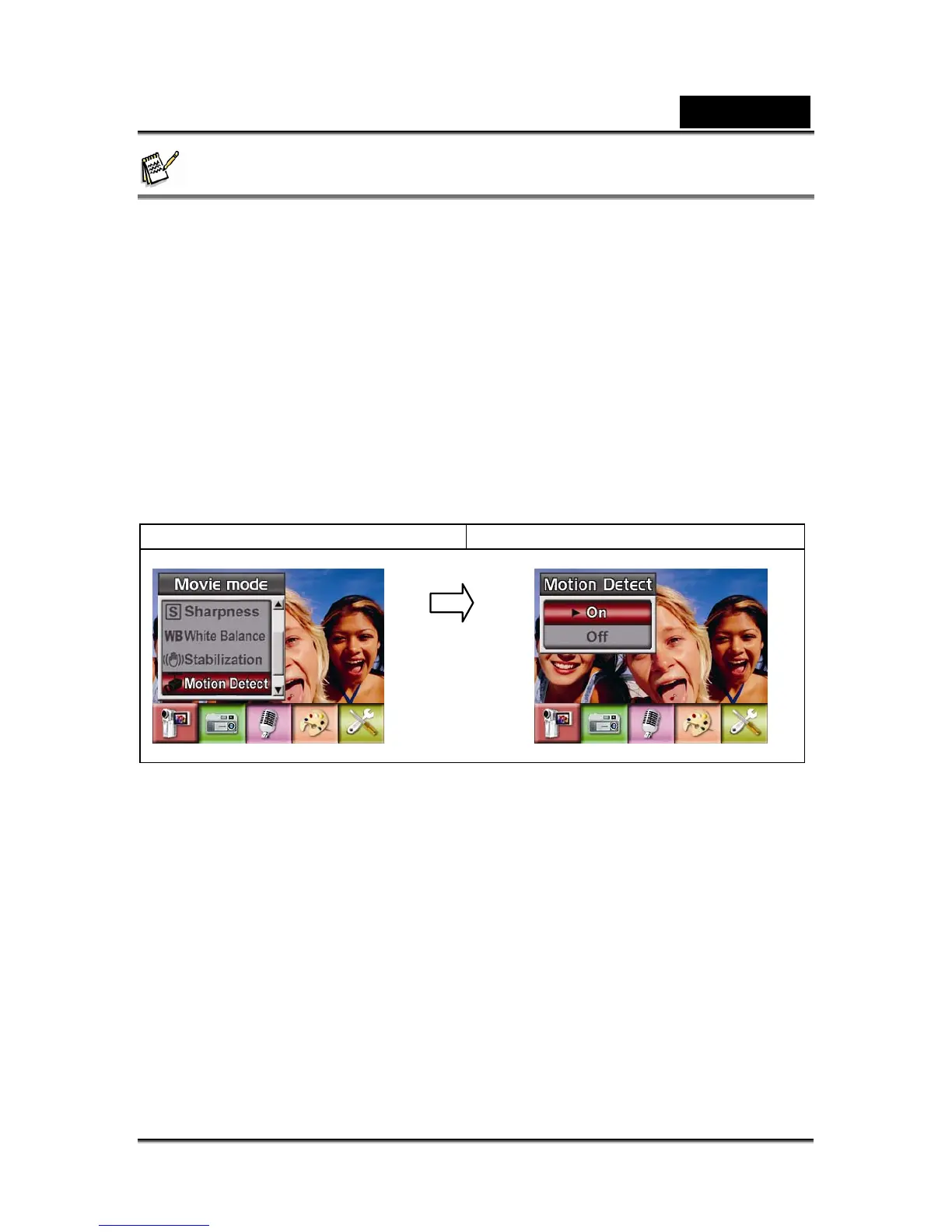
1. In Movie/Picture Record Mode, press Enter Button to switch to record menu
screen.
2. Use Right/Left Buttons to select Movie Mode. Submenu of Movie Mode will pop
out on the screen.
3. Use Up/Down Buttons to select Motion Detect then press Enter Buttons to
switch to Motion Detect submenu.
4. Use Up/Down Buttons to choose ON or OFF.
5. Press Enter Button to validate the setting and exit.
6. Camera will start to record video once if there is a movement for 3 consecutive
seconds. Stop recording if there is no movement for 3 seconds.
Display screen Motion Detect Option
Enter Button



 To Next Page