If not already preset, enter the span target, i.e. certified concentration of your calibration gas.
Press the soft-key ‘Start’ and wait for the reading to stabilise. Press the ‘Pump’ key to draw in
fresh air. It can take a couple of minutes to stabilise.
Once a stable reading is shown press the soft-key ‘Accept’. A successful span calibration
message should then be displayed. Press the soft-key ‘Accept’ again to confirm the calibration
and ‘Store’ the new user span. Alternatively, press soft-key ‘Reject’ to exit without change.
Note: If the calibration failed then try again using a longer purge time or different target gas.
Last Field Calibration
This data can be found in the ‘Information’ screen accessed via the ‘Utilities’ menu. This option
displays the date that the last field calibration was perfomed on the instrument.
Calibration Record
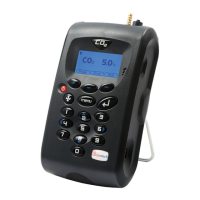
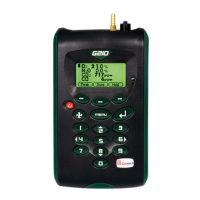
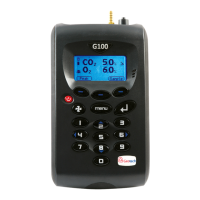
The G100 instruments have the facility to log user calibrations via the ‘Event Log’. This can be used as
an aid in ensuring that gas measurements are valid and accurate.
During calibration the instrument will record the following in the event log. For each entry the time
and date will be stored.
Note: If the calibration failed, then try again using a longer purge time or different target gas. This
event log can only be downloaded and viewed via the optional Analyser Data Manager software.
It cannot be viewed on the analyser screen.


 To Next Page