and press left or right key, it will switch video
resolution circularly by the sequence “by
source<-> by native TV<-> 480i<-> 480P<->
576i<-> 576p<-> 720P<-> 1080i<->1080P”. This
effect is equal to press V.Format Key under Full
Screen and their last setting saving will be efficient
for each others. By Source means system will set
the video output resolution according to the
program it’s playing, different resolution programs
switching perhaps will makes TV screen flickering.
By Native TV means system will be according to
the HDMI TV’s max supported resolution to set its
resolution, if system is not connected to a HMDI
TV, it will set resolution to be default
Aspect Mode is for switching the screen aspect
ratio mode. Now we provide below options: 4:3
PS / 4:3 LB / 16:9/Auto. You can press [Left/Right]
key to select each mode circularly. 16:9 will
provide user pillar box mode it means user use
16:9 TV to display but need to see a 4:3 full display
picture. System will force press wide screen
picture to be narrow and there’re black band on left
and right site. Auto means system won’t do any
aspect ration translation, 16:9 picture source will
be good display on a 16:9 TV but will be too
narrow on a 4:3 TV, and 4:3 picture source will be
too wide in a 16:9 TV but will be good
display in a 4:3 TV.
Video Output: Press [Left/Right] to select
RGB or CVBS.
Digital Audio Out is for setting the both SPDIF and
HDMI’s digital audio output mode, it has options
LPCM Out, Auto, You can press [Left/Right] Key to
select each mode circularity. LPCM Out means
system will decode no matter AC3 or PCM audio
track data to be LPCM, digital audio decoder or
HDMI TV will get LPCM digital audio data. Auto
means system will detect which the connected
HDMI TV can decode and then output that data. If
HDMI TV can decode AC3, system just output
RAW data, if HDMI TV can decode LPCM only,
system will just decode AC3 or LPCM to be LPCM
and then output.
Service Switch Mode: Press [left/right] button to
select unblank or blank.
Press [MENU] key to draw back from “AV
System” menu.
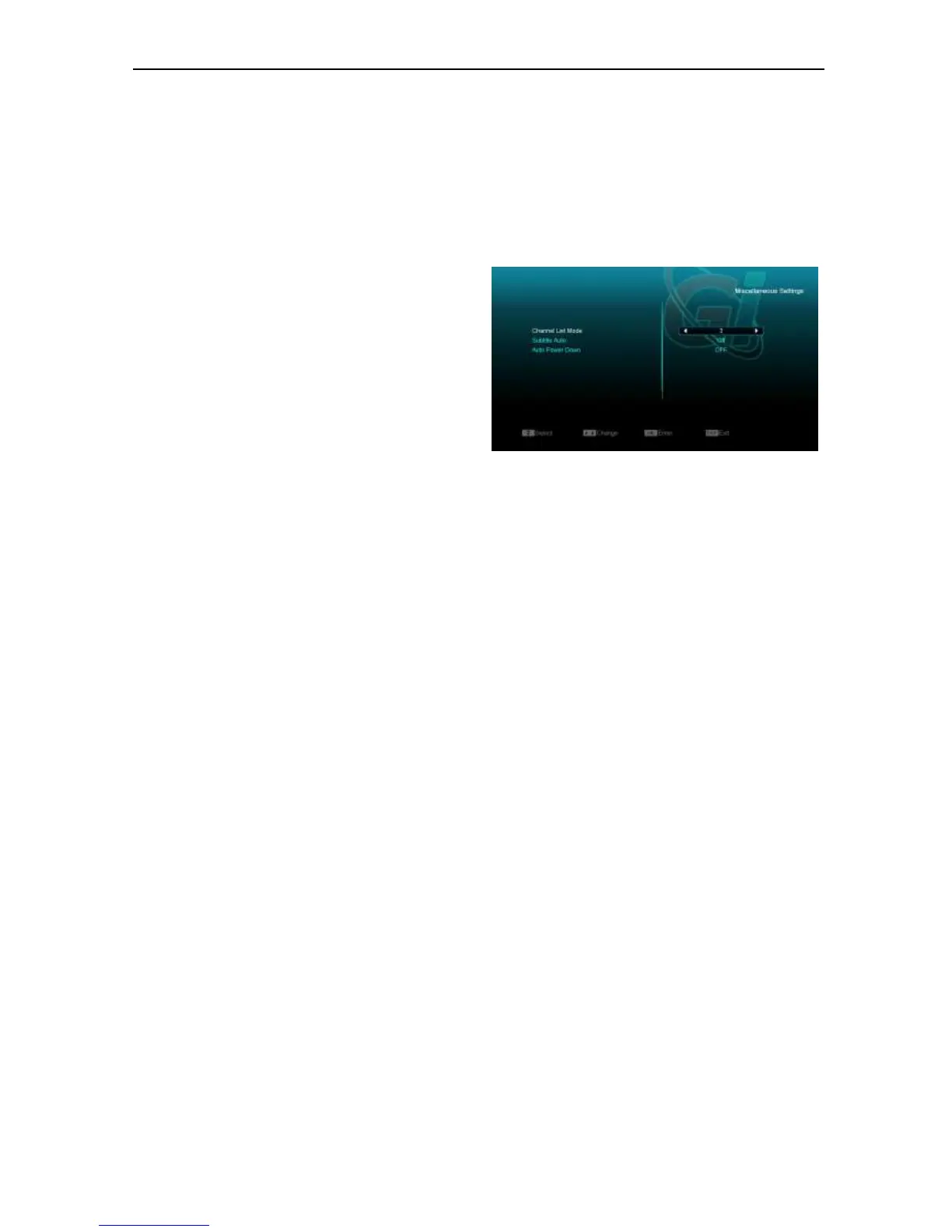
11.6 Miscellaneous Settings
When you enter to “Miscellaneous Settings” menu,
you will see a screen like below:
1 Channel list num: This item provide below
options: 1/2/3,you can press [Volume
Up/Volume Down] keyto select each mode
circularly.
2 Subtitle Auto: You can press [Volume Up/Volume
Down] key to select “On” or “Off”. If the current
channel has subtitle information, it will be showed
up automatically while this function is “ON”, if this
function is “OFF”, you need turn on the subtitle
manually by press [Yellow] key.
3 Auto Power Down: You can press [Volume Up/
Volume Down] key to select the time or “Off”, if you
select time, duration this time if no any operation
on receiver, it will go to standby mode.
Press [MENU] key to go back from “Miscellaneous
Settings” Menu.
.
11.7 OSD Setting
When you enter the “OSD Setting” menu, you
will see a screen like below:


 To Next Page