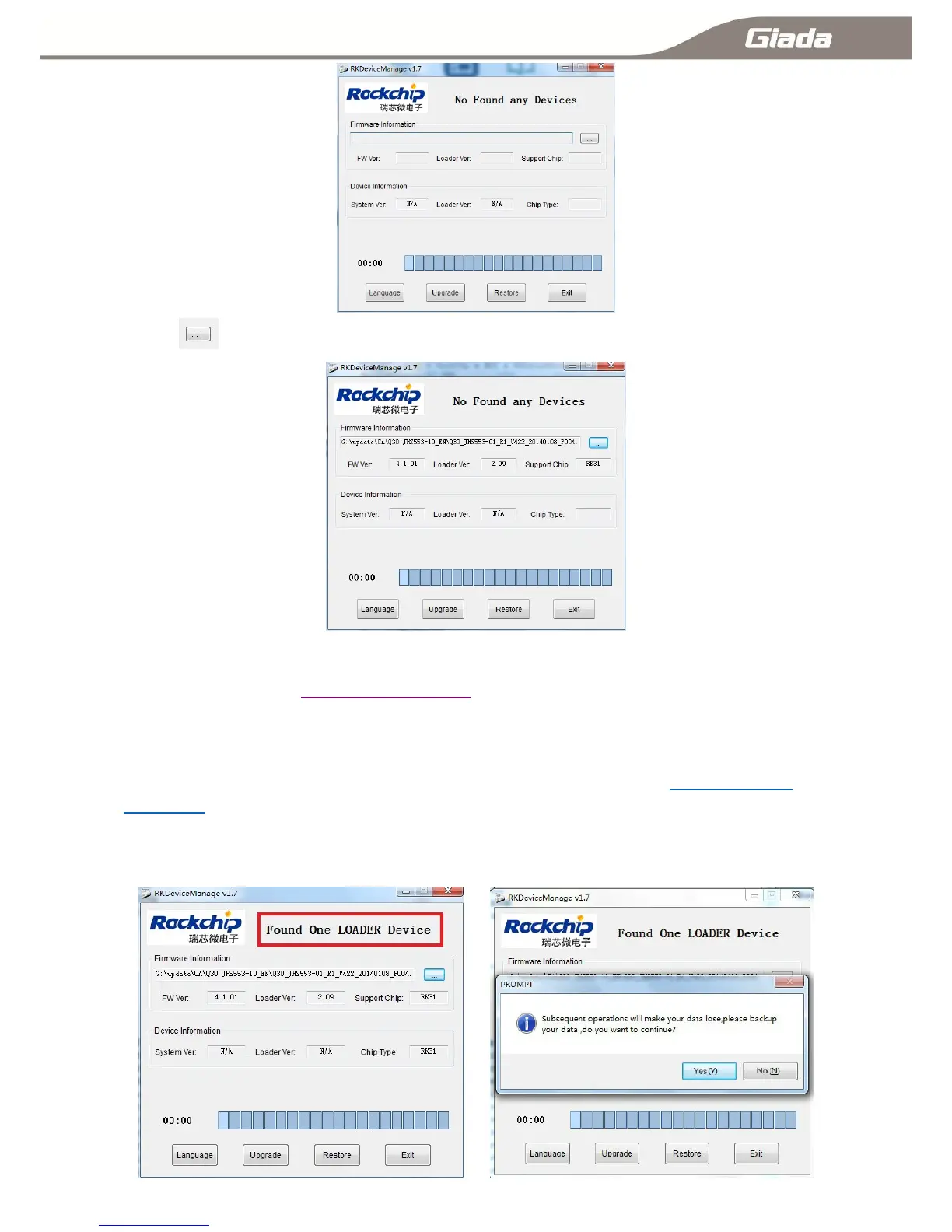
B: click ,choose firmware file for system burning,then click[open] to continue;
C:Cut off power supply of ARM PC, connecting ARM PC and windows PC via USB cable.
(Note: the USB cable must be linked to ARM PC’s USB OTG interface. For more details of ARM PC’s
interfaces, please check [1-1:Interface description]).
D:Please plug-in power adapter to ARM PC (do not power off during system burning).
During system burning, please ensure power supply stably. Press and hold button [BURN],
then power on ARM PC. RKDeviceManage will automatically identify devices. (If the driver
has not been installed, then an interface will pop up for driver installation like [1-5-B:USB Driver
installation]), click [Upgrade] and [Yes] to continue system burning. It will take roughly 3
minutes to finish system burning. The dialog ―Upgrade OK‖ will pop up after system burning
finished. Click [OK], at this point, ARM PC will automatically reboot, then system upgrade
successfully.



 To Next Page