29292828
a
b
c
d
e
12. App - charging12. App - charging 12. App - settings12. App - settings
You can adjust the basic and comfort settings of
the charger via the „Settings“ tab of the app. You
are provided with help notes in the app for the set-
ting options, which is why you will only nd basic
information below.
Current levelsCurrent levels
When delivered, the blue button of the go-eChar-
ger is predened with 5 amperage levels for selec-
ting the charging current. You can switch between
the levels step by step by pressing the button. You
are able to adjust the current intensity of the ve
levels to your personal needs via the „Current le-
vels“ setting option of the go-eCharger app.
With lower amperages, you charge more sustaina-
bly, which can have a positive eect on the stability
of the power grid. With high amperages, you char-
ge the battery faster.
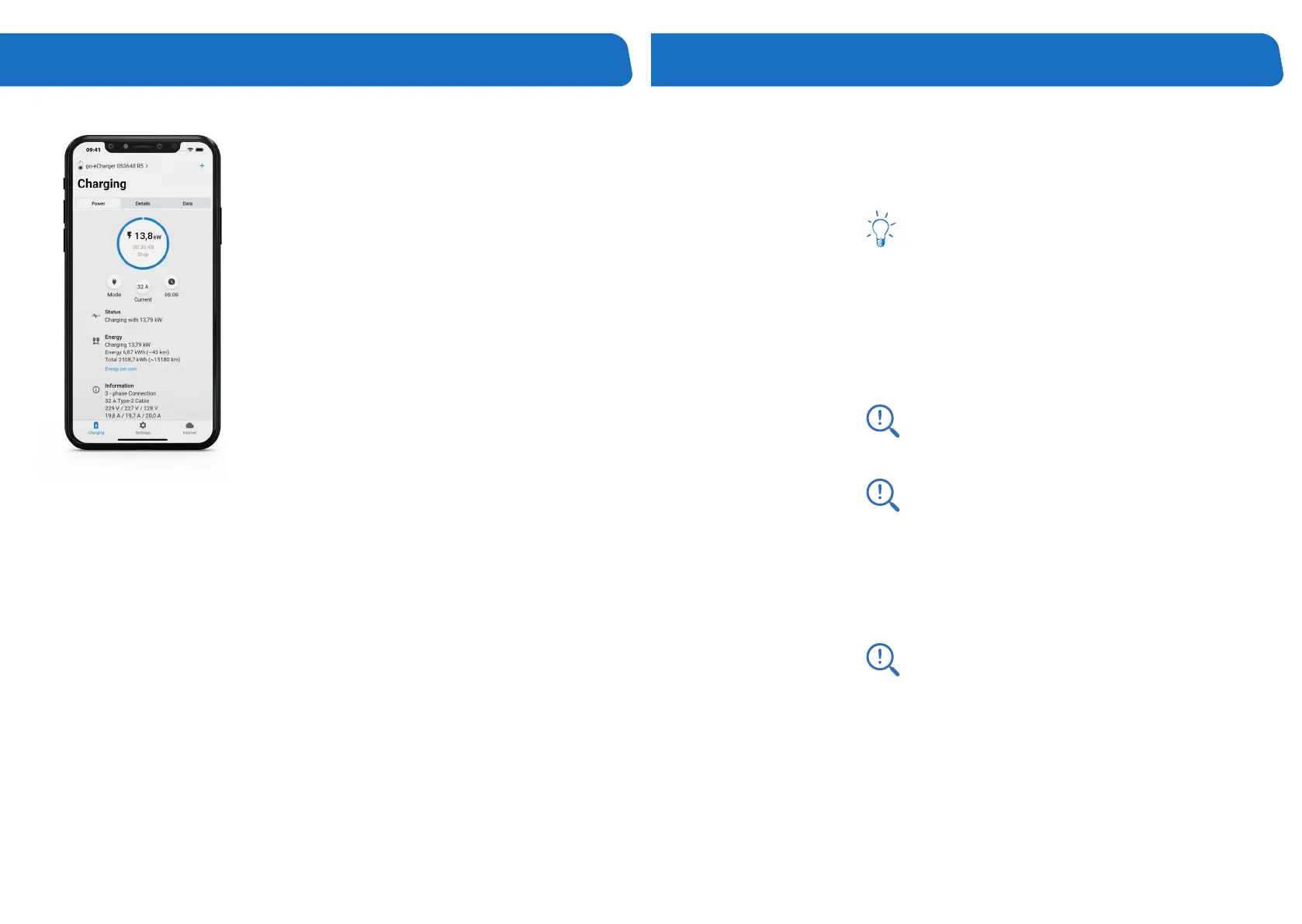
The „Charging“ tab of the go-eCharger app gives
you direct access to the most important functions
for starting, stopping and monitoring charging pro-
cesses.
Do you have several go-eChargers? Tap the pictu-
re of the Charger or its name to go to the selection
page with the list of available devices. Select the
Charger you want to operate.
Tap the blue „+“ icon at the top right to connect a
new or existing go-eCharger to the app.
Use the 3 tabs to switch between the screens „
Power“, „Details“ and „Data“.
The tab „Power“ shows the current charging power
in the large circle (if charging is in progress). You
can start and stop the charging process by tap-
ping this circle. In this case, you are charging in
standard charging mode, which does not take into
account the aWATTar electricity exchange price,
for example.
Use the 3 round icons below to access the settings
for „Mode“, „ Current“ and „aWATTar / Planned
charge“ (depending on hardware version).
You are also able to change the charging current
during the charging process via the „Current“ icon,
even in steps of 1 ampere using the slider.
Under the headings „Status“, „Energy“ and „Infor-
mation“ you will nd further details regarding the
charging process.
If you tap on the link „Energy per user“, a list with
the charged electricity quantities of all learned
RFID chips is displayed. You can also download
the charging history or meter readings here.
Use the 3 tabs to switch between the screens „
Charging“, „Settings“ and „Internet“.
kWh LimitkWh Limit
The „kWh Limit“ function is practical if you do not
want to fully charge the battery because, for exam-
ple, you live on a mountain and want to recuperate
when driving downhill. Set in the „kWh Limit“ menu
how much energy should be charged until the next
trip.
aWATTaraWATTar
As an electricity customer of our partner aWATTar,
you can congure the Charger to charge your car
at the lowest electricity exchange prices. A cloud
connection ( WiFi) is required for this function.
The latest prices are transmitted automatically to
the Charger and displayed in the „Data“ tab of the
„Charging“ page (note: aWATTar is currently only
available in Germany and Austria). Information re-
garding the electricity tari can be found at: www.
awattar.com/services/goe
a
b
c
d
e



 To Next Page