GP3D Root User Manual
7
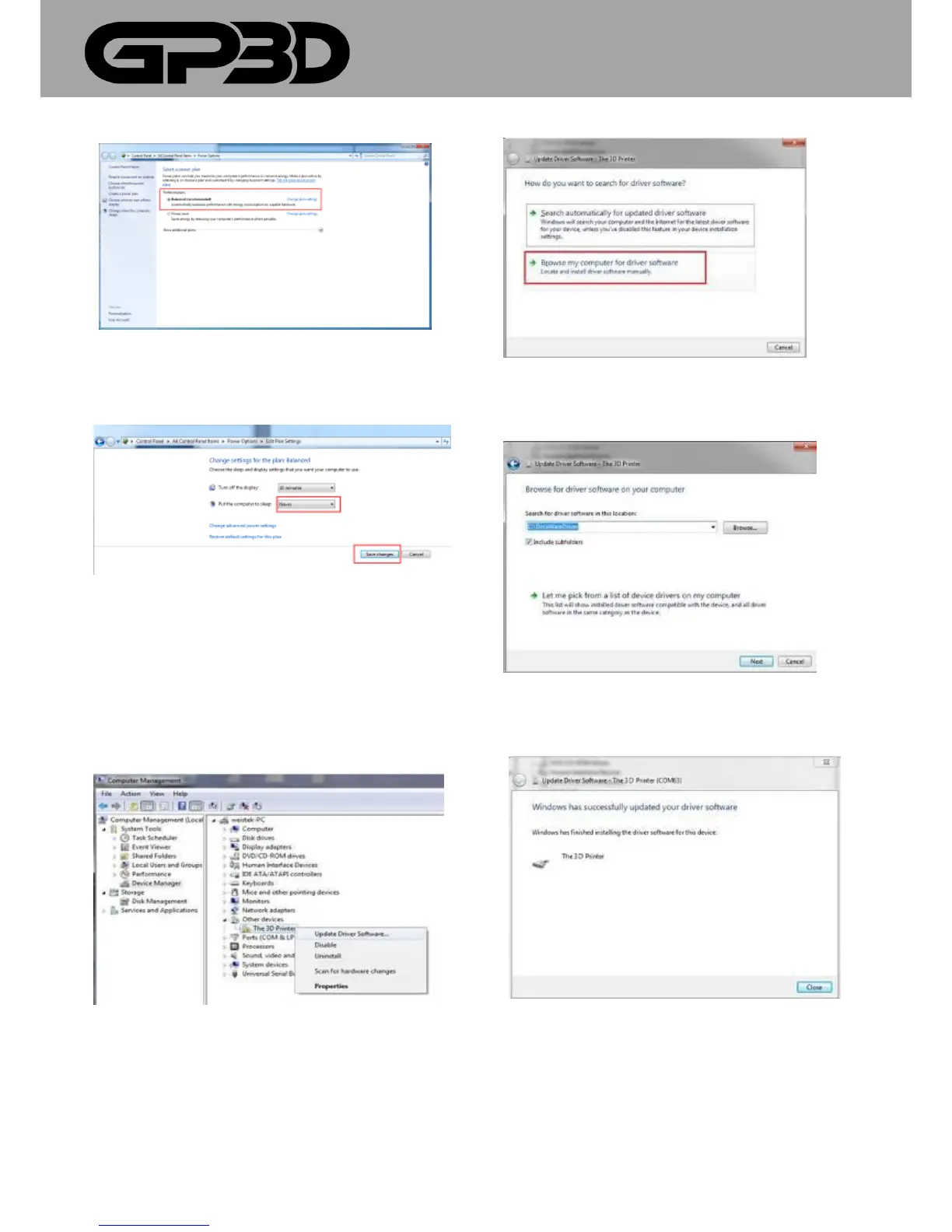
(Figure 3.3-05)
3.3.6 Choose “Never” in the “Put the computer to sleep” drop-down. Then
click “save changes”.
(Figure 3.3-06)
3.4 WIN8/8.1 DRIVER INSTALLATION
3.4.1 After connecting the 3D printer, the system will install the driver
automatically, and check if the installation was successful. Right-click on
“Computers”, and click “Properties.” In the pop-up interface, click “Device
Manager”. Drop down “Other device”. Right-click on ”The Replicator”.
Choose “Update Driver Software.”
(Figure 3.4-01)
3.4.2 In the pop-up interface, select “Browse my computer for drive
software”
(Figure 3.4-02)
3.4.3 Pop-up as shown below. Select “Browse”.
(Figure 3.4-03)
3.4.4 Click “Close”. Installation is finished.
(Figure 3.4-04)
3.4.5 Check if installation succeeds. Click the “+” in front of “Port (COM
&LPT)”. If the port number is shown, the driver of USB serial port is
installed successfully.



 To Next Page