GP3D Root User Manual
6
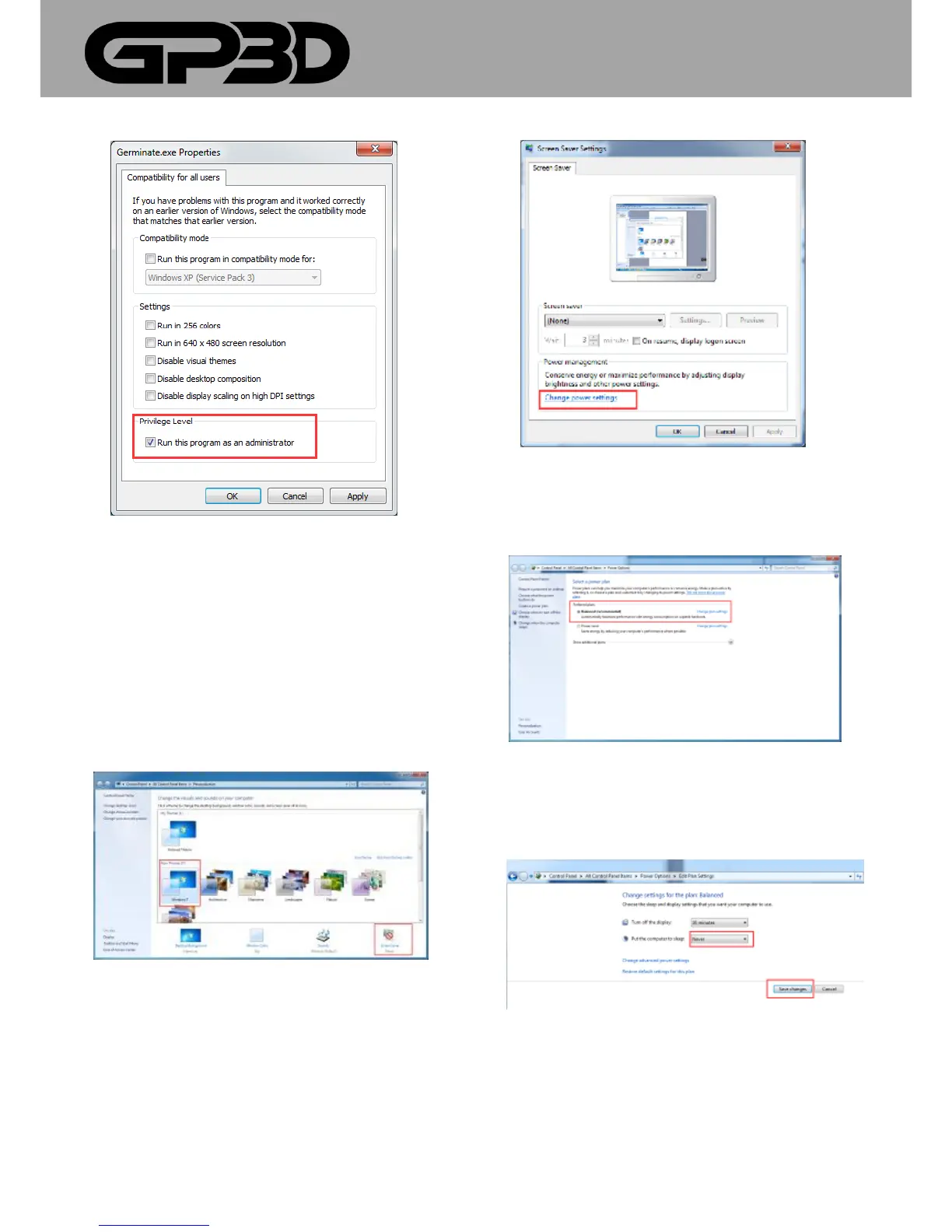
(Figure 3.2-14)
3.3 COMPUTER SLEEPING MODE CHANGES
Attention: To avoid interruption during printing, please turn off the
sleeping mode on your pc.
3.3.1 Win8or8.1
Right-click the desktop and select “Personalization”, then select “Screen
saver”. (Figure 3.3-01)
(Figure 3.3-01)
3.3.2 In the pop-up interface, click “Change advanced power settings”.
(Figure 3.3-02)
3.3.3 In the pop-up interface of “Advanced settings”, click “Change plan
settings” in “Balanced”.
(Figure 3.3-03)
3.3.4 Choose “Never” in the “Put the computer to sleep” drop-down. Then
click “save changes”.
(Figure 3.3-04)
3.3.5 In Windows 7, find “Control Panel”, click “Power Options”, and then
click “Change plan settings”.



 To Next Page