GP3D Root User Manual
10
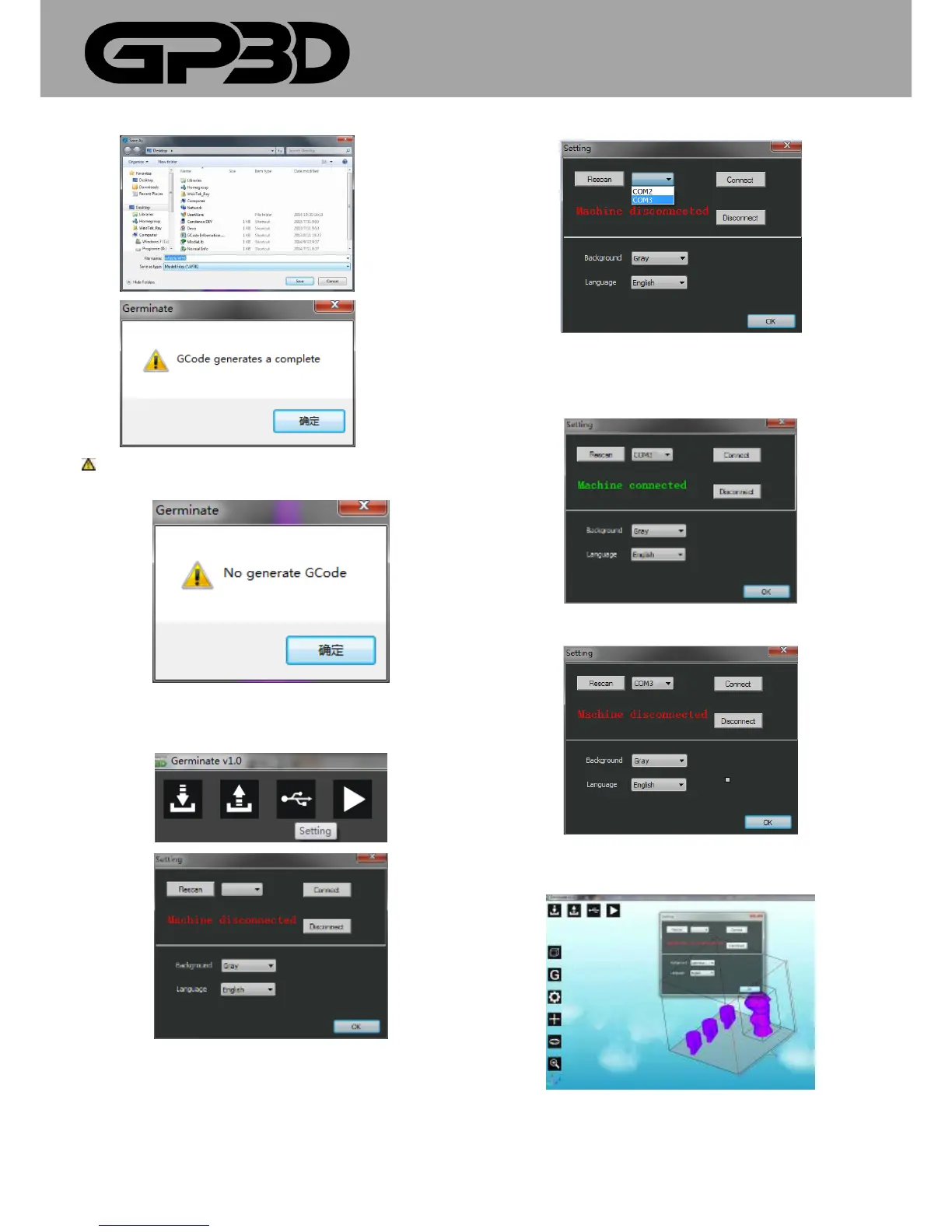
Notice: if the model does not generate GCODE, click “Export”, if it
cannot generate a file the following message box will pop out.
4.1.6 Connect the printer with PC
4.1.6.1 Click the icon “Setting” to open the GP3D Root connection dialog.
4.1.6.2 Click “Rescan” and “▼”, as shown below.
4.1.6.3 Select the corresponding port of the GP3D Root. For example, this
GP3D Root is “COM3”. Click “Connect”.
4.1.6.4 To disconnect the GP3D Root and software, click “Disconnect”.
4.1.6.5 To change the background color: click the icon after “background”.
There are three kinds of background images to choose from.
4.1.6.6 Click the pull-down button after “Language” to choose Chinese or



 To Next Page