Setup
16 313046A
2. Press the UP or DOWN ARROWS to scroll through
the numbers 0-9. When the correct numeral
appears in the field, press center ENTER button on
meter’s keypad to select the number. After a number
is entered, the cursor automatically moves to the
right, to the next number field.
3. Continue this process until the complete, 4-digit PIN
Code has been entered.
4. After the last number is entered, the cursor moves
over ENTER. Press center ENTER button on the
meter’s keypad to send the PIN Code entry to the
PC.
5. The PC recognizes the PIN Code entered, and
authorizes the meter to begin the dispense.
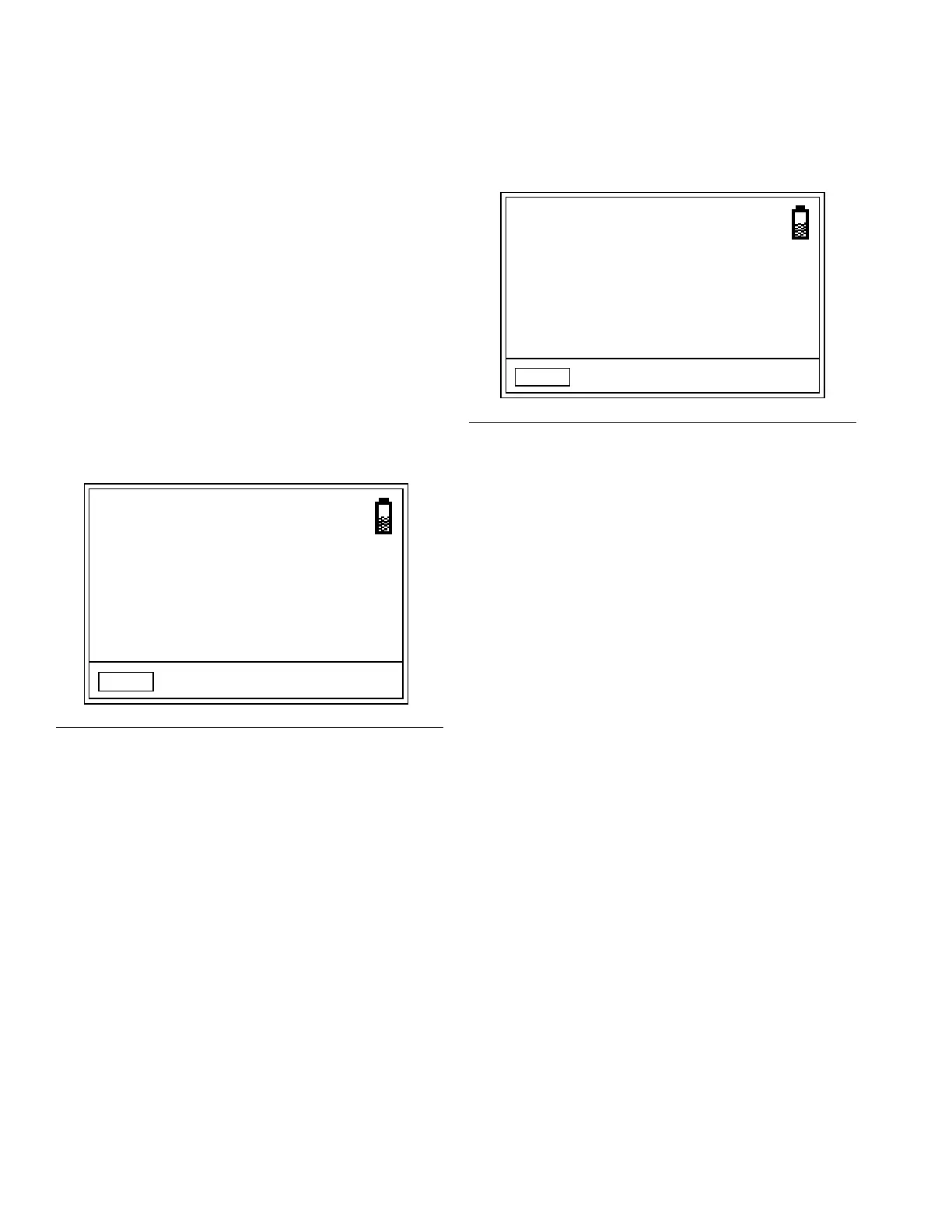
Parts Room Authorization (FIG. 22)
This mode provides highest level of security and
requires a Parts Room Administrator to authorize each
dispense. Before each dispense the meter displays the
message: AUTHORIZATION REQUIRED. To send an
authorization request to the Parts Room Administrator:
1. Move cursor to select the REQUEST on the display
and push the center ENTER button on meter’s key-
pad to send the authorization request to the Parts
Room.
2. After sending the request, the message PLEASE
WAIT appears at the top of the screen as shown in
F
IG. 23.
3. You will not receive a message at the meter saying
the Parts Room Administrator has authorized the
meter to begin the dispense.
There are two ways to determine when the meter is
ready:
• Press the center ENTER button to select
REQUEST again. If the meter has received
authorization from the Parts Room Administra-
tor, the meter display will change to either the
Dispense Screen or, if the meter was pro-
grammed to process work orders, the Work
Order Enter/Select screen will appear (see
Work Orders and Job Numbers, page 17).
OR. . .
• Wait for the meter to fall asleep. When you
press any button to wake it up, if the meter has
been authorized for the dispense, the Dispense
Screen will display.
NOTE: The Parts Room Administrator can choose to
reject the dispense request. If a request is rejected, the
PLEASE WAIT message on the display will be replaced
with REJECTED and the meter will not be allowed to
dispense.
System Monitoring
When system monitoring is selected, no security
authorization is required prior to making a dispense. Any
amount of fluid dispensed is automatically sent by the
meter to the PC where it is recorded for future reference.
F
IG. 22
MOBIL
1
5W-20
REQUEST
AUTHORIZATION
REQUIRED
ti12256a
FIG. 23
MOBIL
1
5W-20
REQUEST
PLEASE WAIT
AUTHORIZATION
REQUIRED
ti12257a


 To Next Page