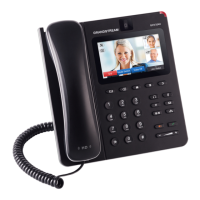
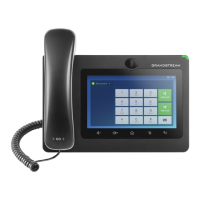
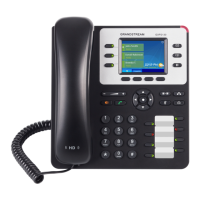
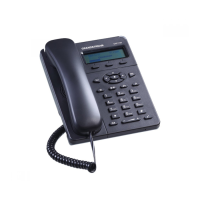
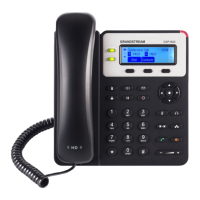
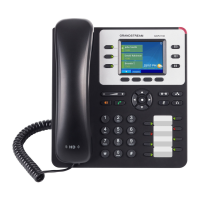
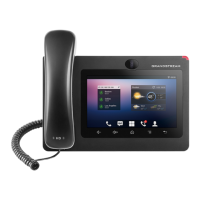
Figure 14: GXV3275 Main Screen - IP Address
To access the GXV3275 Web GUI:
1. Connect the computer to the same network as the phone.
2. Make sure the phone is turned on and shows its IP address on the account widget of the desktop.
3. Open a Web browser on your computer.
4. Enter the phone’s IP address in the address bar of the browser.
5. Enter the administrator’s login and password to access the Web Configuration Menu. The default
login name and password for the administrator is "admin" and "admin". The default login name and
password for the end-user is "user" and "123".
Note:
The computer has to be connected to the same sub-network as the phone. This can be easily done by
connecting the computer to the same hub or switch as the phone connected to. In absence of a
hub/switch (or free ports on the hub/switch), please connect the computer directly to the PC port on the
back of the phone.
If the phone is properly connected to a working Internet connection, the phone will display its IP address.
This address has the format: xxx.xxx.xxx.xxx, where xxx stands for a number from 0-255. Users will
need this number to access the Web GUI. For example, if the phone shows 192.168.40.154, please
enter "http://192.168.40.154" in the address bar of the browser.


 To Next Page
 Loading...