EasyManua.ls Logo

Grandstream Networks HT812 - User Manual

Grandstream Networks HT812
39 pages
Print Icon
To Next Page IconTo Next Page
Loading...
Grandstream Networks, Inc.
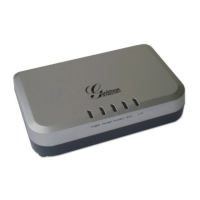
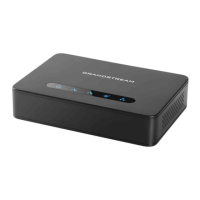
HT812 Analog Telephone Adaptors
User Guide

Table of Contents

Other manuals for Grandstream Networks HT812

Questions and Answers

  • S
    Savannah BrownAug 2, 2025
    What to do if the WAN LED is not on for Grandstream Networks HT812?
    • W
      William MartinezAug 2, 2025
      If the WAN LED is not lit on your Grandstream Networks telephone accessory, ensure the Ethernet cable is securely plugged into the WAN port and connected to your router. Also, verify that your router has active Internet access.
  • S
    stephanierojasAug 10, 2025
    Why is the Phone LED solid blue but the phone is not working with Grandstream Networks HT812 Telephone Accessories?
    • R
      Regina KnightAug 10, 2025
      If the Phone LED is solid blue but the connected phone or fax isn't working, confirm that the port is assigned to a user. You can log into Ooma Office Manager, navigate to Devices in the Settings section, and assign the port you’d like to use to a user.
  • M
    Martin MooreAug 17, 2025
    How to fix phone port status LED if it is not on Grandstream Networks HT812 Telephone Accessories?
    • L
      Lisa McintoshAug 17, 2025
      If the phone port status LED is off, or if analog devices have no dial tone, ensure the telephone adapter has been added to your Ooma Office Manager account and that the port you intend to use is assigned to an Ooma Office user. Try restarting the phone by disconnecting its power, waiting 30 seconds, and then reconnecting the power supply.
  • J
    Joshua MasseyAug 26, 2025
    How to troubleshoot a Grandstream Networks Telephone Accessories when the power LED is not on?
    • G
      Gerald LeAug 26, 2025
      If the power LED is not on, check that your device is properly plugged into the wall and that the outlet has power.

Summary

Document Purpose

Change Log

Firmware Version 1.0.2.1

This is the initial version for HT812/HT814.

GUI Interface Examples

Welcome

Product Overview

Feature Highlights

The following table contains the major features of the HT812/HT814.

HT812;HT814 Technical Specifications

The following table resumes all the technical specifications including the protocols/standards supported, voice codecs, telephony features, languages and upgrade/provisioning settings for the HT812.

Getting Started

Equipment Packaging

The HT812/HT814 ATAs packages contains: (lists items like HT812, power adapter, cable, etc.)

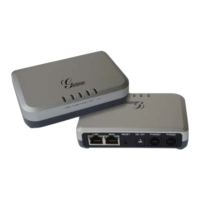
HT812;HT814 Ports Description

Connecting HT812;HT814

The HT812 is designed for easy configuration and easy installation, to connect your HT812, please follow the steps below:

HT812 LEDs Pattern

Configuration Guide

Obtain HT812 IP Address via Connected Analogue phone

HT812 is by default configured to obtain the IP address from DHCP server where the unit is located.

Understanding HT812 Interactive Voice Prompt Response Menu

The HT812 has a built-in voice prompt menu for simple device configuration which lists actions, commands, menu choices, and descriptions.

Configuration via Web Browser

Accessing the Web UI

This section explains how to access the HT812/HT814 through a web browser.

Web UI Access Level Management

Details the different user levels and their allowed access pages within the Web GUI.

Changing Admin Level Password

Changing User Level Password

Instructions on how to change the end-user password for the HT812 web interface.

Changing HTTP Web Port

Guide on how to change the default HTTP web port for the HT812.

Configuring HT812 Through Voice Prompts

Register a SIP Account

Call Features

Call Operations

Placing a Phone Call

Instructions on how to make outgoing calls using the HT812 analog telephone adapter.

Direct IP Calls

Allows two parties to talk directly without a SIP proxy, using FXS ports and VoIP devices.

Call Hold and Waiting

Describes placing calls on hold and toggling between active and incoming calls.

Call Transfer and Blind Transfer

Guides on performing transfers, including blind transfers, between parties.

Attended Transfer

Details on how to transfer a call after speaking with the recipient.

3-Way Conferencing

Explains how to set up and manage 3-way conference calls on the HT812/HT814.

Call Return

Enables users to call back the last incoming number received.

Voice Mail

NAT Settings

DTMF Methods

Preferred Vocoder (Codec)

Lists the supported voice codecs for the HT812/HT814 and how to choose preference.

Upgrading and Provisioning

Firmware Upgrade Procedure

Step-by-step guide to upgrading the firmware version of the HT812/HT814.

Upgrading via Local Directory

Upgrading via Local TFTP;HTTP Servers

Instructions for upgrading firmware using local TFTP or HTTP servers.

Firmware and Configuration File Prefix and Postfix

Explains how prefix and postfix settings help manage firmware and config files.

Managing Firmware and Configuration File Download

Configuration File Download

Details on downloading configuration files via Web Interface or configuration files.

Restore Factory Default Settings

Using the Reset Button

Step-by-step instructions for resetting the unit using the physical reset button.

Using the IVR Command

Procedure to reset factory default settings using the Interactive Voice Response menu.

Reset from Web Interface (Reset Type)

Experiencing HT812;HT814

Grandstream Networks HT812 Specifications

General IconGeneral
BrandGrandstream Networks
ModelHT812
CategoryTelephone Accessories
LanguageEnglish

Related product manuals