27
USB Mode
Media playback
• Press the INPUT button on the bottom of the front panel, or on the remote control, to
switch the unit to USB mode. (Alternatively, press the MEDIA button on the remote control
to enter USB mode directly.)
• First, insert a USB memory device into USB 1 port.
NOTE: USB2 port will not function with these menus.
• Press the / / / buttons to move the cursor.
• Press the EXIT button to return to the previous menu page.
Photo
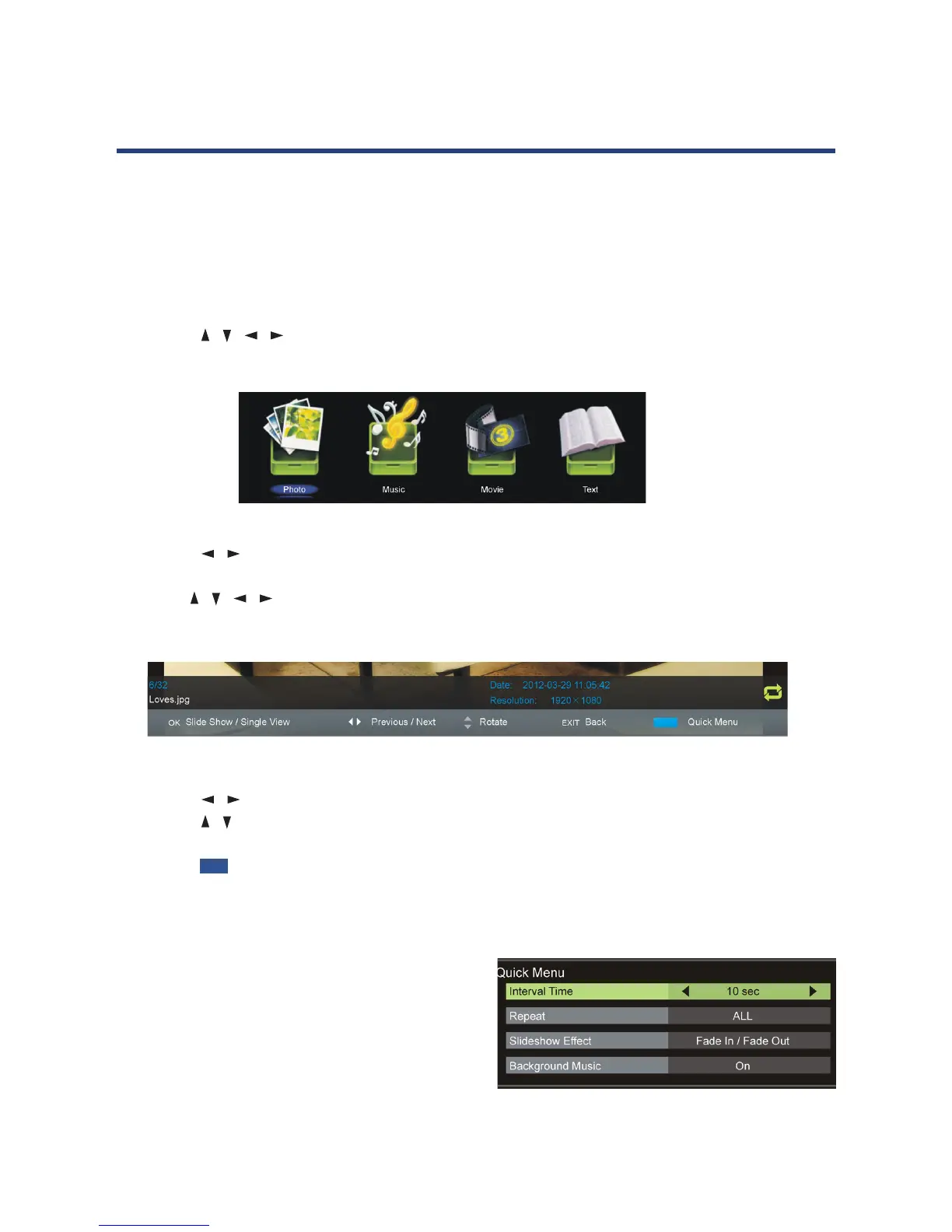
• Press the / buttons to select Photo in the main menu, then press OK to enter it. Photos
les can only be played in this menu category.
• Use the / / / buttons to select the desired folder or le, then press OK to open the
folder or start playing the le.
When playing photo les:
• Press the DISPLAY button on the remote control to hide/display the on-screen tool bar.
• Press OK repeatedly to switch between Slide Show and Single View.
• Press the / buttons to play the previous/next le.
• Press the / buttons to rotate a photo clockwise/counterclockwise.
NOTE: You can rotate a photo only when slide show is paused.
• Press the BLUE button on the remote to display the Quick Menu,
press it again to dismiss the menu.
• Interval Time: Set the slide show interval time.
• Repeat: Select the desired repeat mode.
• Slide Show Eect: Select the desired slide show
eect.
• Background Music: Turn on/o background
music.


 To Next Page