Quick Start Guide REX 30010
4.2.1 Establishing an Internet connection through the "First Start" website
If you have not yet congured your REX 300 router using one of the other congu-
ration methods (directly on the computer or using a USB ash drive), you can also
establish an Internet connection for the commissioning directly with the REX 300
router's web interface at the "First Start" website.
If the REX 300 unit is already able to establish an Internet connection, please skip
ahead to page 14, point 4.2.5 “Automatic conguration download.”
Commissioning via the "First Start" website presumes that the REX 300 can be ad-
dressed in the local network under its default IP address.
REX 300 routers come with a default IP address of 192.168.0.100 (subnet mask:
255.255.255.0).
In order to be able to reach the REX 300 router, the PC network adapter must also be
set to the IP address space and subnet of the router.
Start by opening the properties for your LAN connection.
- In Windows XP
2
:
Start -> Settings -> Control panel -> Network connections.
- In Windows
2
7:
Start -> Control panel -> Network and sharing center -> Change adapter settings
Your IP address must lie within the address range "192.168.0.x". The subnet mask
must match the subnet mask used by the REX 300 unit (default: 255.255.255.0).
Note: Make sure that there are no address space conicts with any other network ports
(do not assign the same IP address more than once). If there are, you will not be able to
communicate with your REX 300 unit properly.
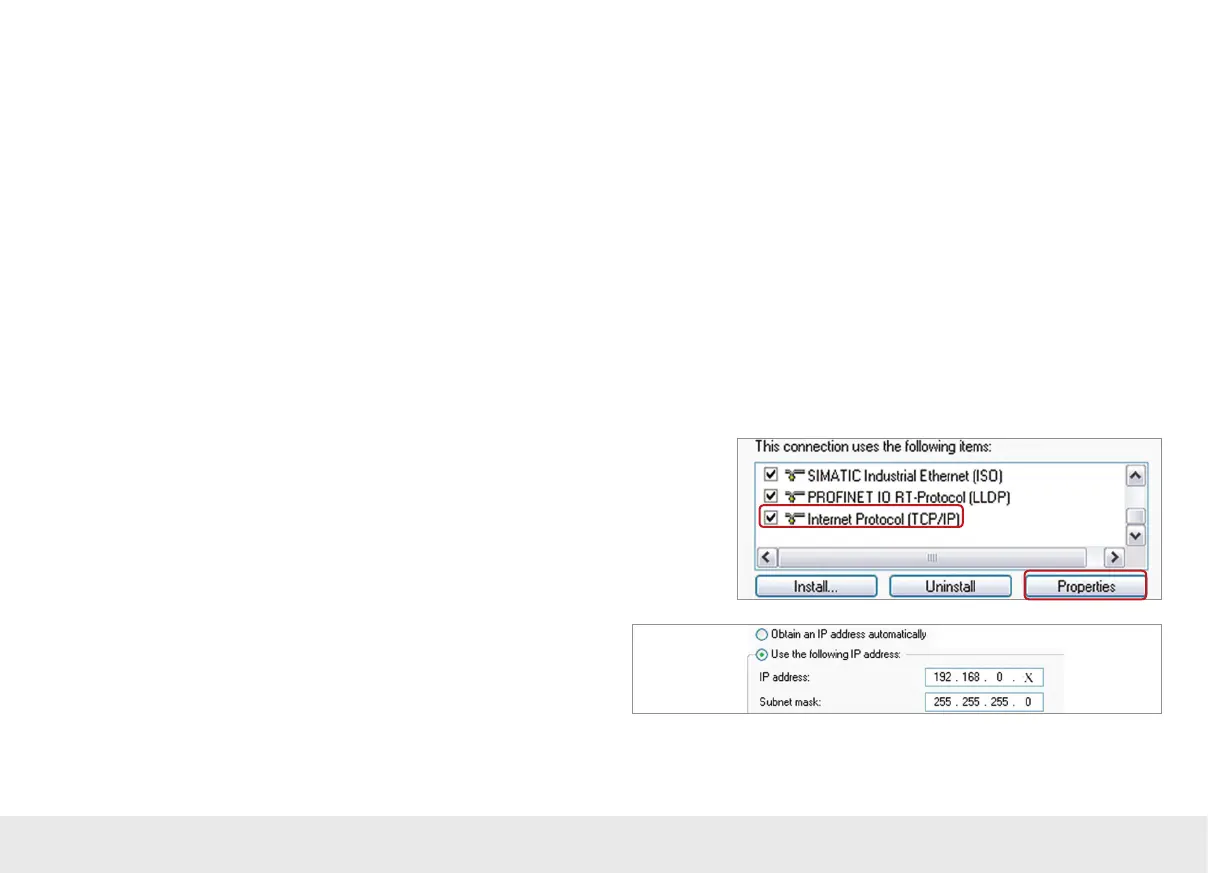
Open the Properties dialog box for the network connection that you want to use in
order to establish a connection to your REX 300 unit. To change your computer's IP
address, select "Internet Protocol (TCP/IP)" and click on the "Properties" button.


 To Next Page