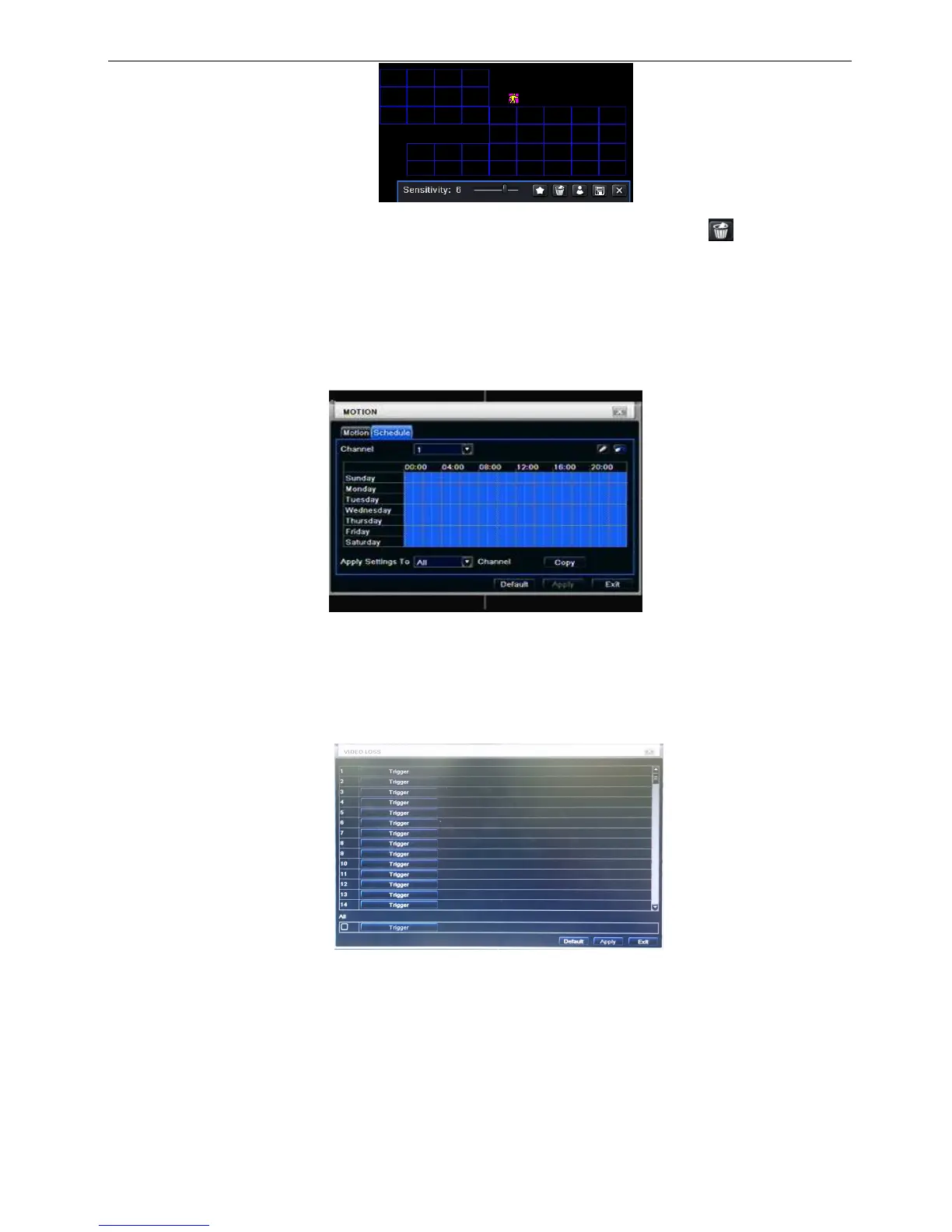
Note: when user drag mouse to set motion detection area, they have to click icon to clear all
set detection area firstly, and then make the operation.
Step6: user can setup all channels with same parameters, tick off “all”, then to do relevant setup.
Step7: click “default” button to resort default setting; click “apply” button to save the setting; click “exit”
button to exit current interface.
① Schedule
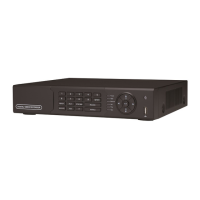
Step1: enter into system configurationalarm configurationschedule; refer to Fig 3-21:
Fig 3-21 alarm configuration-schedule
Step2: the setup steps of alarm schedule are familiar with schedule; user can refer to 4.4.1 Schedule for
details.
3.5.2 Video loss
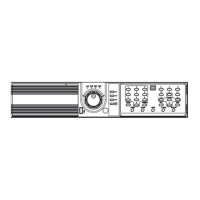
Step1: enter into system configurationalarm configurationvideo loss; refer to Fig 3-22:
Fig 3-22 alarm configuration-video loss
Step2: Setup steps of video loss trigger.
(1)Enable the buzzer if user need this function.
(2)Choose the channel which when event happened to show full screen,
(3)Choose enable transfer e-mail function or not.
(Before enable this function, user need to set-up E-mail transit data. please reference 3.6.3)
(4)Choose the snap shot channel.



 To Next Page