3.7 User management configuration
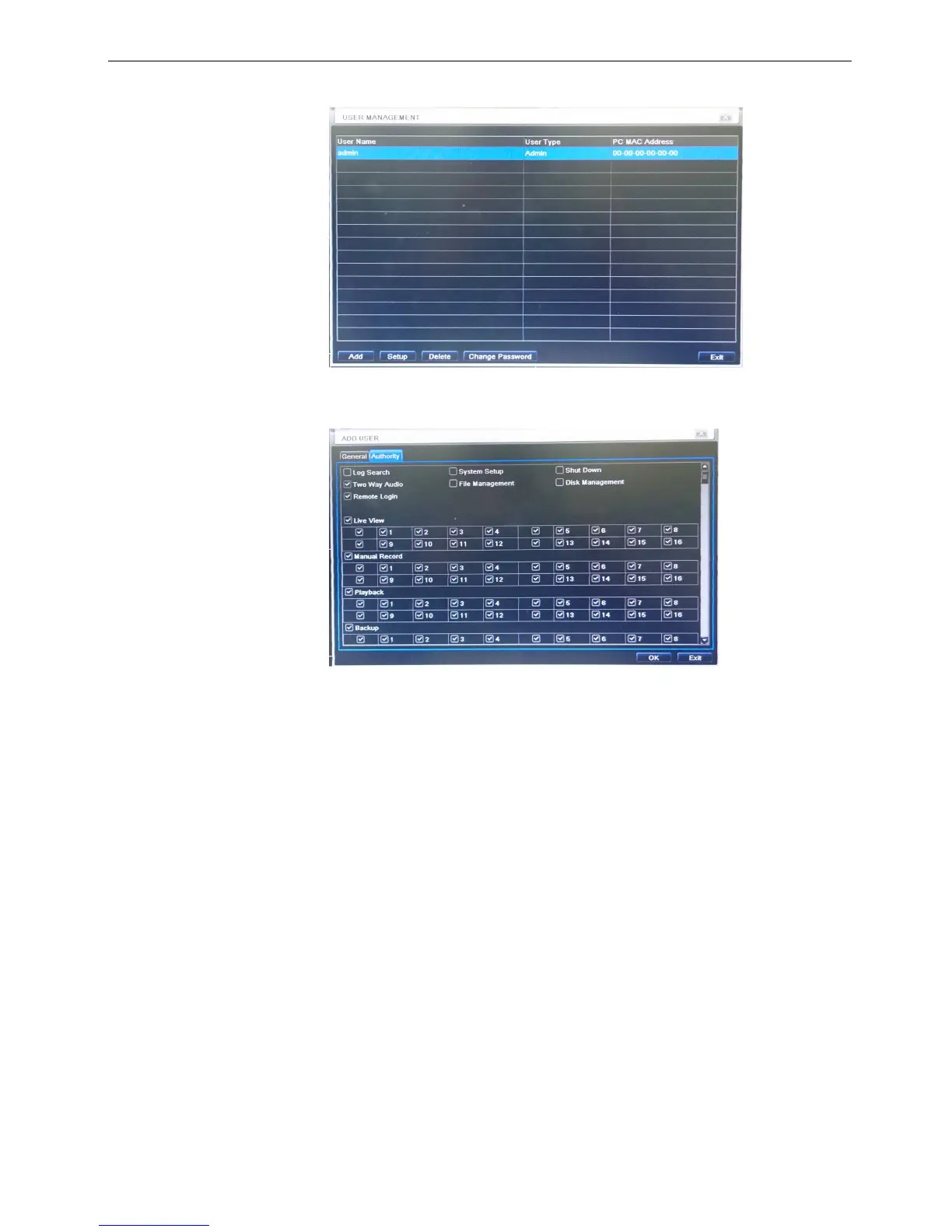
Step1: enter into system configurationuser management configuration; refer to Fig 3-31:
Fig 3-31 user management configuration
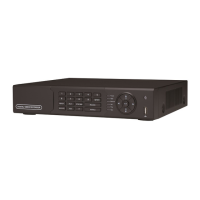
Step2: click Add button, a dialog box will pop-up as Fig 3-32:
Fig 3-32 add-general
① General: Input user name, password; select user type: normal and advance, input the MAC address of
the PC; click OK button, this user will be added into the user list box; click Exit button to exit the current
interface.
Note: when the default value of binding PC MAC address is 0, the user is not bind with the specify
computer; the, the user can log in DVR on the binding computer after set the specific binding MAC
address.
② Authority:
a) Admin: Admin have full control of DVR. DVR could have only one admin account.
b) Advance: Besides ”firmware upgrade”, ”reset factory default”, ”shut down” and ”change other
user’s password”, advance account could control DVR like an admin account.
c) Normal: Normal account can only do “live view”, “playback”, “search”, “backup”, “log off”, “view
DVR information”, and “change his own password”.



 To Next Page