6.3.2 Remote backup
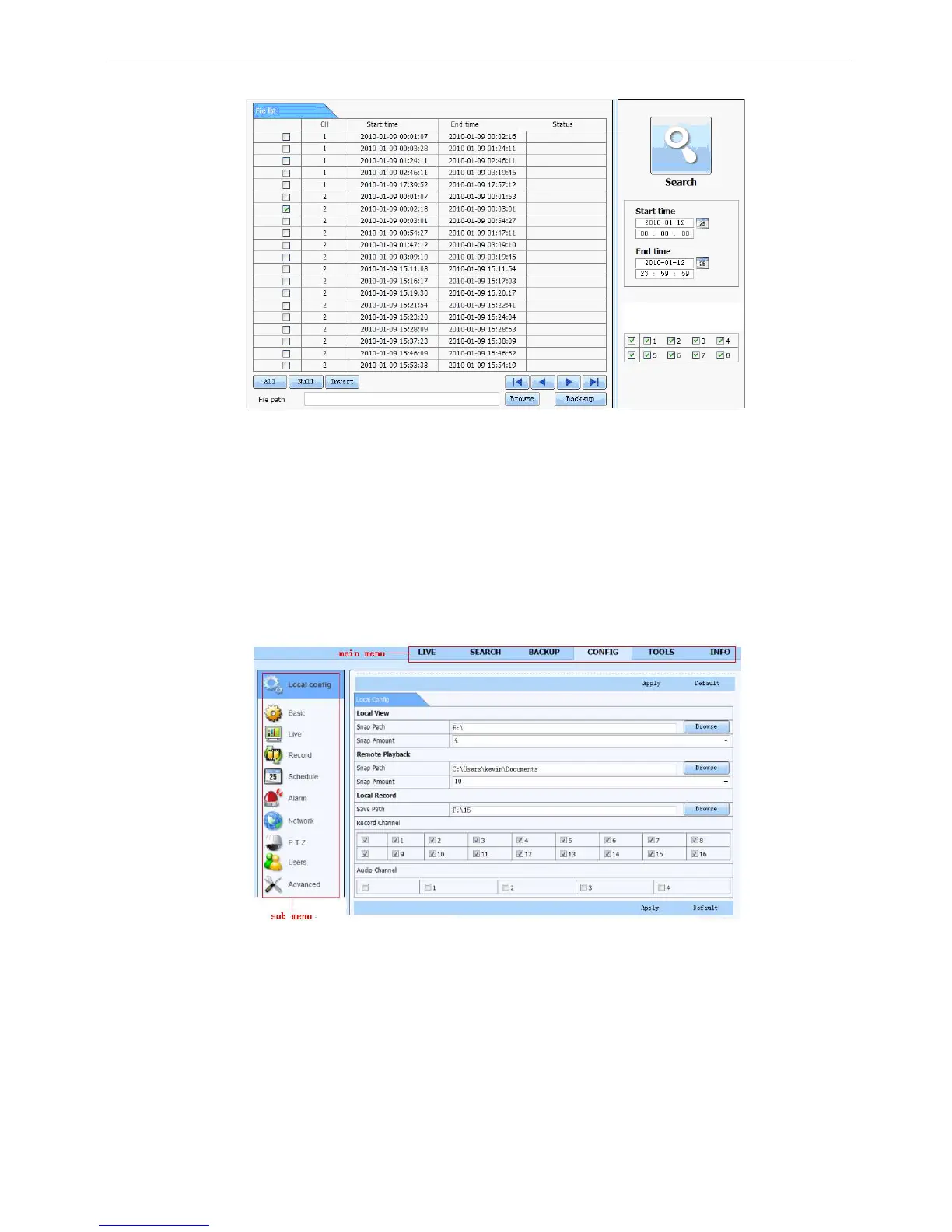
Click Backup button to enter into backup interface, refers to Fig 6-10:
Fig 6-10 remote backup interface
Step1: select channels, set the start and end time, then click “search’ button, the file information will be
displayed in the file list box
Step2: select backup files, click “browse” button to set the save path, and then click “backup” button to start
backup. The backup files will be saved on user’s PC.
6.4 Remote System configuration
User can remote setup the parameters of the device. Functions of remote configurations include: basic
configuration, live configuration, record configuration, schedule configuration, alarm configuration, network
configuration, PTZ configuration and user configuration. User should firstly select an item in the menu list on
the left, and then setup the relative parameters. When one user setup parameters of a certain item, others
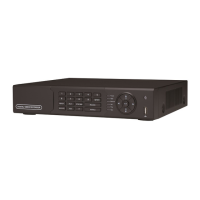
cannot setup this one. Click Config to enter into the below interface refer to Fig 6-11:
Fig 6-11 remote menu setup
The sub menu lists and the options in every item are similar with those on the DVR. Please refer to Chapter 3
Main Menu Setup Guide for more details.
Click “Apply” button to save above settings; click “default” button will recover the original settings.



 To Next Page