4.3 File manager
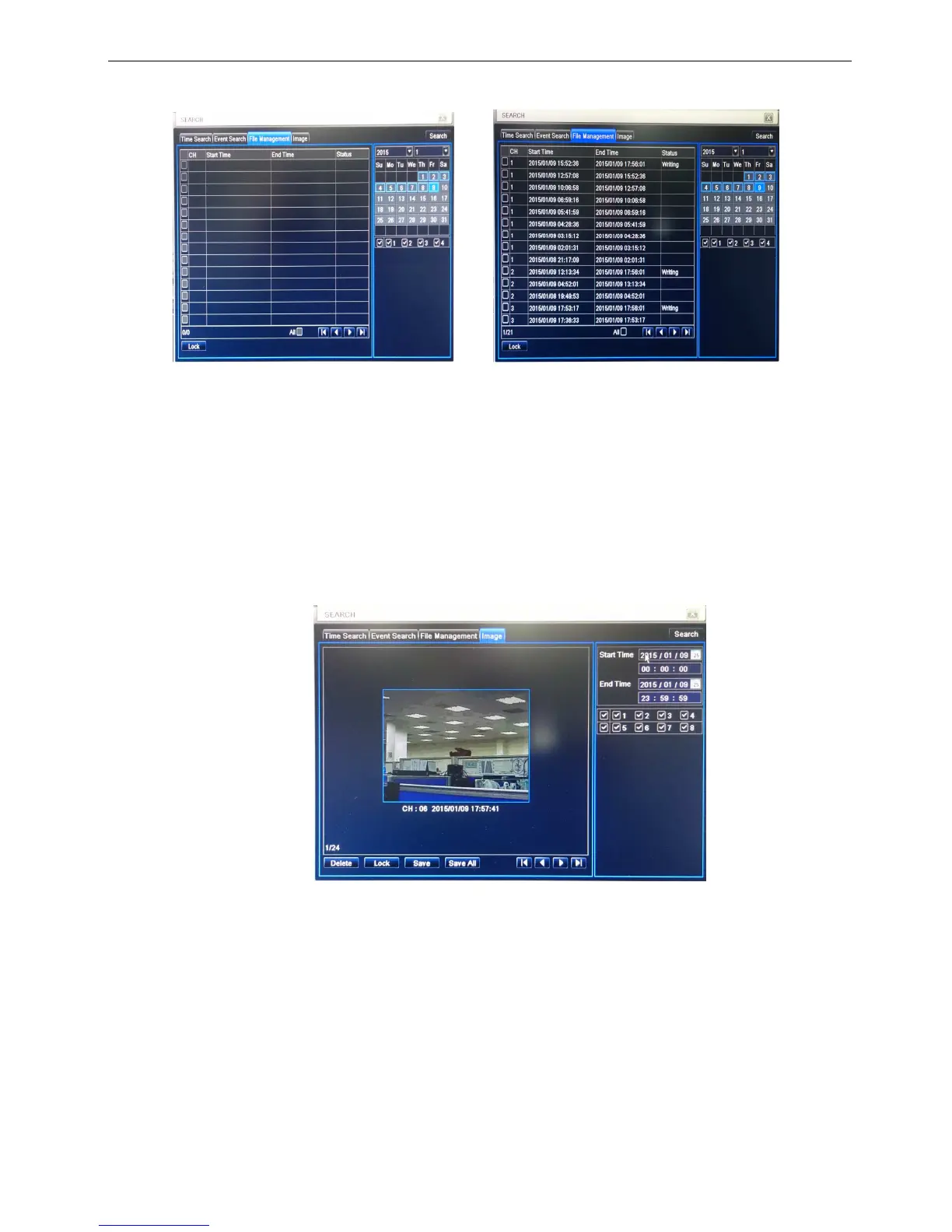
Step1: enter into Search configurationfile manager; refer to Fig 4-3:
Fig 4-3 Search configuration-file manager
Step2: click Search button, the searched files will be displayed in the file list box, user can select date,
channels accordingly.
① Lock: checked a file, click Lock button to lock this file, after that, that file will not be deleted or covered.
① Unlock: checked a locked file, click Lock button to unlock this file
Step3: tick off “All” button; user can lock/unlock or delete all files in the file manager column.
Step4: double click an unlocked item to playback.
Note: when the monitor resolution is VGA800*600, the file manager interface will appear a hide
button, click this button, the whole interface can be expanded.
4.4 Image
Step1: enter into Search configurationimage; refer to Fig 4-4:
Fig 4-4 Search configuration-image
Step2: click Search button, the searched files will be displayed in the file list box, user can select date,
channels accordingly.
① Lock: checked a file, click Lock button to lock this file, after that, that file will not be deleted or covered.
① Unlock: checked a locked file, click Lock button to unlock this file
① Delete: checked an unlocked file, click Delete button to delete this file.
Step3: Insert a USB drive to save (or save all) image data.



 To Next Page