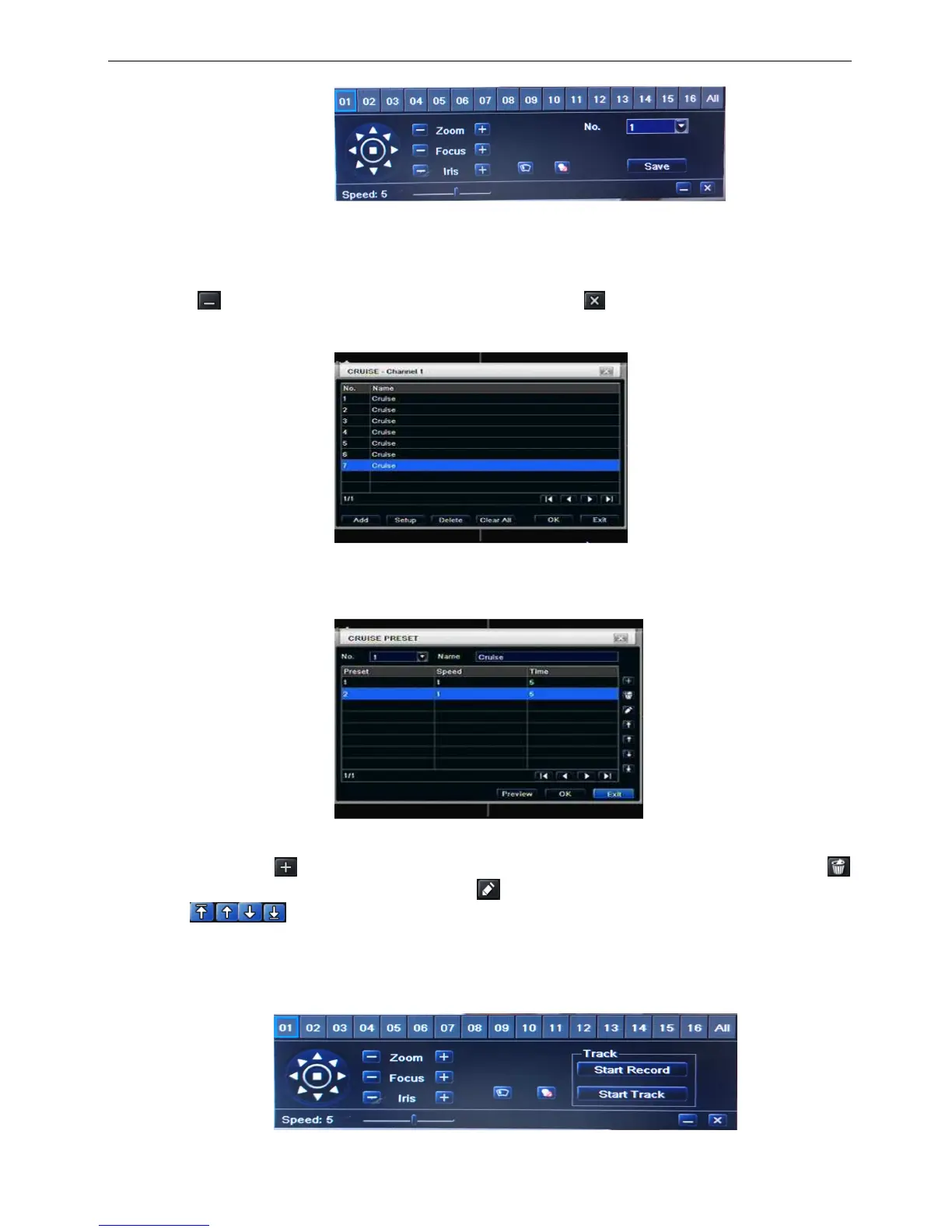
a. in the preset set interface, click Setting button, a dialog will pop-up as Fig 3-36:
Fig 3-36 preset set-setting
b. user can control the dome rotates up, up left, down, right down, left , left down, right and up right and
stop rotating; adjust the rotate speed and the value of zoom, focus and iris of the dome;
c. select the serial number of the preset point, set the preset name. Click Save button to save the settings,
click icon to hide the tool bar, right-key can remerge it; click icon to exit the current interface.
d. in the preset interface, click OK button to save the setting; click Exit button to exit current interface.
Step3: in the Advance interface, click cruise “Setting” button, a dialog box will pop-up as Fig 3-37:
Fig 3-37 cruise set
a. click Add button to add cruise line in the list box (max 8 cruise line can be added); select a cruise line,
click Setup button, a dialog box will pop-up as Fig 3-38:
Fig 3-38 cruise set-modify cruise line
b. click Add icon to set the speed and time of preset point; select a preset point, click Delete icon
to delete that preset point; click Modify icon to modify the setting of a preset point. User can
click those icons to adjust the position of preset point. Click Preview button to preview the
cruise line, click OK button to save the setting, click Exit button to exit current interface.
c. select a preset point in the cruise line list box, click Delete button to delete that cruise line; click Clear all
button to clear all cruise line from the list box; click OK button to save the setting; click Exit button to exit
current interface.
Step4: in the Advance interface, click track “Set” button, a dialog box will pop-up as Fig 3-39:
Fig 3-39 track set



 To Next Page