details.
Note: the default schedule of sensor is full-selected, that is, the color of schedule setting interface
is blue.
3.5.2 Motion
Motion includes two sub menus: motion and schedule.
① Motion
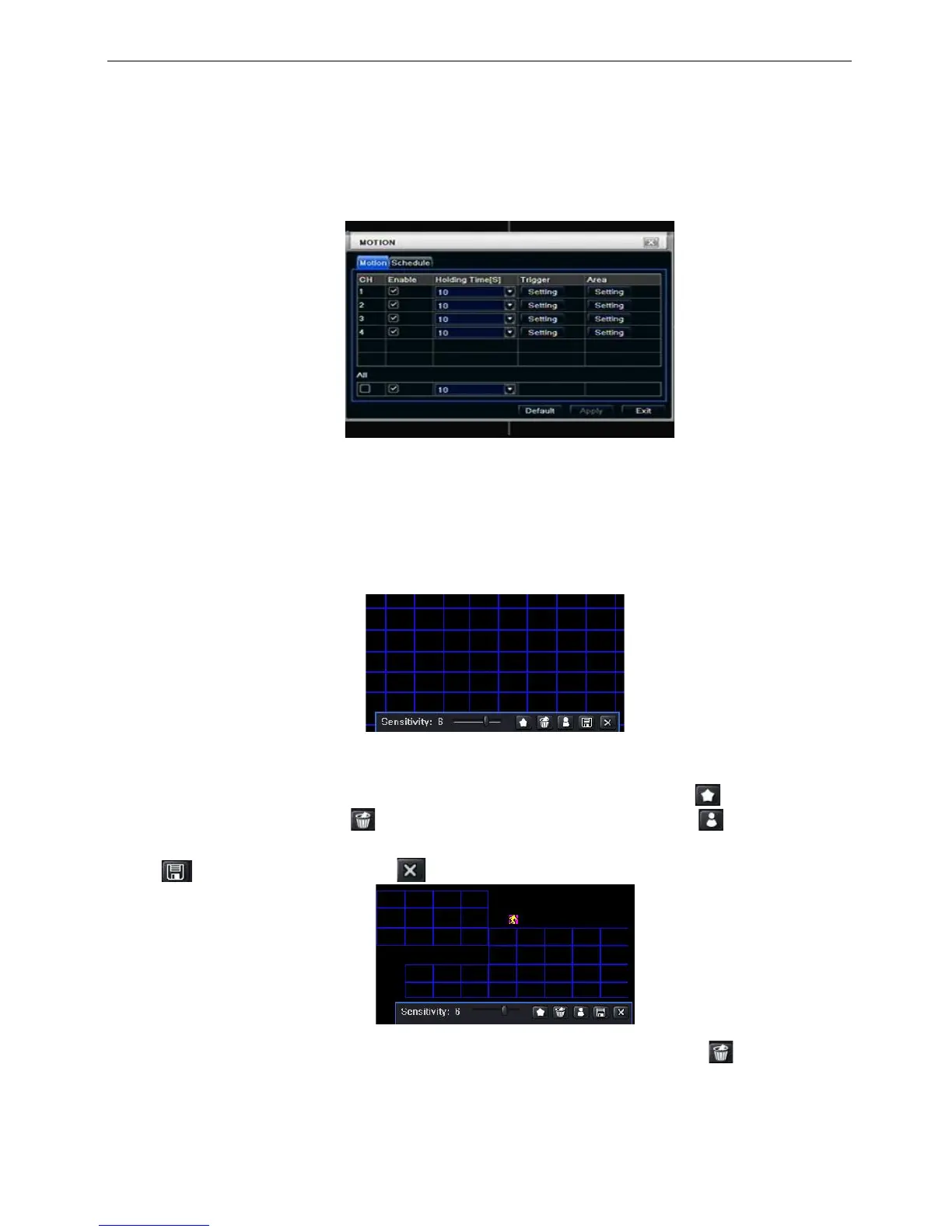
Step1: enter into system configurationalarm configurationmotion; refer to Fig 4-22:
Fig 4-22 alarm configuration-motion
Step2: enable motion alarm, set alarm hold time which means time interval between two adjacent detective
motions. If there is other motion detected during the interval period which is considered continuous
movement; otherwise, it will be considered that those two adjacent detective motions are two different
motion events. Click Trigger button, a dialog box will pop-up:
Step3: the setup steps of motion trigger are familiar with alarm handling; user can refer to Chapter 4.5.1
Sensor alarm handling for more details.
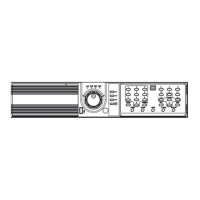
Step4: click Area button, a dialog box will pop-up as Fig 4-23:
Fig 4-23 motion-area
Step5: in the Area interface, user can drag slide bar to set the sensitivity value(1-8), the default value is 4.
The higher the value is the higher sensitivity you get. Due to the sensitivity is influenced by color and time
(day or night), user can adjust its value according to the practical conditions; click icon, set the whole
area as detection area; click icon, the set detection area will be cleared; click icon, user can test
whether the sensitivity value and motion area are suitable accordingly(refer to following picture); Click
icon, to save the setting; click icon, exit current interface.
Note: when user drag mouse to set motion detection area, they have to click icon to clear all
set detection area firstly, and then make the operation.
Step6: user can setup all channels with same parameters, tick off “all”, then to do relevant setup.
Step7: click “default” button to resort default setting; click “apply” button to save the setting; click “exit”
button to exit current interface.
② Schedule


 To Next Page