21
The "Application or website" option has [Add URL] and [Add application] buttons. “Add application” opens a
list of window titles for all the opened programs on your PC. “Add Url” displays domain names in opened tabs
of the opened browser’s windows. Choose the needed entry from the list. Filling all the other parameters as
described in the Add and Enter Passwords in the Web Browsers and Adding and Entering Passwords in
Desktop Applications sections.
Choosing from Several Suitable Accounts
Sometimes you need to create several accounts for a single resource. For example, you may have a personal
and corporate email with Gmail. Hideez Safe cannot know which Gmail account you want to use, so you need
to choose from a list of suitable accounts. This list will appear in the corner of the screen near the Hideez Safe
icon.
Import passwords from web-browser
The most convenient way to store passwords for most Internet users is to store them directly in the browser.
However, this way is not safe, because any application launched during a user session (e.g., malware) can
access the list of passwords.
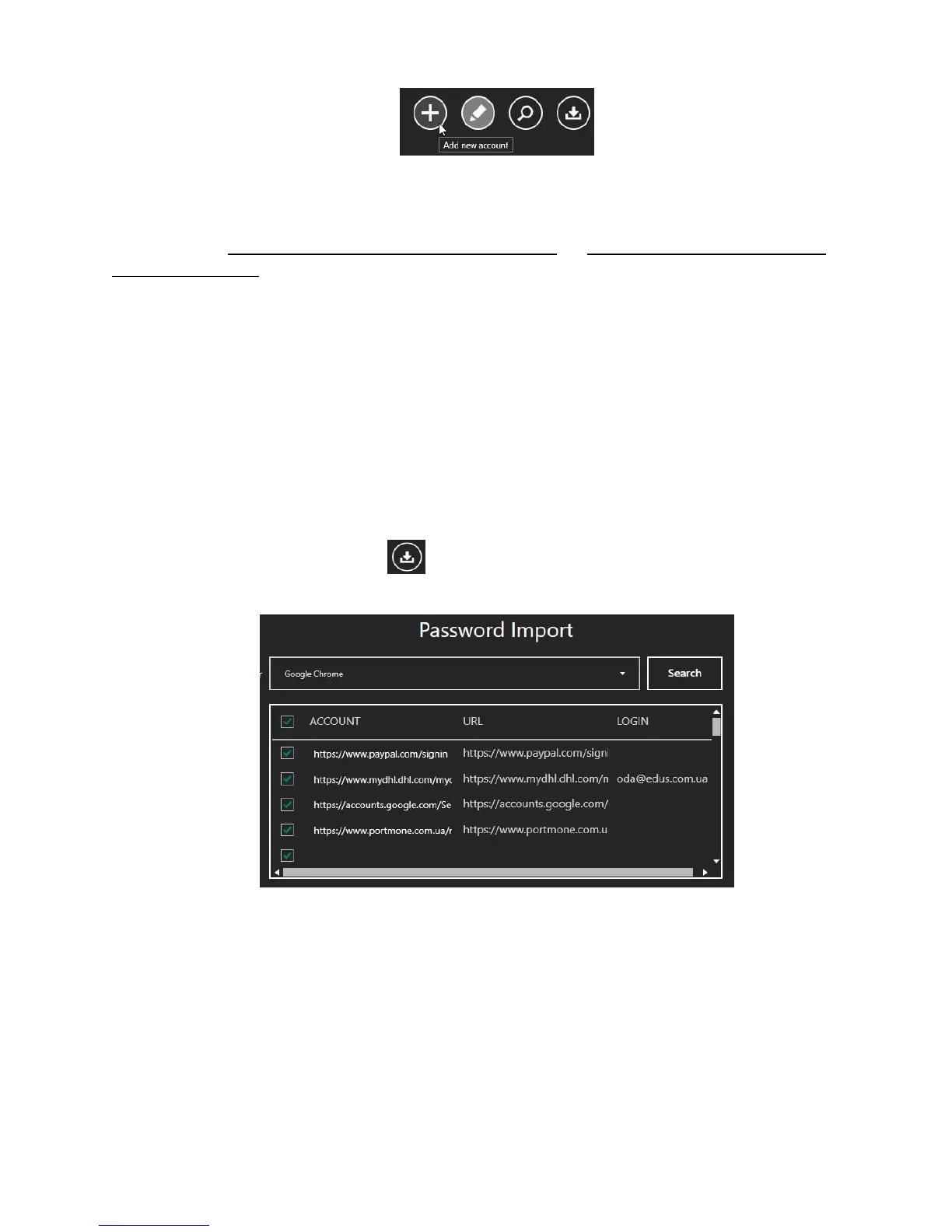
Hideez Safe provides the ability to import passwords from the browser into the Hideez Key. The import
procedure can be launched by pressing in the Password Manager. You should choose a browser
(Chrome, Firefox, Opera are supported) and click the [Search] button as shown.
Select the appropriate lines in the list, then click the [Import] button. To improve security you can turn off
password remembering and delete the passwords from the browser.
Note: Import procedure details may be different for different browsers.
Using the Default Password
One of your passwords can be assigned as the default password. This password will be entered every time you
press a hotkey combination to enter the “default password” (the default setting is Control + Alt + D). To set
this password, open the “Hotkey” tab and select it in the list.
Assigning of stored password to an application or web-site on Android smartphone.
When a password manager item is created (e.g. on a computer), you can "assign" it to a mobile app on your
smartphone. First, make sure that the "target" application is installed. Then open the Password Manager in



 To Next Page