29
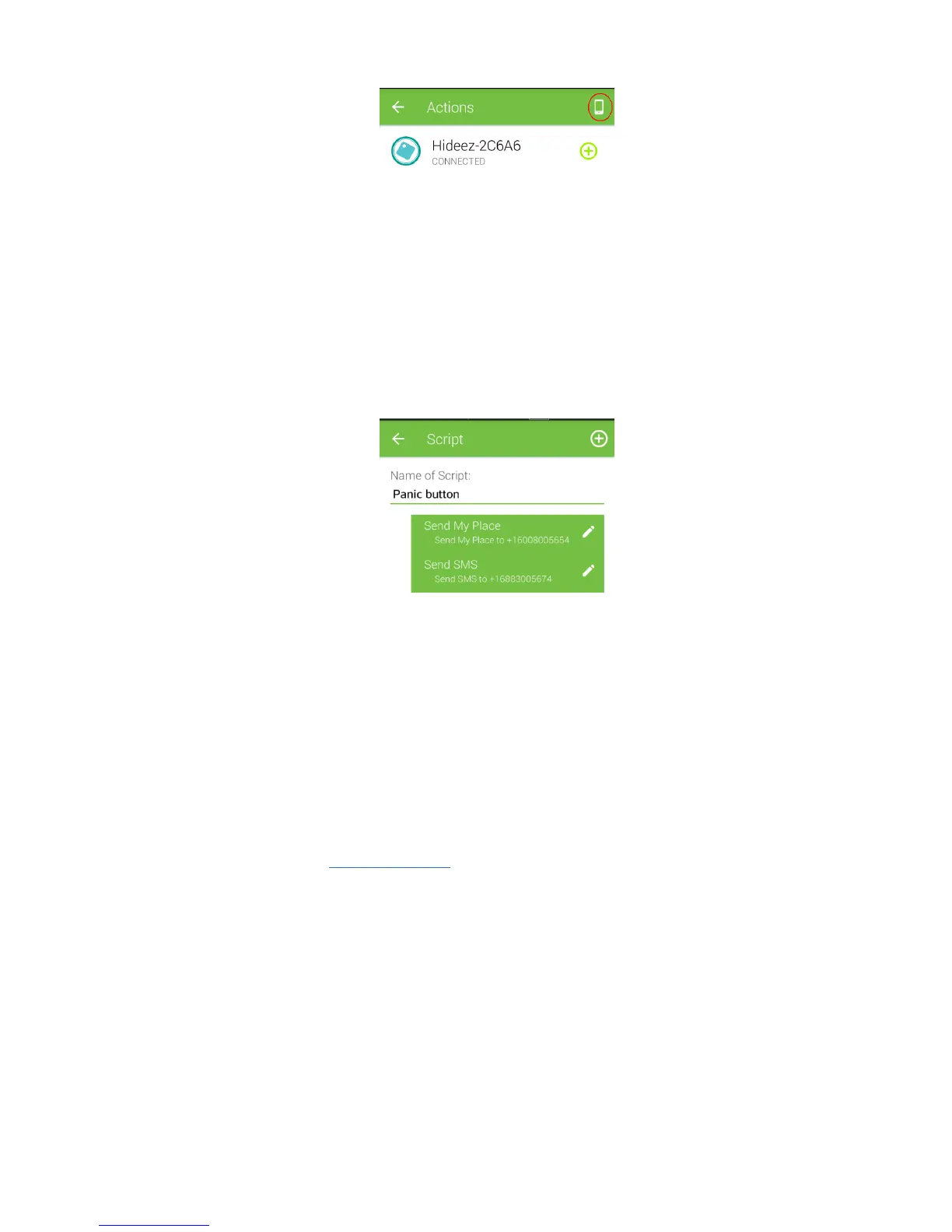
3. Add a new script by pressing the [+] button, and then enter the name ("Panic Button").
4. Add a new action by pressing the [+] button and select “Send SMS”.
5. Enter the phone number, in international format, starting with "+", and the text of the message, such
as "Need help."
6. Add a new action by pressing the [+] button, select "Send my location".
7. Enter a phone number, like you did instep 4.
8. Go back. The script will be saved. The result will be like this:
9. Return to the "Actions" menu like in the previous section, and add a new action for one of the
available button click options. Please note that the list of standard actions (taking pictures, audio
record audio and others) will now also include the script "Panic Button". Select this option and save
the action.
10.4. Alarm Clock
Hideez Key can also be used as an alarm clock. The settings can be made from Hideez Safe for Android using
the "Alarm Clocks" command in the context menu. You can set up to three alarms. Moreover, you can set up
specific days of the week as well as the time to turn on your alarm clock.
11. Web-service my.hideez.com
My Hideez personal cabinet allows you to view the list of your Hideez Keys, including information about the
device model, serial number and date of first registration.
Using a web-based service, you can remove Hideez Key from your account. For example, it you gave it to
another person, but forgot to “clean” it, the new user will receive the error message "The device is registered
to another user," while trying to connect. The new owner will not be able to use this Hideez Key or read data
from it. When the device is removed from your account on My Hideez, Hideez Safe app on new user’s phone /
PC will do a complete reset and clear Hideez Key, allowing it to be used again.
Notice: If you lost your Hideez Key, do not delete it from your account. No one can use it or have access to
your data. If you remove this Hideez Key from your account, someone can use key fob as if it were a new
device.



 To Next Page