22
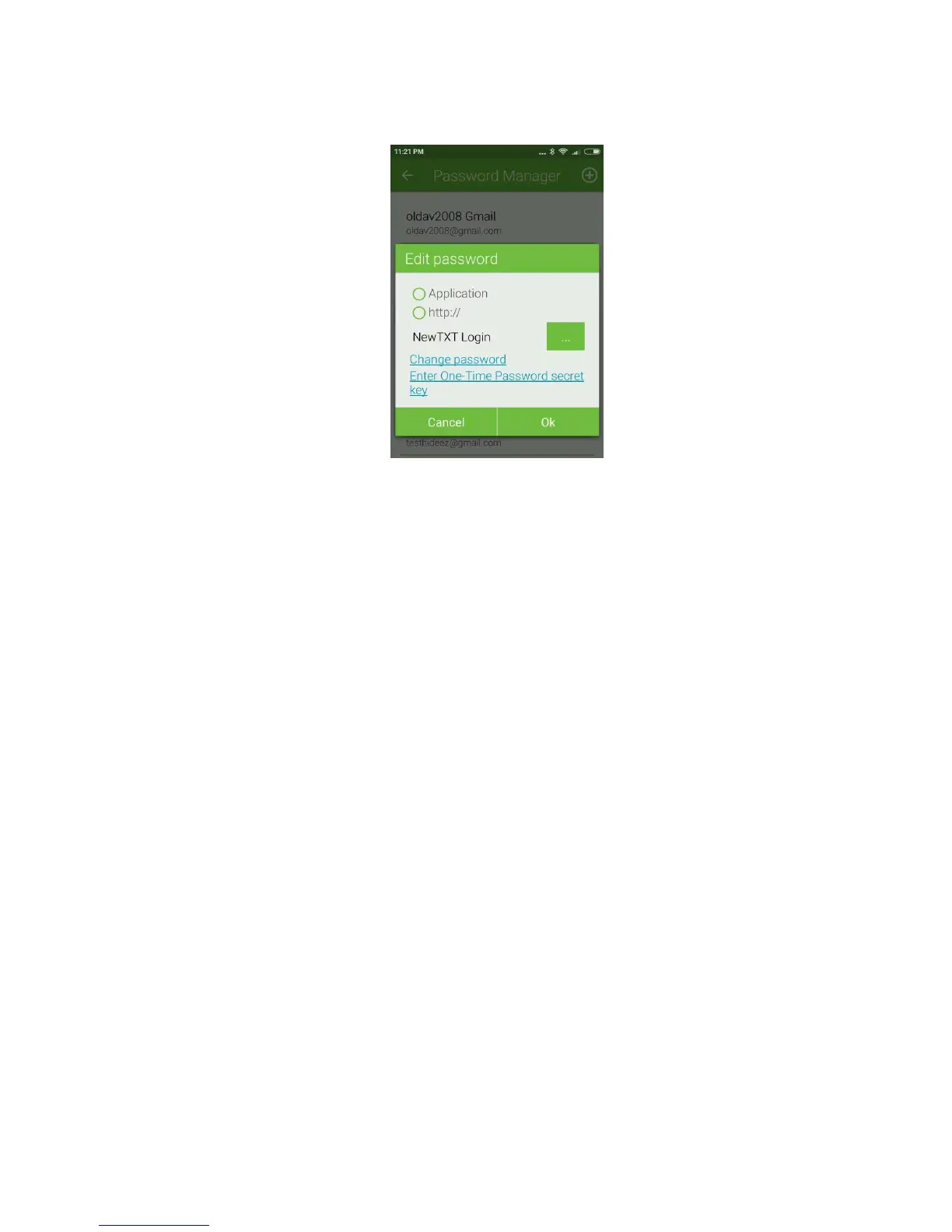
Hideez Safe, choose an account, open it for editing, and then tap the link "Assign ...". The result is shown in the
figure below.
Tap “Application” to see the list of installed apps and choose one of them. Tap “http://” to enter the web-page
which will use this password.
Save the account by clicking [Save].
Launch the chosen app and make sure that the login and password are entered.
Setting Hotkeys
Hotkey combinations make credentials usage much easier. The default settings are easy to remember,
however, you can change them in the Hotkeys section. Place the cursor in the needed input field and press a
new hotkey combination that you want to assign. If this does not work, then this combination is already being
used by the operating system or other software. In this case, choose a different hotkey combination.
When you start Hideez Safe, it registers all the key combinations with Windows, so that they can be used in
any program. If another program has already registered the combination, Hideez Safe will notify you. In this
case, you must choose a different shortcut.
Removing Records from the Password Manager
To delete a Password Manager entry, open it for editing and click "Delete Account" at the bottom of the
screen. If it is not used for another account, the appropriate login will also be deleted from the key fob.
Note: You can completely clean the Hideez Key memory by clicking "Remove from account" in your device
settings.
9.5. One-time Passwords (OTP) and Two-Factor Authentication
Hideez Key supports one-time passwords (time based one-time password, TOTP) according to RFC 6238
standard.
The main idea of using one-time passwords is that there is a shared secret known only by two devices (a
private key). Using encryption, one of the devices generates a short (e.g., six-digit) one-time password based
on this key. This password is sent to the second device to be checked. The second device uses the same
algorithm. It generates the same secret key, creates a one-time password and compares it with the password
received from the first device. If the passwords are the same - access will be granted.



 To Next Page