8.2.2 Unlock by Face
Note
Make sure that you have added your face picture to the device. Refers to the User
Management for details.
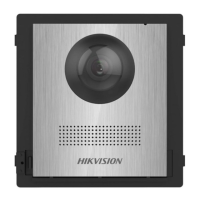
Face forward at the camera to unlock.
8.2.3 Unlock by Presenng Card
Note
Make sure you have issued the card to the device. Refers to User Management for
details.
Present the card on the card reading area to unlock.
8.2.4 Unlock by QR Code
Door staon supports unlock by QR code. You can generate a QR code through the
mobile phone client, and use the door staon camera to scan the mobile phone QR
code to open the door.
Steps
Note
●
Make sure that the door staon IP has been added to the indoor staon, and the
indoor staon and the door staon can communicate normally.
●
Make sure that the door staon is connected to the network.
●
QR code is for visitors only.
1. Installing Hik-Central Pro on your PC.
2. Register user accounts according to the prompts, and log in.
3. Follow the prompts to add the indoor
staon by scanning the QR code/barcode or
manually entering the serial number.
4. Enter unlock by QR code page and generate the QR code.
5. On the main page of door
staon, tap down buon to enter the unlock by QR
code page.
6. Aim the QR code generated by the phone at the camera and scan the code to
open the door.
Video Intercom Face
Recognion Door Staon User Manual
42



 To Next Page