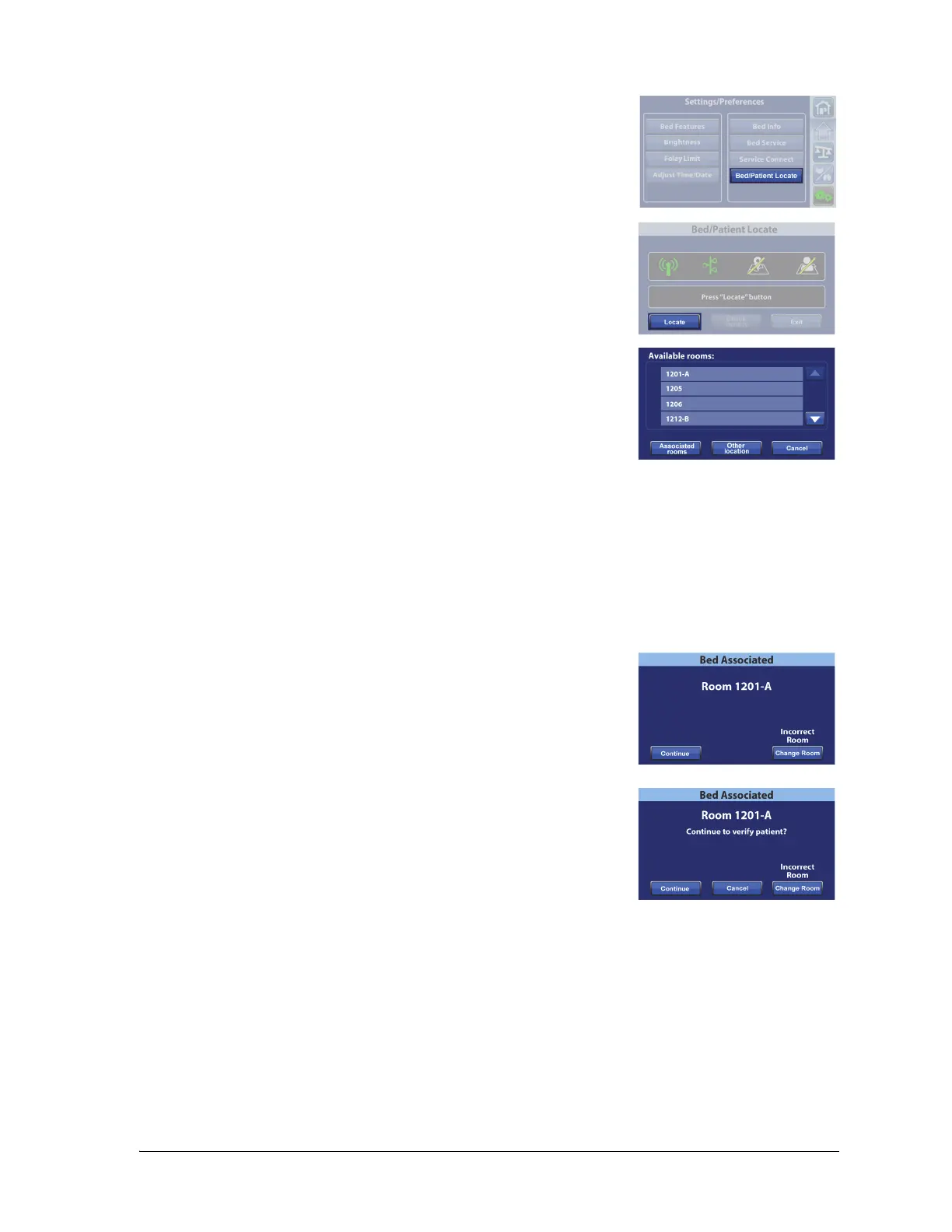
Graphical Caregiver Interface (GCI)® Controls
Centrella® Smart+ Bed Instructions for Use (193587 REV 10) 75
2. Press Bed/Patient Locate.
3. Make sure that the WiFi and Network icons are green. Then, press
Locate.
Press Exit to return to the Home screen.
4. Select the correct options for the location, such as Building, Floor,
and Room number.
NOTES:
• The location selection screens may have up to five levels of hierarchy: facility, building, unit,
floor, and rooms. The Other Location control allows you to scroll through the available location
levels.
• You may see a “Retrieving data” screen as the bed gets the information from the Hillrom™
Digital Health Gateway.
5. One of two Bed Associated screens will show, depending on the facility’s preference. Do as
applicable:
• Room location only—
– Continue—press this control if the room number is correct.
The Home screen will show with the Room Associated icon.
– Change Room—press this control if the room number is
not correct. The Available rooms screen will show (see Step
4).
• Room location and patient identity—
– Continue—press this control if the room number is correct
and you want to verify the patient identity. Go to “Verify the
Patient Identity” on page 77.
– Cancel—press this control if you do not want to verify the patient identity. The Home
screen will show with the Room Associated icon and flashing No Patient icon.
– Change Room—press this control if the room number is not correct. The Available rooms
screen will show (see Step 4).



 To Next Page