10 of 20
Installation and Setup (continued)
Viewing Live Weather Data
To view live data from the wireless outdoor sensor in a web browser, visit https://www.wunderground.com/,
and enter your STATION ID in the search box. Weather information will show on the next page.
Firmware Update (Desktop Only)
The Main Console supports OTA firmware update
capability. Firmware may be updated through any
desktop web browser with Wi-Fi connectivity. Update
function is not available through mobile devices.
Two types of firmware updates are available, namely
Function Firmware and Wi-Fi Firmware, and are
located at the bottom of the ADVANCED page.
1. Download the latest version firmware
to your desktop computer.
2. Set the Main Console into AP Mode then
connect your desktop to the Main Console (refer
to Wi-Fi Connection Setup for more details).
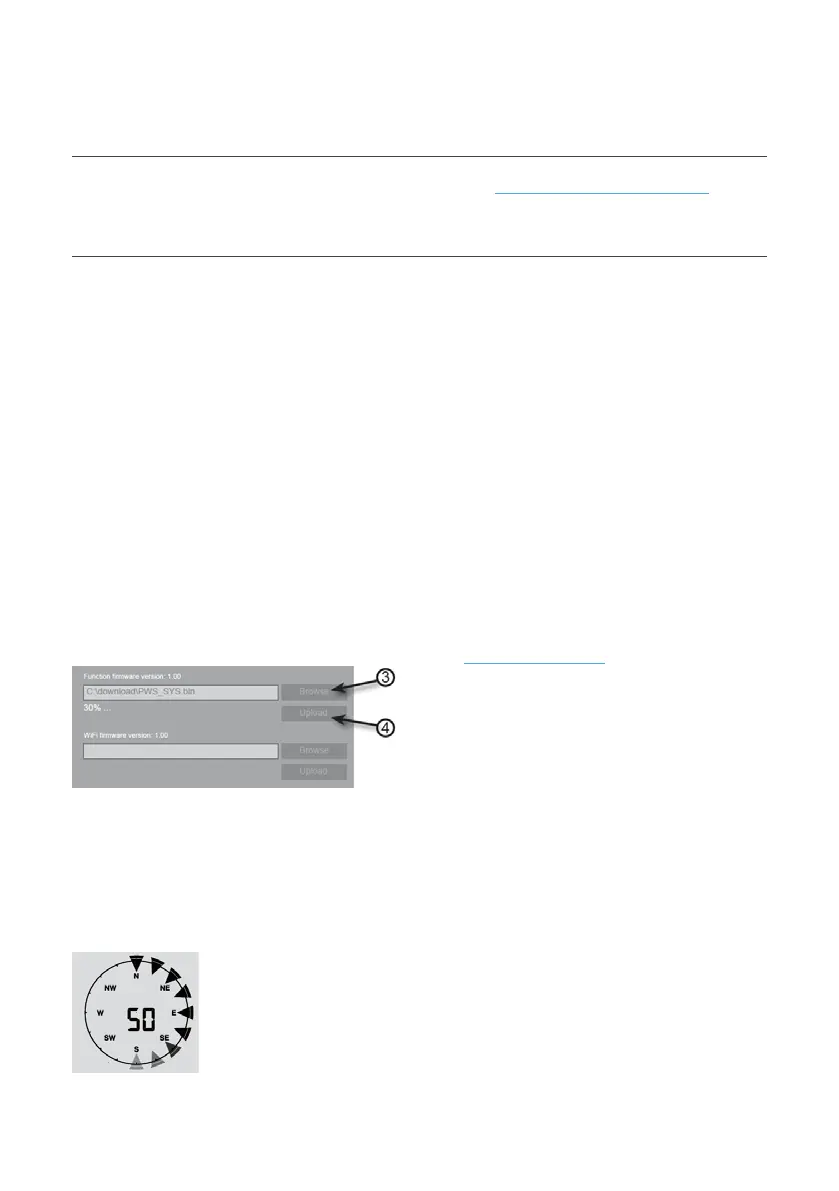
3. To update Function Firmware, click BROWSE
in Function Firmware section and browse
to the location of the file you downloaded in
Step1 above. To update the Wi-Fi Firmware,
click BROWSE in Wi-Fi Firmware section.
4. Click the corresponding UPLOAD to start
transferring the firmware file to the Main Console
(indicated by a transfer completion %).
5. After the transfer, update process is indicated
on the Main Console as completion %. It
will restart once the update is complete.
Function Firmware and Wi-Fi Firmware
cannot be updated at the same time, you
need to update each one by one.
Keep power connected during the
firmware update process.
Ensure your desktop Wi-Fi connection
is stable during update process.
Once update process has started, do not
operate desktop or Main Console.
During firmware update, the Main Console will
stop uploading data. It will reconnect to your
Wi-Fi router and upload the data again once the
update has succeeded. If the Main Console
cannot reconnect to your Wi-Fi router, please
close the Setup page to start again.
After firmware updates, user might need to input the
Weather Underground ID and password again.


 To Next Page