9 of 20
Installation and Setup (continued)
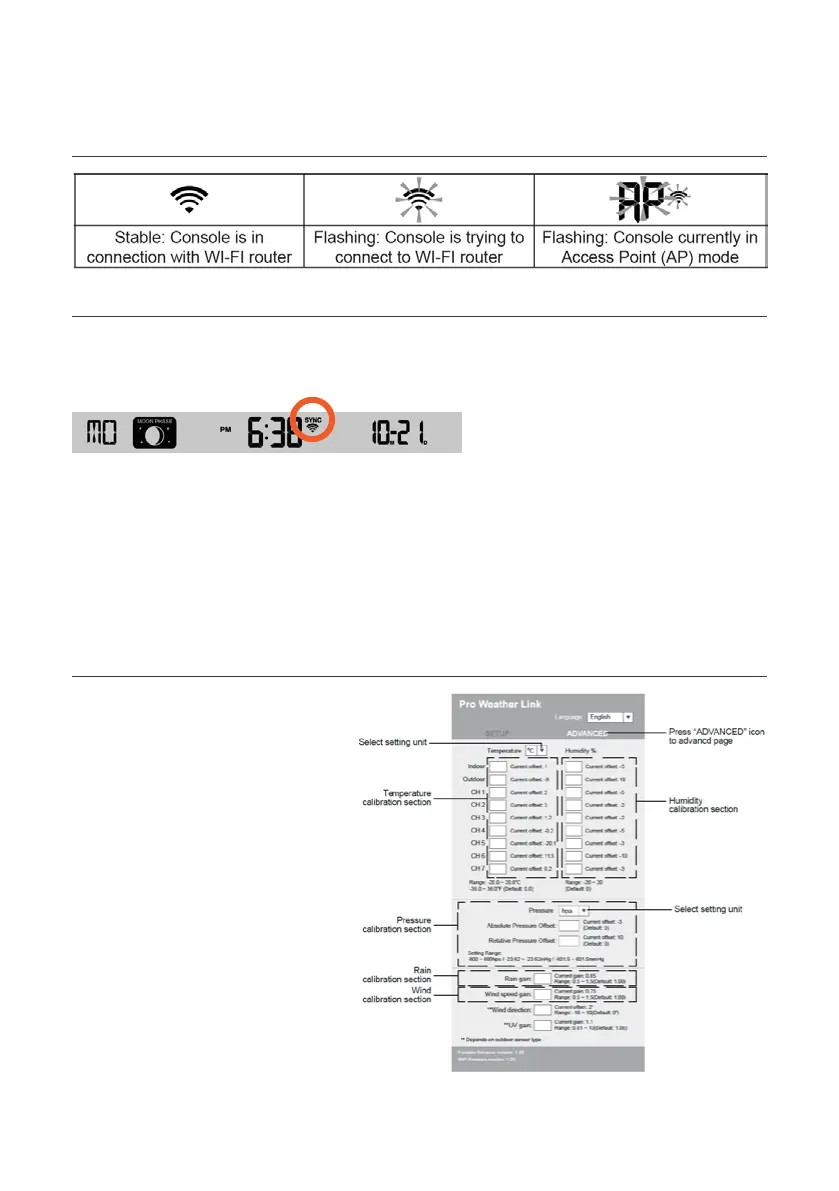
Wi-Fi Connection Status
Time Server Connection Status
After the Main Console has connected to the internet, it will attempt to connect to
the internet time server to obtain the UTC time. Once the connection succeeds and the
Main Console time has been updated, the SYNC icon will appear on the LCD.
Time Zone: To display the time of your time zone, change the time zone in
Clock Setting Mode from '00' (default) to your time zone (e.g. 08 for Perth).
1. Press and hold CLOCK SET for 2 seconds to enter Clock Setting Mode.
2. Press or to enter your time zone, then press and hold CLOCK SET to confirm and exit.
The time will automatically synchronise with internet time server at 12:00AM and 12:00PM per
day. Also you can press REFRESH to get the internet time manually within 1 minute.
Calibration
Press ADVANCED at the top of web interface
to enter the advance setting page, this page
allow you to set and view the calibration
data. Firmware can also be updated here.
1. User may enter or change the
offset and gain values for different
measurement parameters while current
offset and gain values are shown
next to their corresponding boxes
2. Once completed, press APPLY in the
Setup page. To change offset values,
input the new value and press APPLY
Calibration of most parameters is
not required, with the exception
of Relative Pressure, which
must be calibrated to sea-level to
account for altitude effects.


 To Next Page