8 of 20
Installation and Setup (continued)
Wi-Fi Connection Setup (continued)
On the next page, note it is essential to jot down the LONGITUDE/LATITUDE for your reference later.
3. After noting the LONGITUDE/LATITUDE, follow the prompts to complete registration
of your Aspect Wi-Fi Analyst with Weather Underground.
After submitting your details, note it is essential to jot down your STATION ID and STATION KEY/PASSWORD.
4. When you first power up the Main Console, or press and hold the SENSOR/Wi-Fi for 6
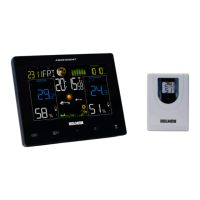
seconds in Normal Mode, the Main Console LCD will show AP and the Wi-FiIcon to
signify that it has entered AP (Access Point) Mode, and is ready for Wi-Fi settings.
5. Using your device, connect to the Main Console via Wi-Fi. In the device Wi-Fi connection settings,
select the Main Console SSID (PWS-XXXXXX) and wait several seconds for connection.
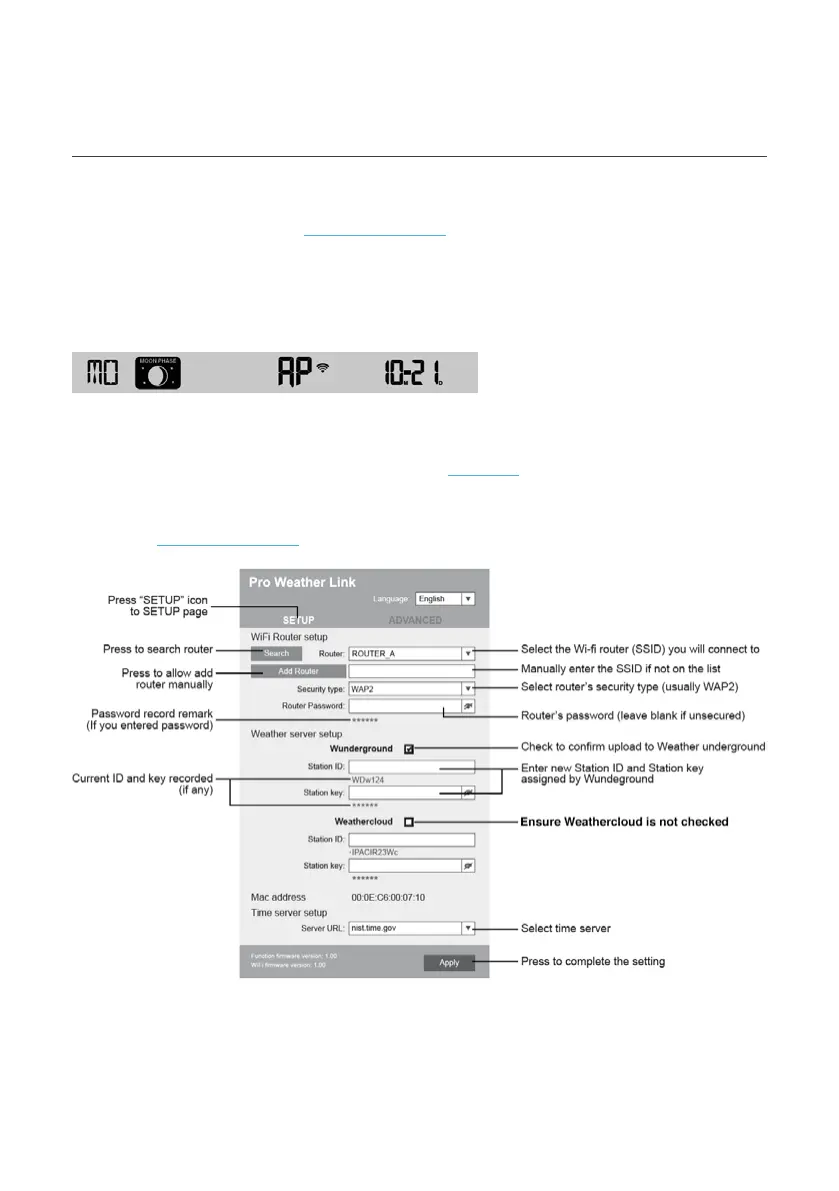
6. Once connected, open the web browser on your device, type 192.168.1.1 into the
address bar and press ENTER to access the Main Console setup interface.
7. Enter the following information into the Main Console setup interface. If you choose
not to use Weather Underground, leave the check boxes unchecked.
When Wi-Fi setup is complete, your device should resume your default Wi-Fi connection.
During AP Mode, you can press and hold SENSOR/Wi-Fi for 6 seconds to stop
AP Mode and the Main Console will restore your previous setting.


 To Next Page