-18-
9.1 Download APP
9.0 OPERATION GUIDE
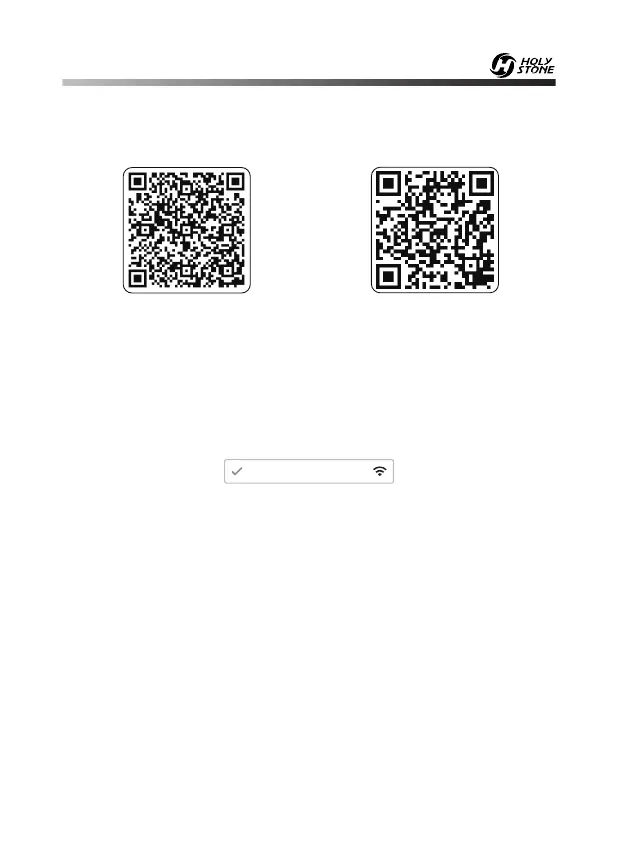
Scan the QR code, corresponding to either App Store™ or Google Play™
Store and download the Ophelia GO app for free.
Required Operating Systems: iOS 9.0 or later/Android 5.0 or later
iOS Android APP on Google play
9.2 Connect to Wi-Fi
Connect your phone to the drone. To check the drone’s status in the
Ophelia GO app.
① Open you phone’s Wi-Fi settings and click Wi-Fi to search for the Wi-Fi
of the drone.
② Select the Wi-Fi network: HolyStoneFPV-******.
③ Wait for a couple of seconds for your phone to connect to the drone’s Wi-Fi.
This connection is generally represented by the Wi-Fi logo appearing on
your phone’s screen.
④ Open the Ophelia GO application.
> The connection between your phone and the drone will be established
automatically.
HolyStoneFPV-******
① Connect the Battery to the USB Charging Cable.
② Connect the USB Charging Cable with Power Bank or a USB Adapter
(5V/2.0A) for charging.
③ When the battery is charging, the indicator lights on the battery will flash
green.
④ When the battery is fully charged, all four green indicators on the battery will
turn solid.
⑤ The charging time is about 2.5 hours.


 To Next Page