EasyManua.ls Logo

Honeywell BW RigRat - User Manual

Honeywell BW RigRat
107 pages
Print Icon
To Next Page IconTo Next Page
Loading...
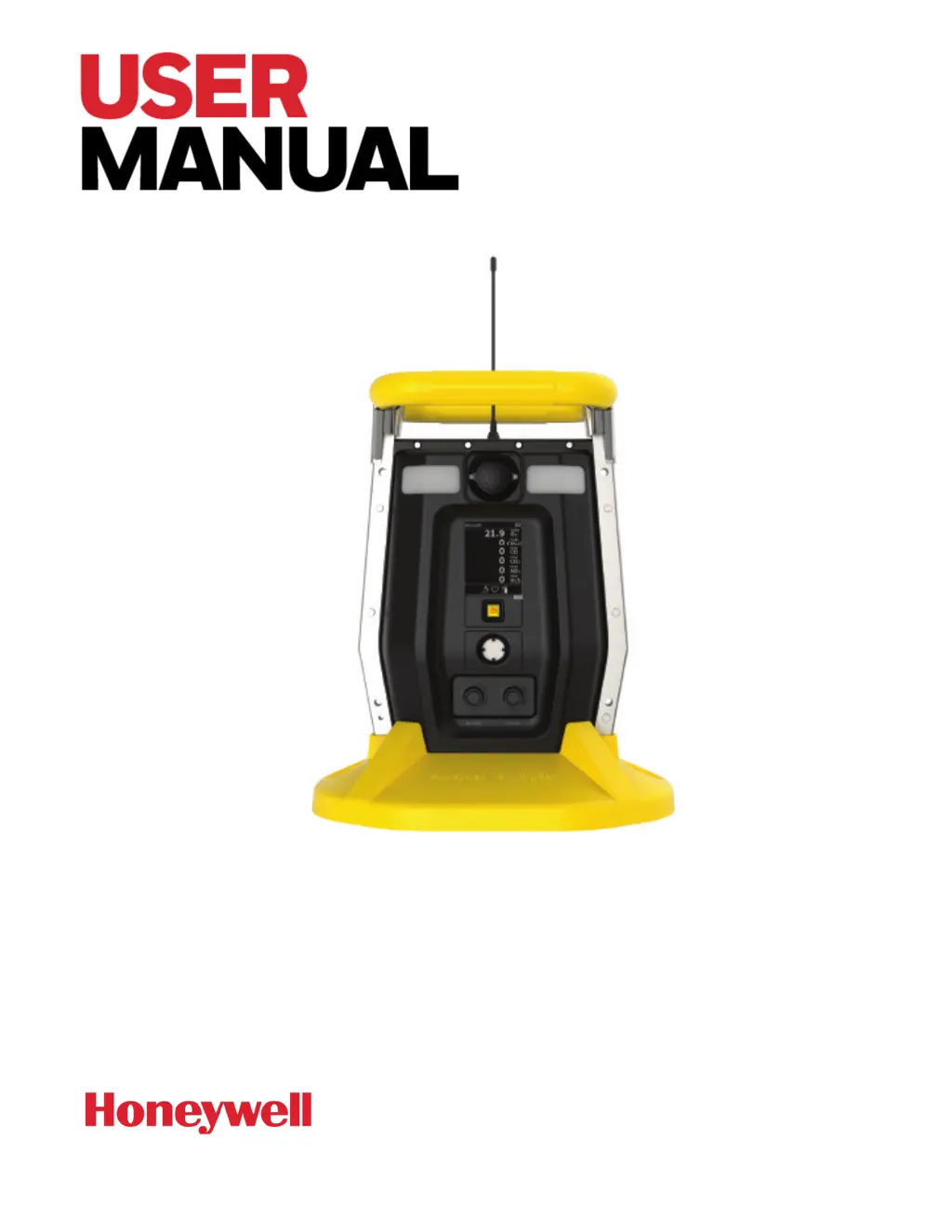
Honeywell BW™ RigRat
LOCAL AREA GAS MONITOR

Table of Contents

Other manuals for Honeywell BW RigRat

Questions and Answers

  • J
    James SmithAug 14, 2025
    What to do if Honeywell Monitor shows 'Pump failed' message?
    • D
      deborah28Aug 15, 2025
      If your Honeywell Monitor displays a 'Pump failed' message or pump alarm, first, check for and remove any obstructions. Then, press the reset button to clear the alarm. If the problem persists, replace the contaminated water trap filter. Also, ensure that water condensation does not occur inside the unit. As a last resort, the pump itself may need to be replaced.
  • A
    April BennettAug 18, 2025
    Why Honeywell RigRat LCD has no response when AC charger is connected?
    • V
      vgarrettAug 18, 2025
      If the Honeywell Monitor's LCD doesn't respond when the AC charger is connected, try using a different AC charger or reconnect the current one. Keep in mind that the unit might need some time to trickle charge the battery before it operates normally and displays messages on the LCD.
  • J
    Jamie WeaverAug 21, 2025
    How to fix Honeywell Monitor buzzer and LED lights if they are inoperative?
    • M
      Makayla DavisAug 21, 2025
      If the buzzer and LED lights on your Honeywell Monitor are not working, check the LCD screen for a blinking “buzzer disabled” icon. You can also use the Device Configurator App to set both the Buzzer and Light to 'All On'.
  • A
    Adam MillerAug 25, 2025
    What to do if Honeywell Monitor shows 'Lamp' message when power on?
    • B
      Brian MoralesAug 26, 2025
      If your Honeywell Monitor displays a “Lamp” message or lamp alarm when you power it on, try turning the unit off and then back on. If the issue continues, you may need to replace the UV lamp.
  • S
    Summer RodriguezAug 27, 2025
    What to do if Honeywell Measuring Instruments show a 'Pump failed' message?
    • J
      jason43Aug 28, 2025
      If your Honeywell Measuring Instruments display a 'Pump failed' message, it indicates a pump alarm. This can be due to several reasons: a blocked inlet probe, direct connection to a gas outlet with the gas valve off, water in the external filter, a dirty external filter, water condensation along the inlet probe, or a faulty pump or pump circuit. Try removing any blocking objects and then press the reset button to clear the pump alarm.
  • H
    Heather MorganAug 31, 2025
    How to fix Honeywell BW RigRat when unable to connect to Device Configurator?
    • M
      Michael VaughnAug 31, 2025
      If you're having trouble connecting your Honeywell Measuring Instruments to the Device Configurator, it could be due to a Bluetooth issue, such as a password error or an outdated version of the Device Configurator. First, update your Device Configurator software. Also, try deleting the Bluetooth connection from your phone's settings and re-establishing the link with the instrument.
  • D
    danielle79Sep 3, 2025
    Why are the buzzer and LED lights not working on my Honeywell BW RigRat?
    • L
      latoya62Sep 4, 2025
      If the buzzer and LED lights are inoperative on your Honeywell Measuring Instruments, it could be because the buzzer is disabled or there's a problem with the buzzer or LED light itself. Use the Device Configurator App to set the Buzzer and Light to 'All On'.
  • T
    Tara PetersSep 7, 2025
    What does the 'Lamp' message mean on Honeywell Measuring Instruments?
    • B
      Bruce CoxSep 7, 2025
      A 'Lamp' message on your Honeywell Measuring Instruments indicates a lamp alarm. This is often due to low ion concentration inside the PID lamp, especially in cold environments when first powered on, or a defective PID lamp or circuit. Replace the UV lamp.
  • M
    Morgan MillerSep 10, 2025
    What to do if Honeywell BW RigRat LCD has no response when AC charger is connected?
    • A
      Ashley GutierrezSep 12, 2025
      If your Honeywell BW RigRat LCD doesn't respond when the AC charger is connected, the AC charger might be faulty or not properly connected, or long storage might have caused low battery capacity and self-protection. Try using another AC charger or reconnect the current one.

Summary

Safety Information

Product Registration

Register your product online for safety information and updates.

Bump Test the Monitor

Procedure and importance of performing a bump test before using the gas monitor.

Standard Contents

Included Accessories

List of accessories included with the BW RigRat instrument.

General Information

Certification and Standards

Details about the device's safety certifications and compliance with relevant industry standards.

Device Overview and Configuration

General description of the device, wireless modules, and sensor configurations.

Electrical Parameters

Specifications for the electrical connectors and their parameters.

Type Designation

Explanation of the product version, sensor configuration, and wireless module designation codes.

Key Features

Highlights of the main functionalities and design aspects of the BW RigRat.

User Interface

Display Overview

Description of the main display elements and their functions.

Status Indicator Icons

Explanation of various icons used on the device's display for status indication.

Wireless Communication

Mesh;LoRa and RF Network Configuration

Configuration and operation of Mesh/LoRa and Mesh/RF wireless networks.

Bluetooth and Wi-Fi Connectivity

Information on Bluetooth and Wi-Fi capabilities for device setup and data transfer.

Secure Wireless Network Setup

Recommendations for securing wireless networks and communication.

Battery Charging

Charging Ports

Identification and description of the two available charging ports.

AC Charging (Safe Area)

Instructions for charging the device in a safe area using the AC/DC adapter.

Intrinsically Safe Charging

Procedure for charging the device in hazardous areas using an intrinsically safe barrier.

Battery States

Explanation of battery level indicators and low battery warnings.

Wired Communication

Serial Port

Information about the serial port, its pinout, and usage with sensors.

Switch Port

Details on the switch port, relay definitions, and output parameters.

4-20 mA Input Port

Functionality and pinout for the 4-20mA input and switch signal input.

External Filter

Filter Replacement (Pumped)

Step-by-step guide for replacing the external filter on pumped models.

Filter Replacement (Diffusion)

Instructions for replacing external filters on diffusion models.

Device Operation

Powering On;Off and Alarm Testing

Procedures for turning the device on/off and testing alarm indicators.

Status Indicators

Understanding calibration and bump test status indicators on the device.

Operating Modes

Operation, Menu, and Diagnostic Modes

Overview of the device's different operating modes and their functions.

Device Programming

Using the Device Configurator App

Guide to using the mobile app for device configuration and management.

Security Mode Configuration

Setting and understanding wireless security modes for the device.

Calibration and Testing

Bump Testing Procedure

Step-by-step guide for performing bump tests on the gas monitor.

Calibration Procedure

Detailed instructions for calibrating the gas detection sensors.

Maintenance Procedures

Cleaning and Antenna Installation

Guidelines for cleaning the device and installing the antenna.

Sensor and Pump Maintenance

Procedures for removing, replacing, and maintaining sensors and the pump.

RAEMet Sensor Installation

Installation Procedure

Steps for attaching and connecting the RAEMet meteorological sensor to the instrument.

Alarms and Notifications

Alarm Signals and Summary

Explanation of alarm signals, types, and a summary table of indicators.

Manual Alarms Test

How to perform a manual test of the device's alarm functions.

Troubleshooting

Problem;Solution Guide

A guide to common problems, their possible causes, and solutions.

Feature Editing

Feature Access and Configuration

Table detailing feature access via device or configurator app.

Technical Specifications

Instrument and Sensor Specifications

Detailed technical specs of the instrument and supported sensors.

Contact Information

Honeywell Contact Details

Contact information for Honeywell support and sales offices.

Honeywell BW RigRat Specifications

General IconGeneral
DisplayLCD
Warranty2 years
Target GasesH2S, CO, O2, LEL
Detection PrincipleElectrochemical (O2, CO, H2S), Catalytic (LEL)
RangeH2S: 0-100 ppm, CO: 0-500 ppm, O2: 0-30% vol, LEL: 0-100% LEL
SensorsH2S, CO, O2, LEL
Ingress ProtectionIP66
AlarmsVisual, audible, and vibration alarms

Related product manuals