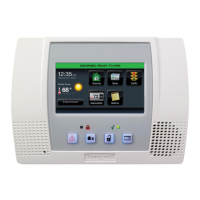
Home Automation
Z-Wave® Programming
Z-Wave® Operation
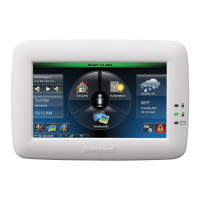
Scenes are used to control a single or group of devices, by turning them OFF, ON, ON to a preset lighting level,
temperature or mode, and/or to lock/unlock a door. The LYNX Touch has 20 Scenes which may each be
configured to control up to 10 devices each. Scenes can be activated manually or by a Schedule or Rule.
Schedules and Rules are used to control Scenes by pre-set “Conditions” and “Triggers”. Up to 20 Rules may be
programmed locally into the LYNX Touch (refer to the applicable section in this guide for additional
information). To manually activate devices perform the following steps:
Step Action
At the Home Screen select the “Automation” icon.
2. At the Automation Screen, select the type of device (i.e.; Switches, Thermostats, Locks or Water Valves) that you wish
to control.
Select the device that you wish to control from the displayed list.
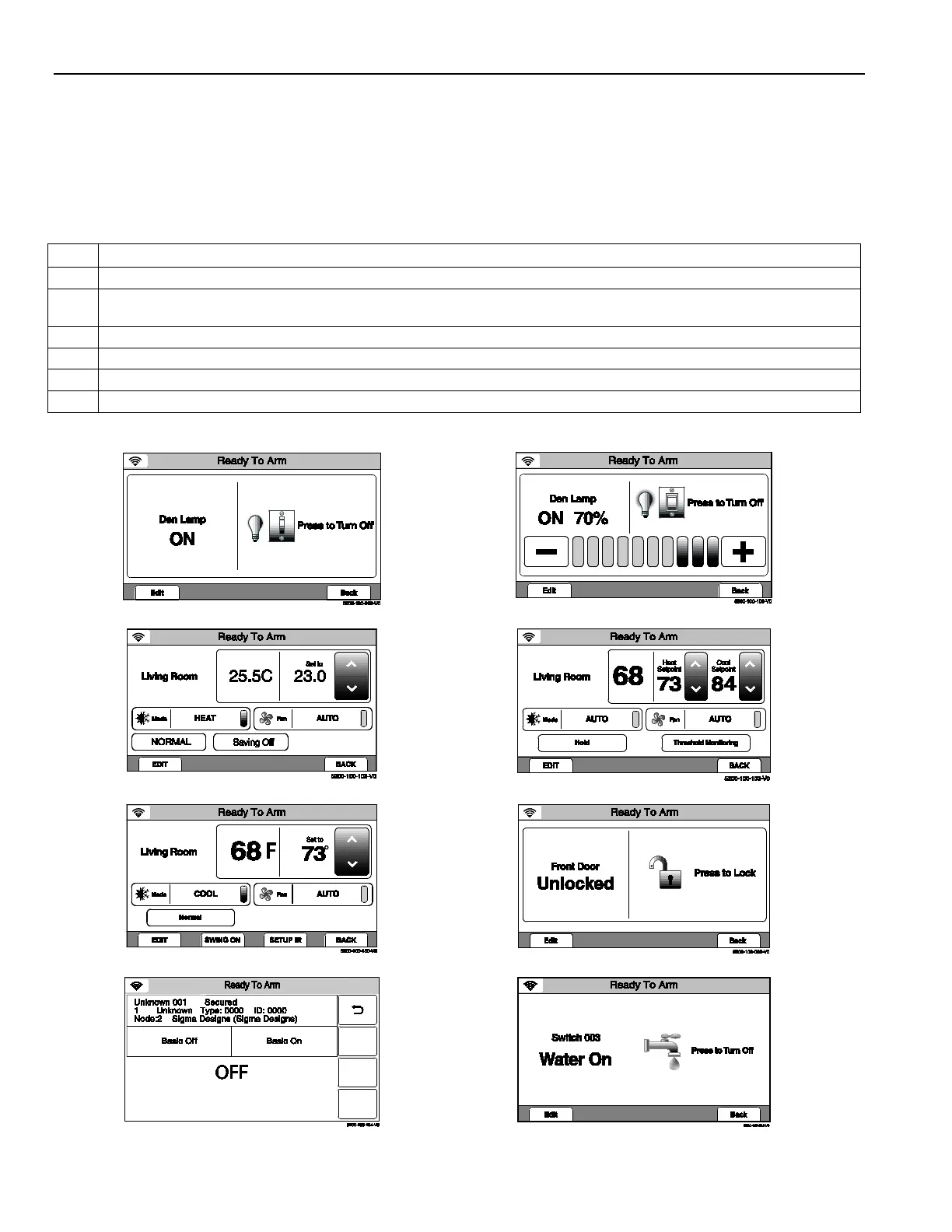
4. Refer to the figures below for typical examples of the features that can be controlled manually for the devices.
5. Press the “BACK” key to return to the previous screen. Select the “” button to return to the previous screen.
” button to return to the Automation screen.
Note:
features and functions that can be controlled vary by manufacturer. Refer to the User Manual that was provided with the Z-Wave
device to determine the specific capabilities.
Dimmer Switch Control Screen
Thermostat Energy Savings Control Screen
Thermostat Dual Setback Control Screen
Thermostat ZXT-120 IR Extender Control Screen
Unsupported Device Control Screen
Water Valve Control Screen
- 8 -


 To Next Page
 Loading...